
In a few words#
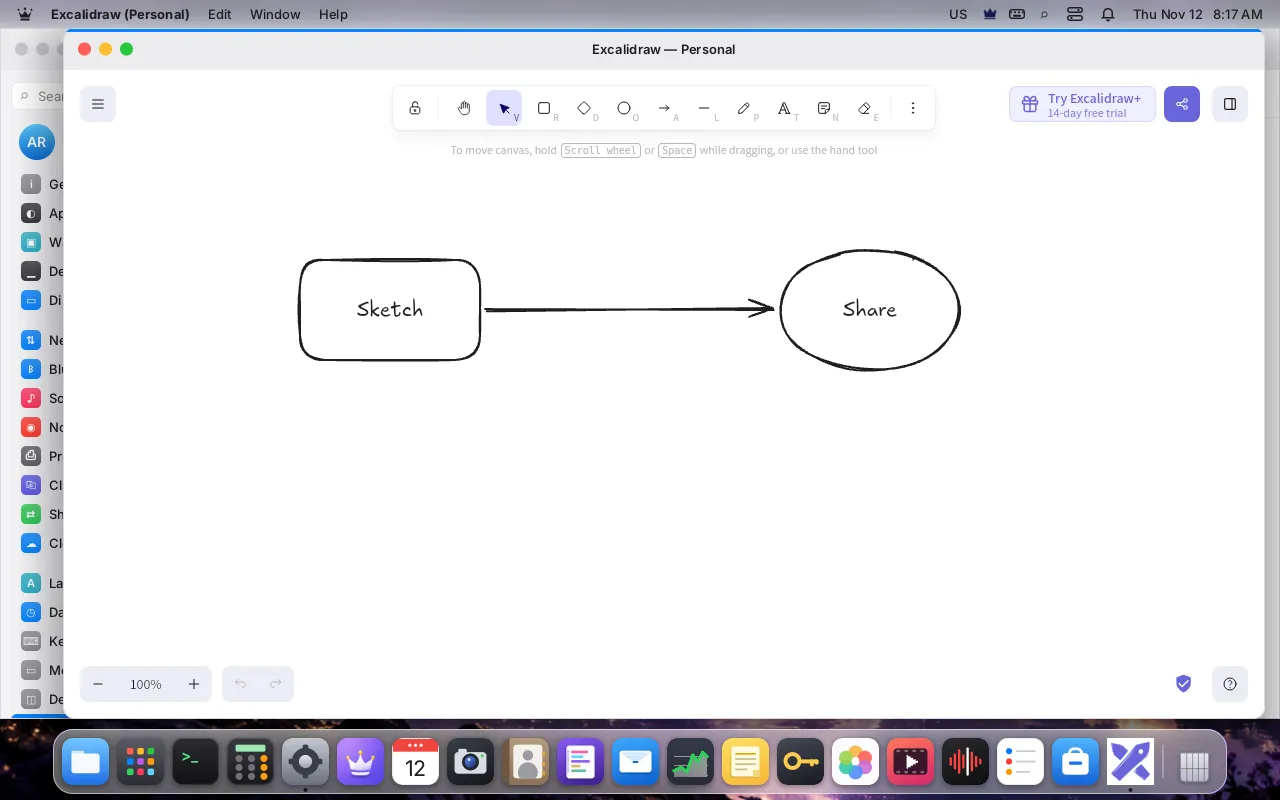
The LordOS Web Runtime is a native web application runtime written in C, built on WPE WebKit, that installs and runs web apps and PWAs as LordOS apps, without an external browser. Your chat, your mail or your whiteboard stops being one more tab: it gets its own window with LordOS's frame, its own icon in the Dock with its unread count, its notifications with the app's name and sound, its menu bar and, if you want, keeps running in the background behind an icon next to the clock.
It is not a native client of any service. LordOS doesn't change the sites or their PWAs; it runs them as their sites serve them. The page in the window is the service's own web interface, unchanged, the same one a browser shows. LordOS adds the window, the desktop integration and the security around it. Where WPE WebKit lacks something a desktop needs (the clipboard, drag and drop, the Edit and right-click menus, light and dark), lord-web adds small, documented scripts of its own (the ones that handle your clipboard and drops talk to LordOS only from an isolated world the page can't see), without touching the site's own code or content.
It is new in LordOS 0.8.8.8, released on 12 November 2026; the latest release is 0.8.8.9. It lives in an optional package, lordos-web: without it the rest of LordOS works the same, and the Store installs it for you with your first web app.
The LordOS Web Runtime, layer by layer
What makes it different#
| A site in a desktop window | A PWA installed from a browser | LordOS Web Runtime | |
|---|---|---|---|
| What runs the page | A plain web view in a window | That browser's engine and profile | Its own lord-web process per app and profile, on Debian's WPE WebKit |
| Accounts | Usually one | That browser's profiles | As many profiles as you want, each with its own cookies and data |
| Engine's sandbox | Depends on the wrapper | That browser's | WebKit's sandbox (bubblewrap + seccomp), always on |
| Permissions | Depends on the wrapper | Kept by the browser | Asked once per app, kept in Settings → Web Apps |
| Firewall and limits | — | — | The app's own firewall row, memory and CPU limits |
| Desktop | A window | Some integration | Dock icon and badge, notifications with the app's sound, menu bar, Edit menu, LordOS's right-click menu, tray, light and dark |
The middle column describes how such apps work in general, not any one product; LordOS doesn't change how a browser runs its own PWAs.
Getting web apps: the Store's Web apps section#
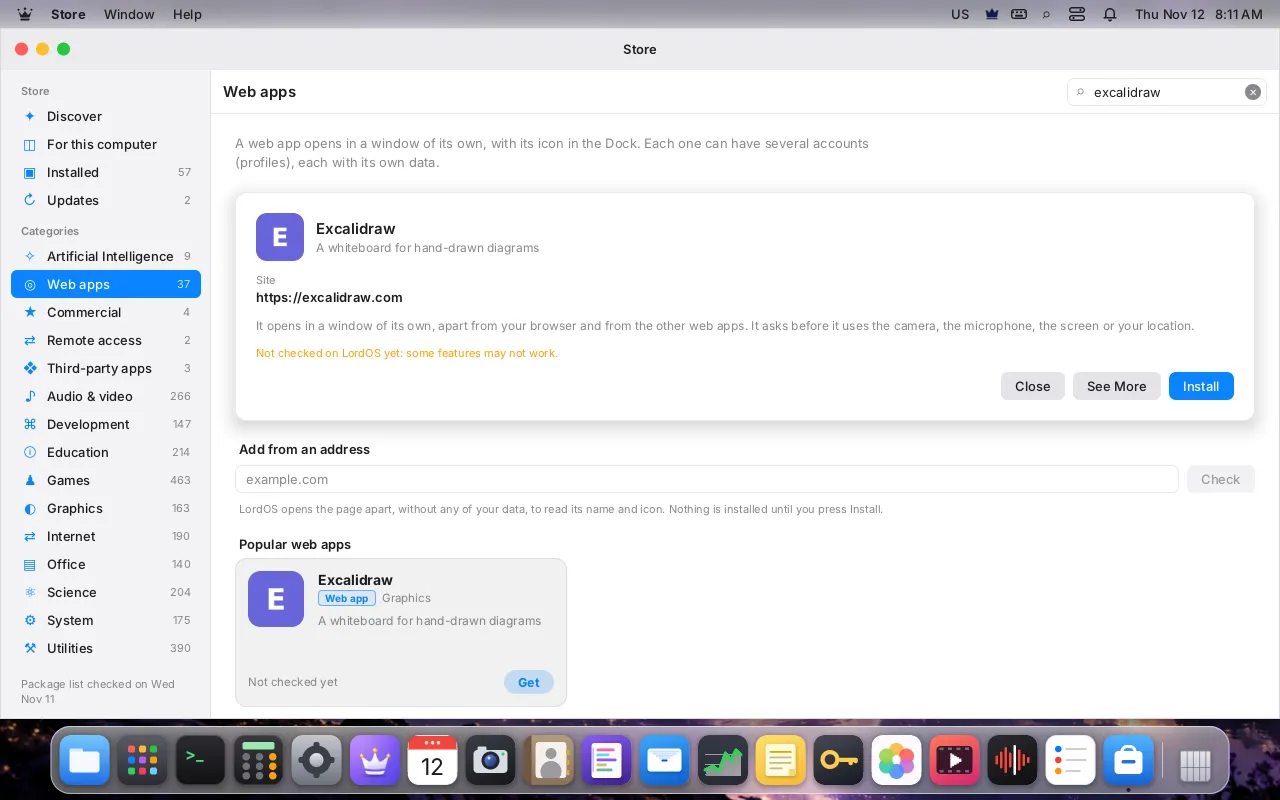
The Store has a Web apps section, a banner and a shelf in Discover, and web apps in search and in their category. Every card says "Web app", so you can tell them from LordOS apps and Linux apps.
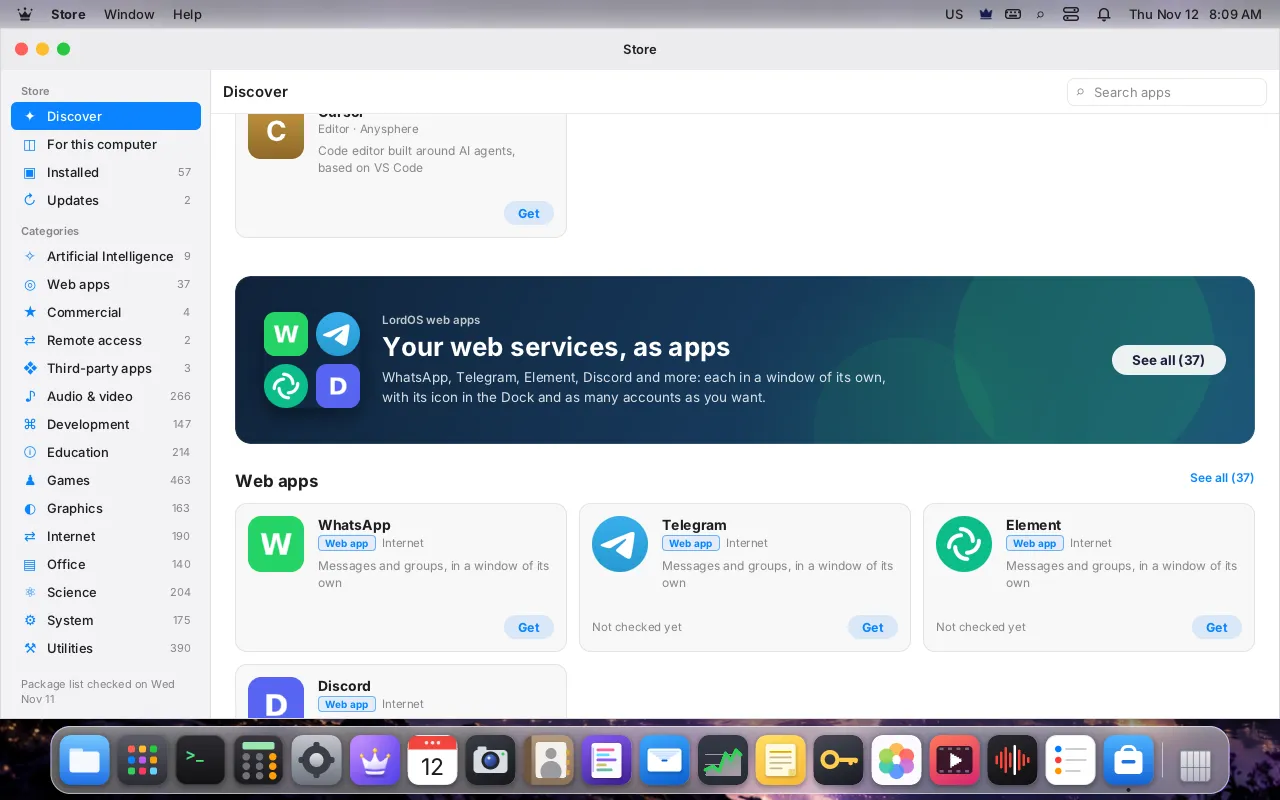
- A catalog of 37 apps ships with LordOS: chat, mail and calendar, office, notes and tasks, music and video, graphics. Each passed LordOS's automatic check on 11 November 2026 (it loaded and gave its name). To be honest about where this stands: only one of them is marked tested on LordOS so far, a chat app the maintainer uses with two accounts. The others say "Not checked yet" until someone checks them, and the Store warns you before you install one.
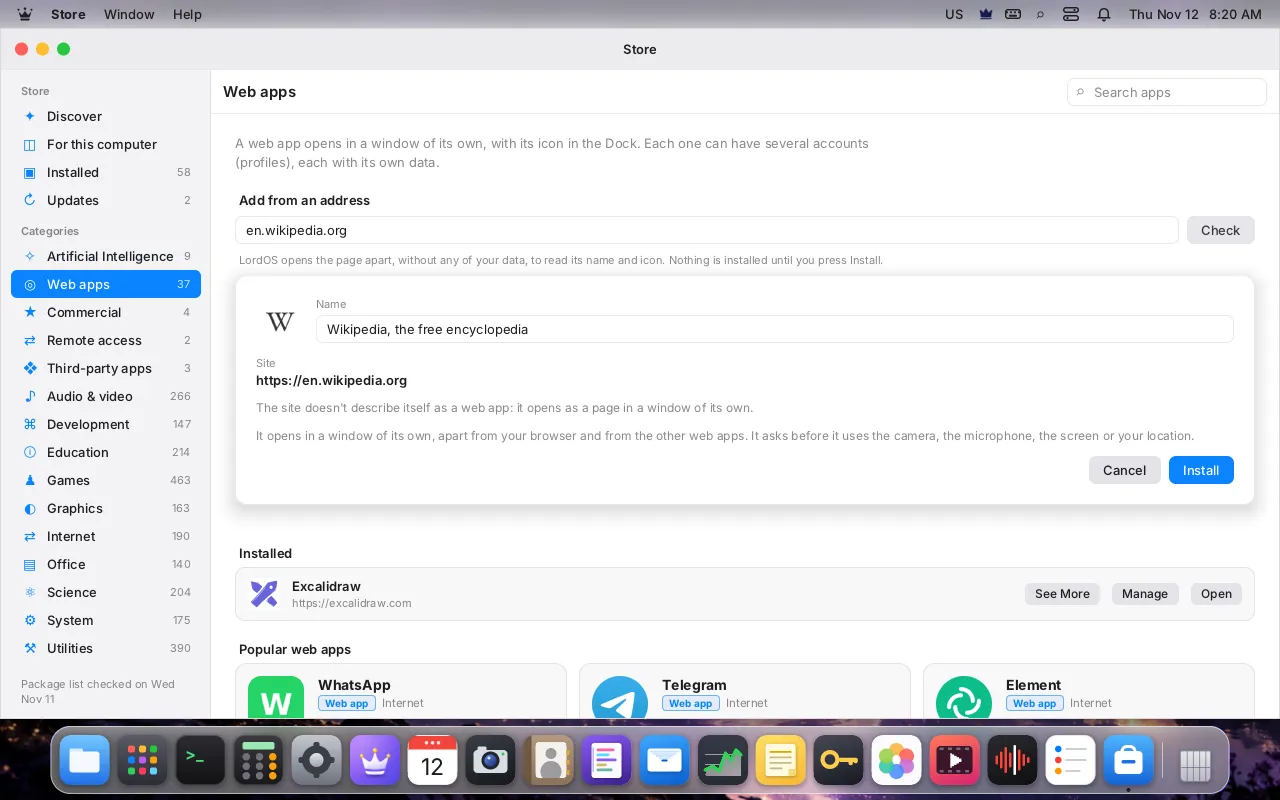
- Any site, from its address. Type an address under Add from an address and press Check. LordOS opens the page apart, in a throwaway session without any of your data, reads the site's web app manifest and icon, and shows you the real address. You can change the name. Nothing is installed until you press Install. Only secure (
https) addresses are accepted, and the check refuses to be led from a public site to your own network. - The first web app installs the engine. The first time, the Store says LordOS's web engine is needed once, shows the download and disk size of the
lordos-webpackage, asks for the administrator's password, installs it and then installs your app, with no other click. From the second app on there is no engine step.
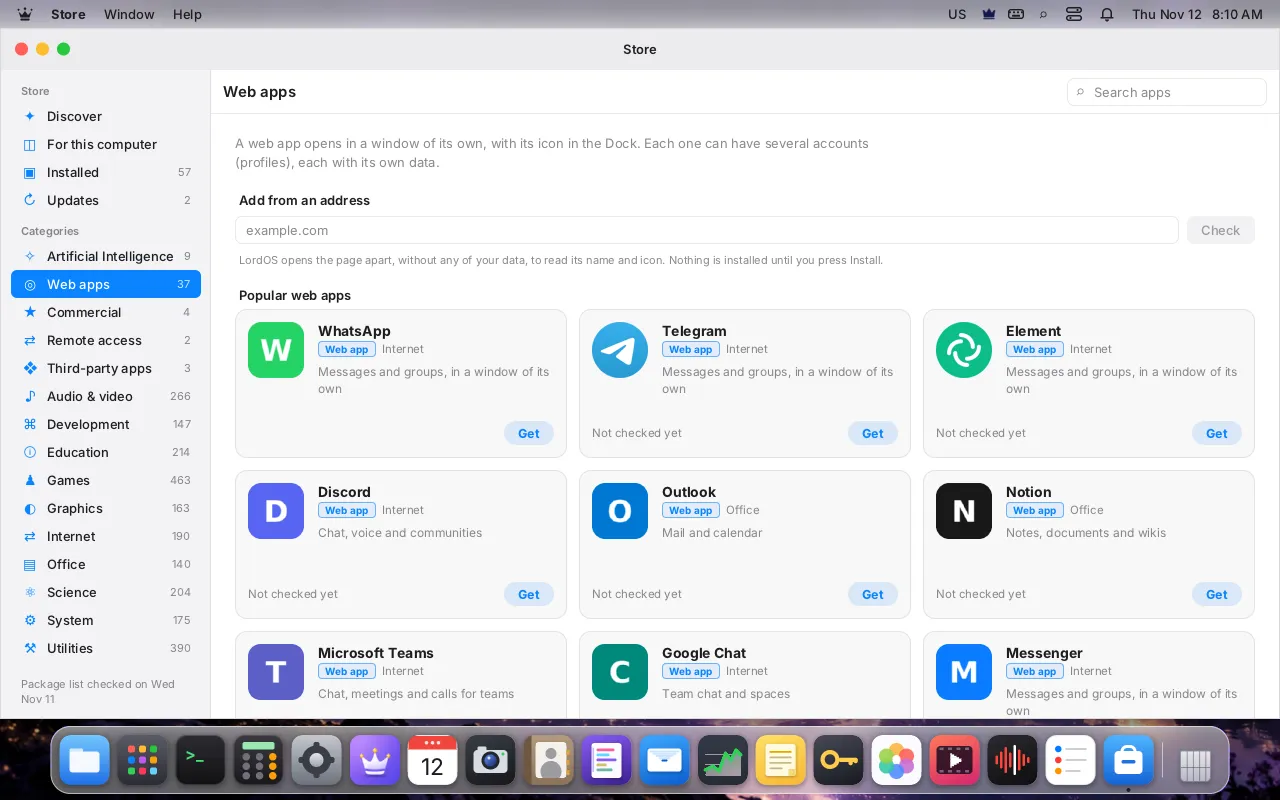
The product and service names, logos and icons in the catalog are trademarks of their respective owners, used only to identify the services. LordOS is not affiliated with, endorsed or sponsored by them; "tested on LordOS" only means that the LordOS project checked that the site works in the LordOS Web Runtime.
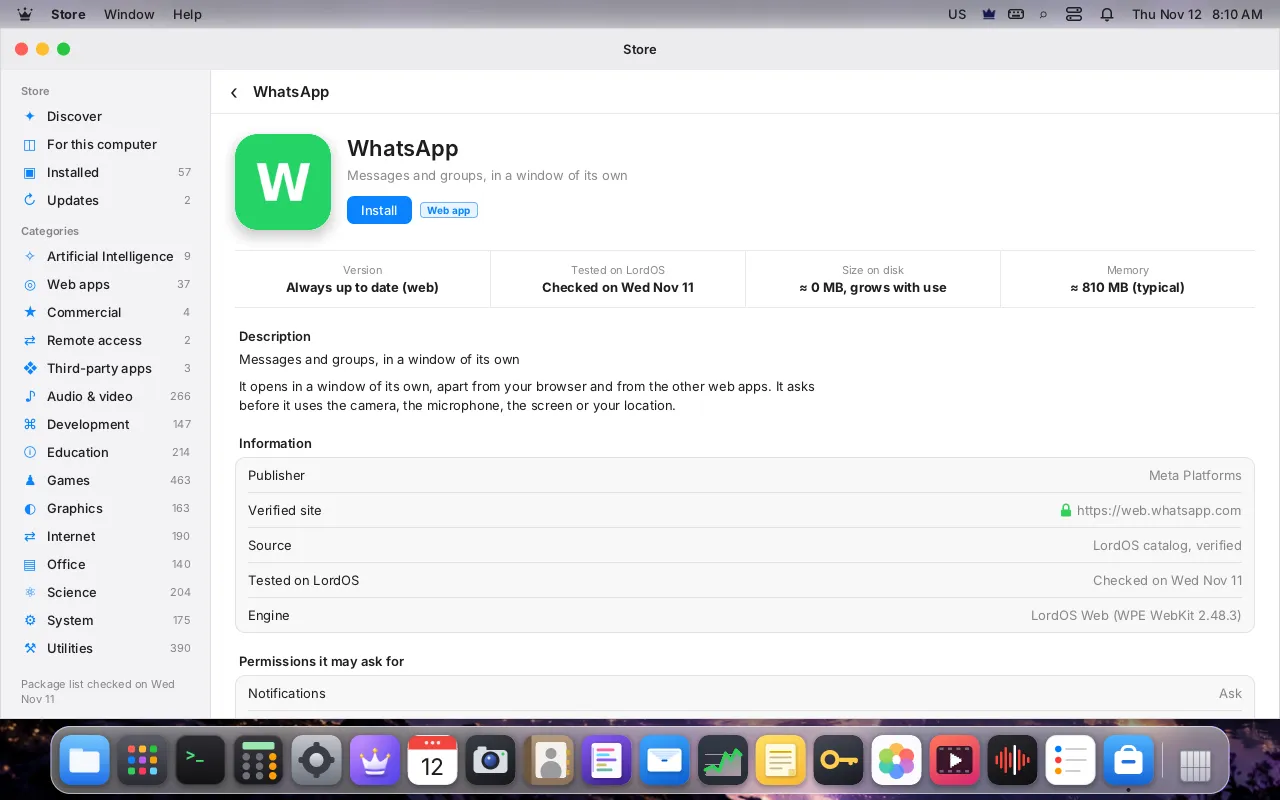
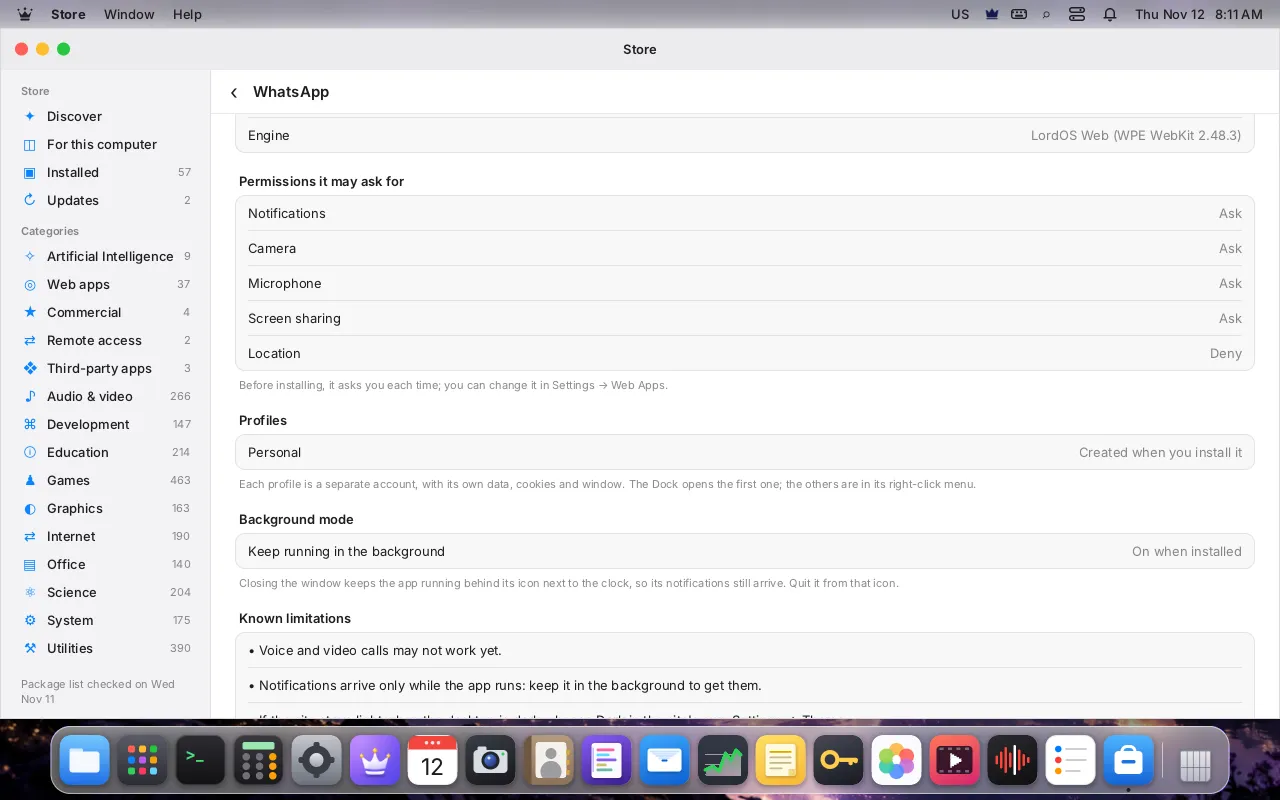
Each web app has a page in the Store, like any other app: always up to date (it is the web), the day LordOS tested it, its size on disk, its memory (the measured typical figure, or the live one while it runs), who makes it, the verified site, the engine, the permissions it may ask for, its profiles, background mode and its known limitations. Under the Web apps section and at the end of each app's page, the Store shows the same trademark notice as this page, in your language, and says that LordOS doesn't change the sites: it runs them as they serve them (since 0.8.8.9).
Profiles: several accounts at once#
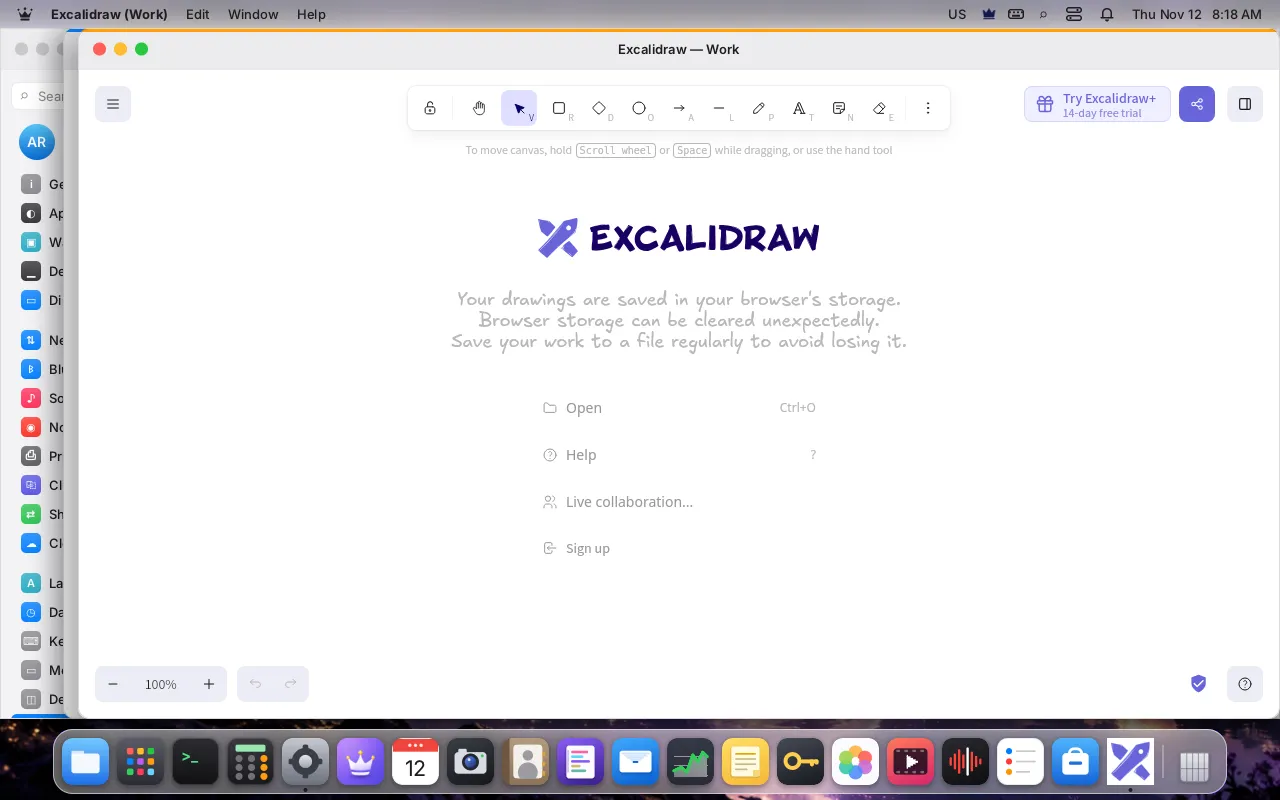
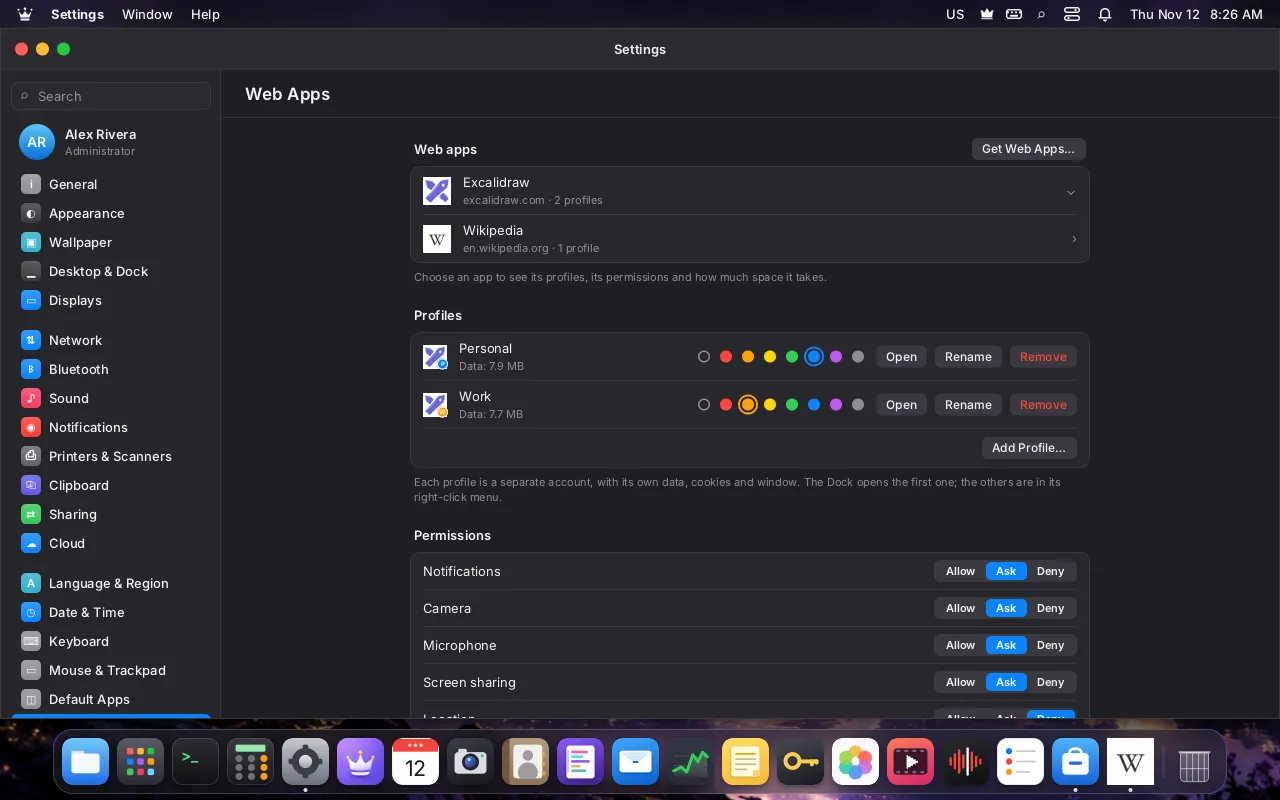
A profile is a separate account of the same app: personal and work, or two numbers of the same chat. Each profile has its own window, its own cookies, its own saved data and its own sign-in; nothing of one profile can be read by another. You can open them at the same time.
- Add, rename or remove profiles in Settings → Web Apps. Removing one asks whether its data goes too.
- Each profile can have a color. With more than one profile, the window's frame shows a thin strip in that color, the title and the window switcher read "App — Profile", and the profile's dot appears on the icon in windows, notifications and Settings.
- The Dock opens the first profile; the others are in the Dock icon's right-click menu ("New window: Work"). You can also give each profile its own Dock icon.
Privacy and security#
- One process per app and profile. Each profile of each app runs in its own
lord-webprocess, and onlylord-serverstarts it, from a fixed path, with an app and a profile it checked first. A crash or a hang affects only that window. - WebKit's sandbox is never off. The page and network processes run inside WebKit's own sandbox (bubblewrap and seccomp).
lord-webrefuses to start if someone tries to turn it off. - Its own firewall row and limits. Each web app has its own identity in LordOS's firewall and its own row in Monitor, so you can allow or block it like any app. Its profiles share memory and CPU limits sized to your computer (memory up to three quarters of it, between 1 and 16 GB, and half the cores, at least two).
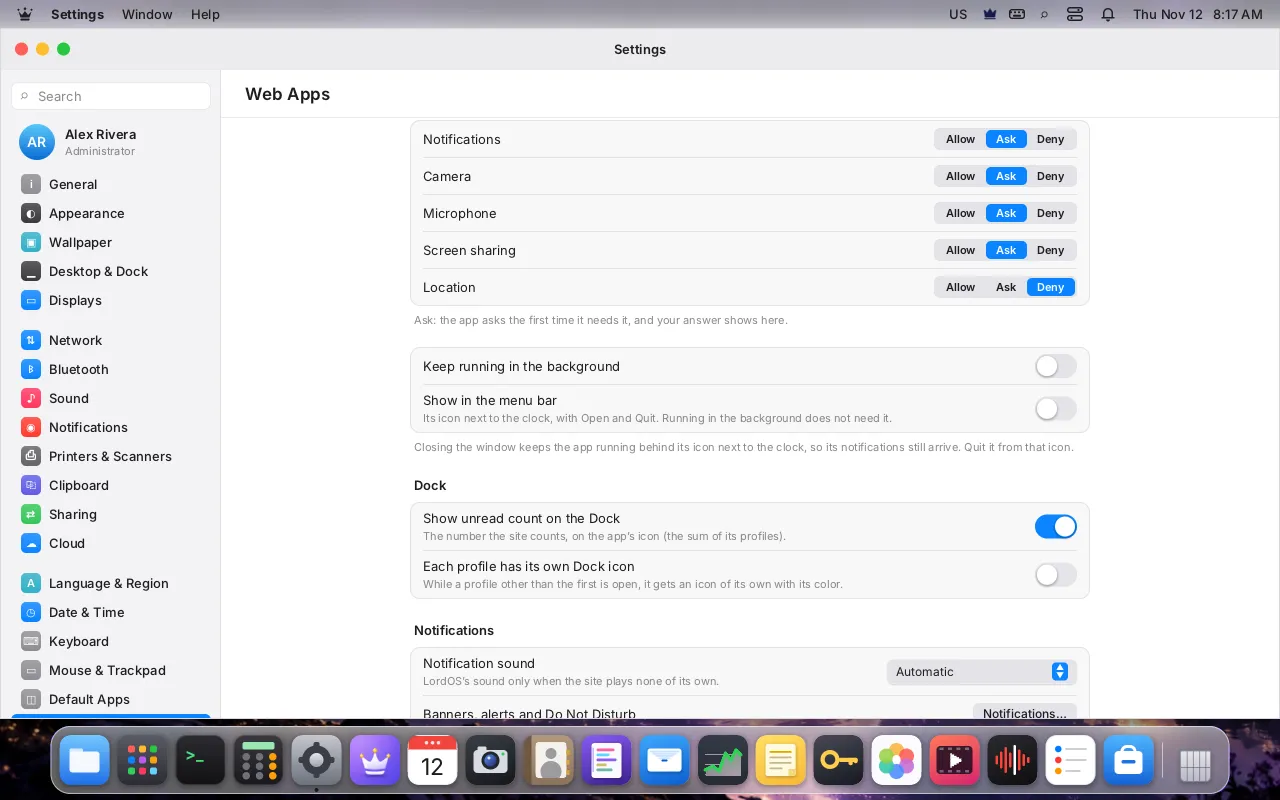
- Permissions asked once per app. Notifications, the camera, the microphone, screen sharing and your location are asked the first time the app needs them, and your answer is kept in Settings → Web Apps, where you can change it (Allow, Ask, Deny). Only the app's own pages get them: a sign-in page on another site, or a frame from another origin, is denied and never asked about.
- No LordOS API reaches the page. A page gets no
lord.*, no broker and no script with privileges. - Copy and paste. What a page copies reaches your clipboard only from the app's own pages, and only right after your own key, click or touch in its window. LordOS reads your clipboard for the page only when you paste.
- Files you drop or paste. A page receives only files from your places (your home folder, your disks,
/tmp), never from a hidden folder or a hidden file (so~/.sshor~/.configare never sent), and never through a link placed in the path; at most 20 files of up to 64 MB each. A drag or a copy that comes from a contained app (an isolated LordOS app or a Flatpak) gives a web app text only, never files.
Everyday editing, like in a browser#
WPE WebKit lacks several things a browser does for you, so lord-web adds them:
- Drag to select text, double-click for a word, triple-click for a paragraph, Shift+click to extend.
- Copy and paste both ways, text in any language, images (a picture you copied pastes into a chat; a page can copy an image to your clipboard) and files (copy in Files, paste in the web app).
- Drag files in from Files onto the page, as in a browser: chat pages that show a drop area when a file arrives work too.
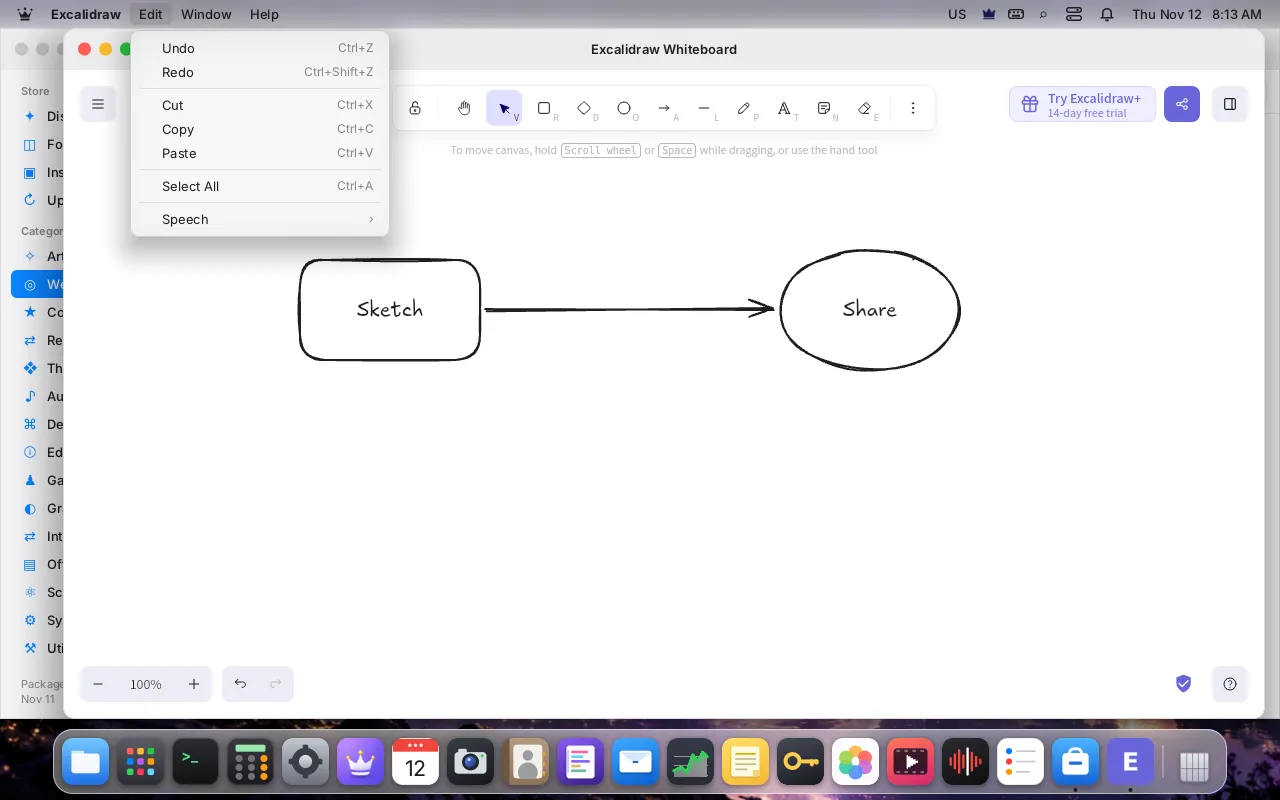
- The Edit menu in the menu bar: Undo, Redo, Cut, Copy, Paste and Select All. Settings… in the app menu opens that app's settings, and Help opens the site in your browser.
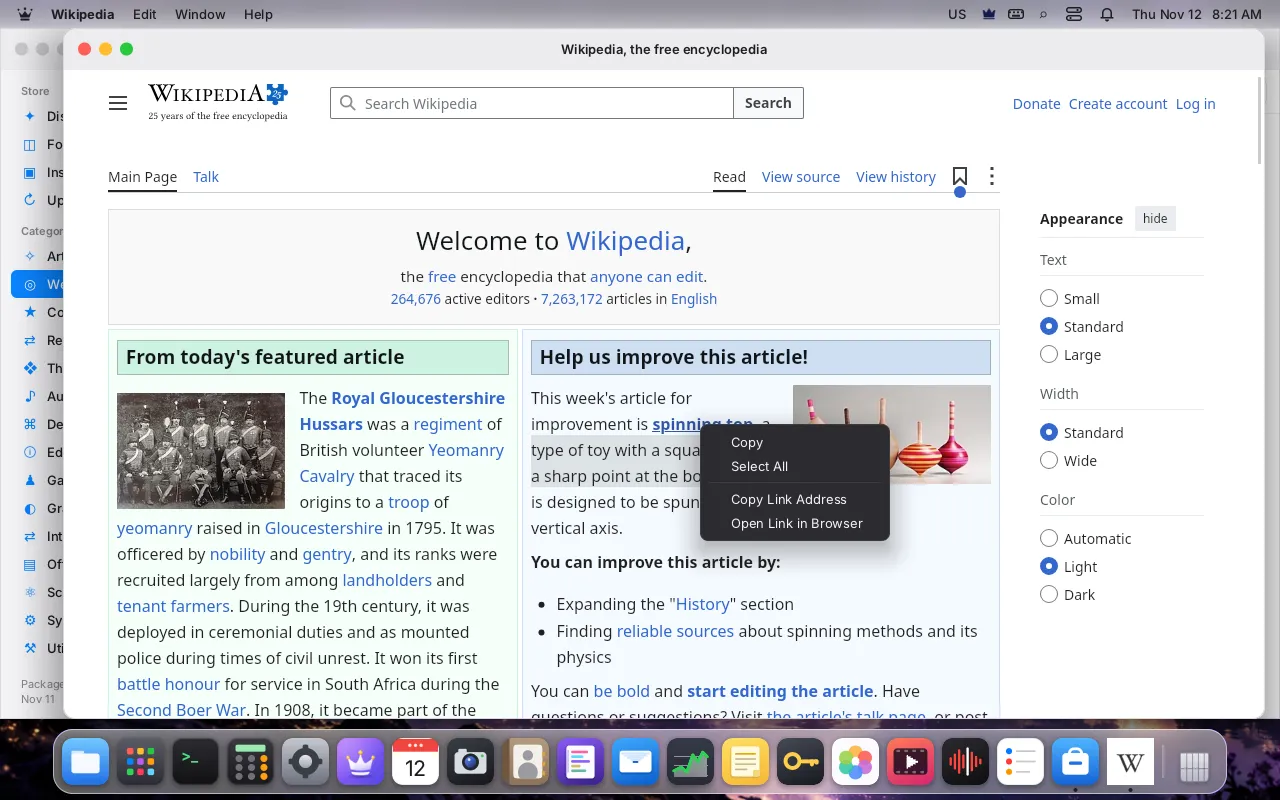
- LordOS's own right-click menu: Cut, Copy, Paste, Select All, Copy Link Address, Open Link in Browser and Copy Image, whichever fit what is under the pointer. A page with its own menu (a whiteboard, an editor) keeps it.
- Reload with Ctrl+R or F5, go back and forward with Alt+Left/Right or the mouse's side buttons, zoom with Ctrl+plus, minus and 0. Links to other sites open in your browser; downloads go to your Downloads folder with a notification.
Light and dark#
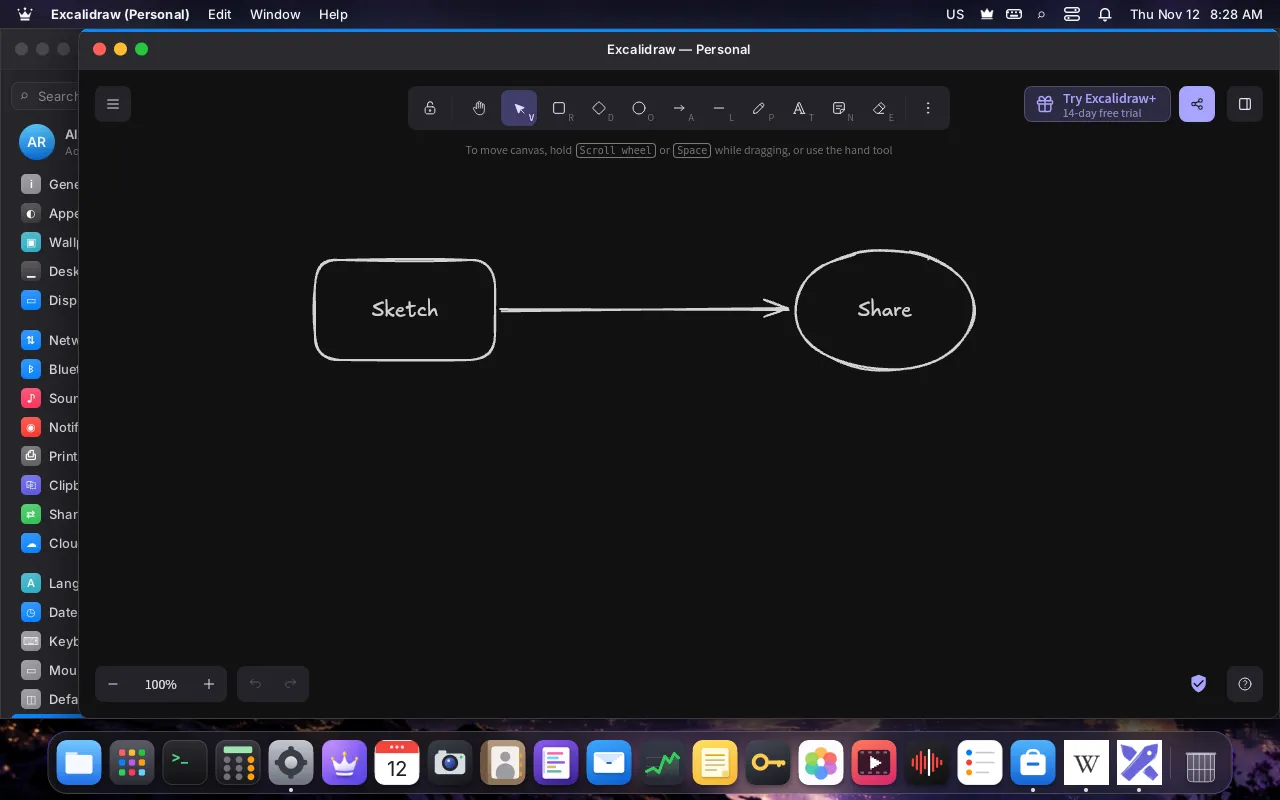
Web apps follow the desktop's light or dark mode, live: switch Dark Mode in the Control Center and an open web app changes at once. A page that asks the browser matchMedia('(prefers-color-scheme: dark)'), as many apps with a "System" theme do, gets LordOS's answer. In dark mode there is also no white flash while a page loads.
The honest limit: WPE WebKit 2.48 gives LordOS no way to set the page's color scheme itself, so a page that chooses its colors only through CSS (@media (prefers-color-scheme: dark) rules) stays light until a newer WebKit allows it. Such sites usually have a theme setting of their own: choose Dark there. The Store's page of an app says so when it is known.
Each app's own Appearance (Light or Dark per app instead of following LordOS) is built, but it waits for LordOS's new web engine (WPEPlatform), which we're moving to before 1.0: today's WPE WebKit 2.48 can't tell a page's CSS the scheme, so the choice only half worked. Since 0.8.8.9, the latest release, Settings → Web Apps shows Appearance with Automatic selected and Light and Dark unavailable, and an app already set to Light or Dark follows LordOS's mode again. For now each web app follows LordOS's mode, and a site with its own theme setting (WhatsApp, for example) keeps it.
Each profile's Browser identity (since 0.8.8.9): sites decide what to show from the browser they think they talk to, so each profile can tell them Chrome on Linux, exactly as Chrome says it (the default), Edge on Linux (for its maker's office, mail and team chat sites), Firefox on Linux, or LordOS's own WebKit name (the one every app used before). You pick it from a short list in Settings → Web Apps or in the app menu's Browser identity (Lord Flow), never by typing it, and an open window loads its page again with it. LordOS still uses its own engine whatever the name says. Some sites check the browser and refuse it when something doesn't match; if a site refuses or misbehaves, choose another identity, such as LordOS (WebKit). A site that already linked your computer, such as a messaging app, keeps the name it saw until you link it again.
Developer tools for web developers#
Since 0.8.8.9, the latest release. Turn on Developer mode in Settings → Web Apps (one switch for every web app, off by default) and each web app window's Window menu gets Inspect (developer tools). Choose it and LordOS asks first, every time: developer tools can see everything in that app, including messages and sessions. Say yes and that window opens again with WebKit's Web Inspector on, which opens in your browser: elements, console, network and storage of that one window.
- Only on your computer, only while the window lives. The inspector listens on 127.0.0.1 only and ends when you close the window (even for an app that runs in the background) or turn Developer mode off. The next start is a normal one.
- Only your own tab gets in. Your browser opens a one-time address with a long random secret, which LordOS never shows in the notification; it gives that tab a private cookie and stops working. Every later request goes through a small gate in the app's process that checks the cookie and that the request comes from that same tab, so a web page open in your browser can't reach the inspector, not by scanning ports, over a WebSocket or by DNS rebinding. WebKit's own port is one that browsers refuse to open. If you close the tab, the notification's Open in browser opens it again.
- Honest limit: WebKit's inspector itself has no password, so while it is on a program running on your computer (not a web page) can still connect to it directly. That is why it is off by default, asked every time and limited to one window.
- The page can't turn it on. Only the menu, the question and the switch, which are LordOS's own, can.
Performance#
- Hidden windows pause. A window that is minimized, on another desktop, closed into the background or wholly covered by another window tells its page it is hidden: the page stops painting, its animations pause and its timers run at most once a second, while its network, audio and notifications go on. Measured on our development virtual machine with a busy test page: from 115 % of a CPU to 0.4 % while minimized, and the compositor from 5 % to 0.3 %. Shown again, it paints at once.
- Memory pressure. WebKit drops caches it can rebuild when a page grows (about a third of your memory, up to 1 GB), and decoded images and compiled code too past half (about 1.5 GB), checked every 30 seconds; a lighter cache model keeps no idle web process around.
- Limits sized to your computer, as above, shared by the app's profiles.
- Monitor shows the real memory of each web app, counted once by proportional memory (PSS) across its processes. One account of the tested chat app used about 810 MB in the first measurement.
Settings → Web Apps#
Every installed web app has its page: its site and where it came from, its profiles (open, rename, color, remove, with the data each one keeps on disk), its permissions, Keep running in the background (closing the window keeps it running, so its notifications still arrive), Show in the menu bar (an icon next to the clock with Open and Quit), Show unread count on the Dock, Each profile has its own Dock icon, the notification sound (Automatic, which plays LordOS's only when the site plays none of its own; the site's; LordOS's; or none), the Appearance (Automatic; Light and Dark wait for the new web engine), each profile's Browser identity (Chrome on Linux, Edge on Linux, Firefox on Linux or LordOS (WebKit); since 0.8.8.9), the icon (the site's own or LordOS's letter tile) and Uninstall. Below the apps, Developer mode adds Inspect (developer tools) to every web app window (since 0.8.8.9).
Known limits#
- Not tested yet: 36 of the 37 catalog apps are not yet marked tested on LordOS. They loaded, but some features may not work.
- No web push while an app is closed. WPE has no push service on Linux, so notifications arrive only while the app runs: keep it in the background for that.
- No DRM video or music (Widevine is not available for WPE on Linux), so protected catalogs of music and video services won't play.
- Calls depend on WebRTC in WPE WebKit and on the service; they may not work yet and were not checked.
- CSS-only dark mode stays light, as above.
- No network at start. In 0.8.8.8 an app opened before the network is up keeps the engine's error page; since 0.8.8.9 (the latest release) it shows its own No connection page and loads by itself once the network is back, or at Ctrl+R.
- Undo works only in pages with their own history (a rich editor); a plain text field can't undo.
- The unread count comes from the page's title ("(3) …"), the only source WPE gives; the notifications' sender photo is not shown.
- Some services move to another address after you sign in; the page works, but its links may then open in your browser.
- Add from an address checks where a site leads at every step, but a site could still answer one address to that check and another to WebKit (DNS rebinding). It runs in an empty throwaway session with none of your data and reads only a name and an icon.
Read the code#
- server/src/web:
lord-web, the LordOS Web Runtime - server/src/ui/js_webapps.c: the manager in
lord-server - assets/webapps/catalog.json: the catalog
- apps/store/webapps.js and apps/settings/WebApps.jsx: the Store and Settings
- docs/WEBAPPS.md: the whole design, with every check
WhatsApp, Telegram, Discord and the other product names, logos and icons shown are trademarks of their respective owners. They are used only to identify the services; LordOS is not affiliated with, endorsed or sponsored by them. See the trademark policy.