
Guide · LordOS Imager
How to use LordOS Imager
Write LordOS to an SD card or a USB stick from your computer and set up the Raspberry Pi 5's first boot. Screen by screen, in about ten minutes.
Version 0.8.6 · free and open source · collects nothing
Already on LordOS? It’s in App Launcher → System.

Hi, I'm Lumo! I'll walk you through every screen.
What you need
- Your computerWith LordOS Imager installed, and an internet connection for the download.
- An SD card or USB stick16 GB or more is best (8 GB at the very least). Everything on it will be erased.
- A Raspberry Pi 54 GB of memory at least, 8 GB or 16 GB for a smoother desktop. A fan and the 27 W power supply are recommended.
- About ten minutesMost of it is the download and the write, which run by themselves.
Watch it first
A short tour of every step, narrated in English, with subtitles in English, Spanish and Portuguese.
Step 1
Choose your device
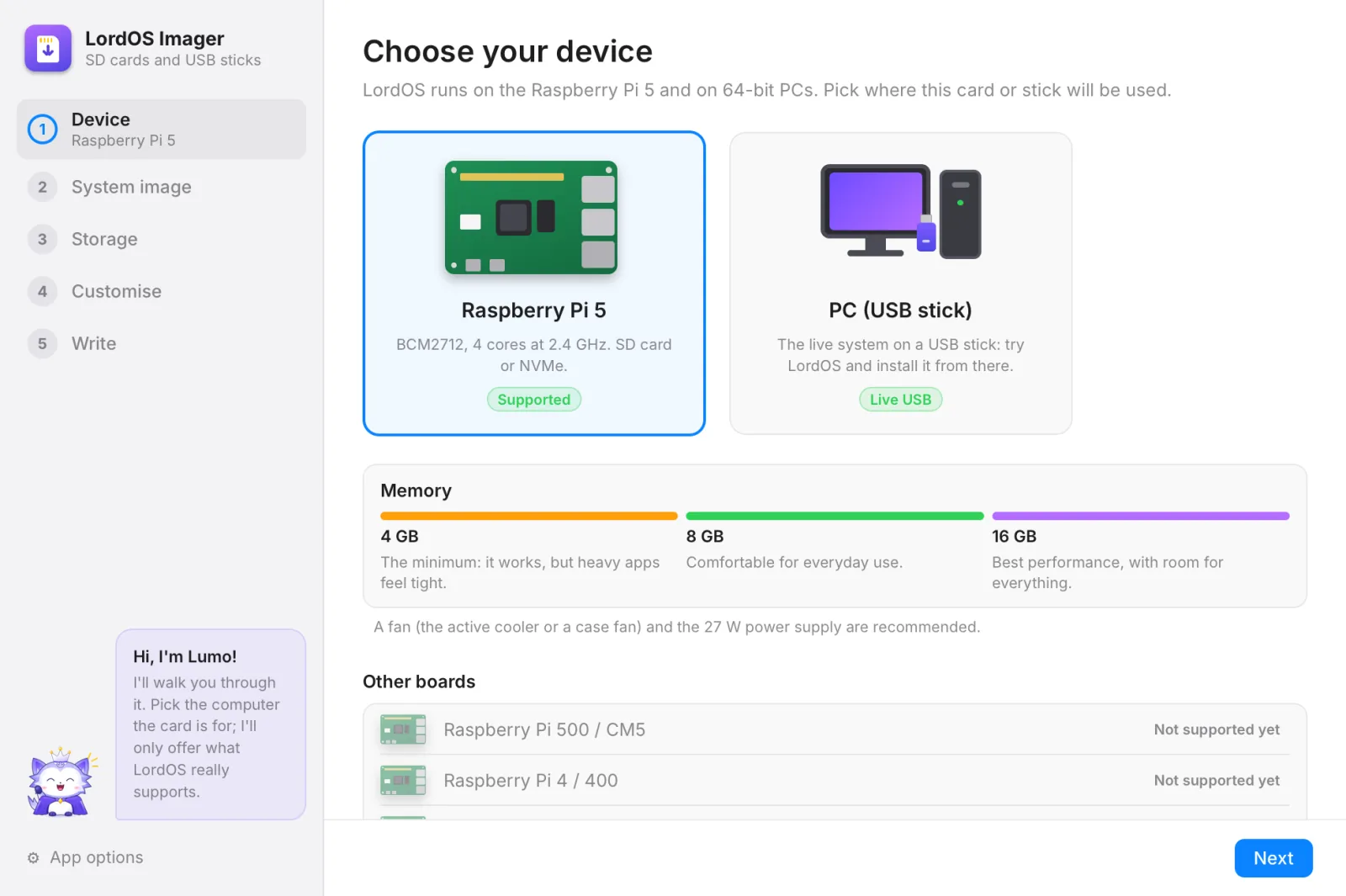
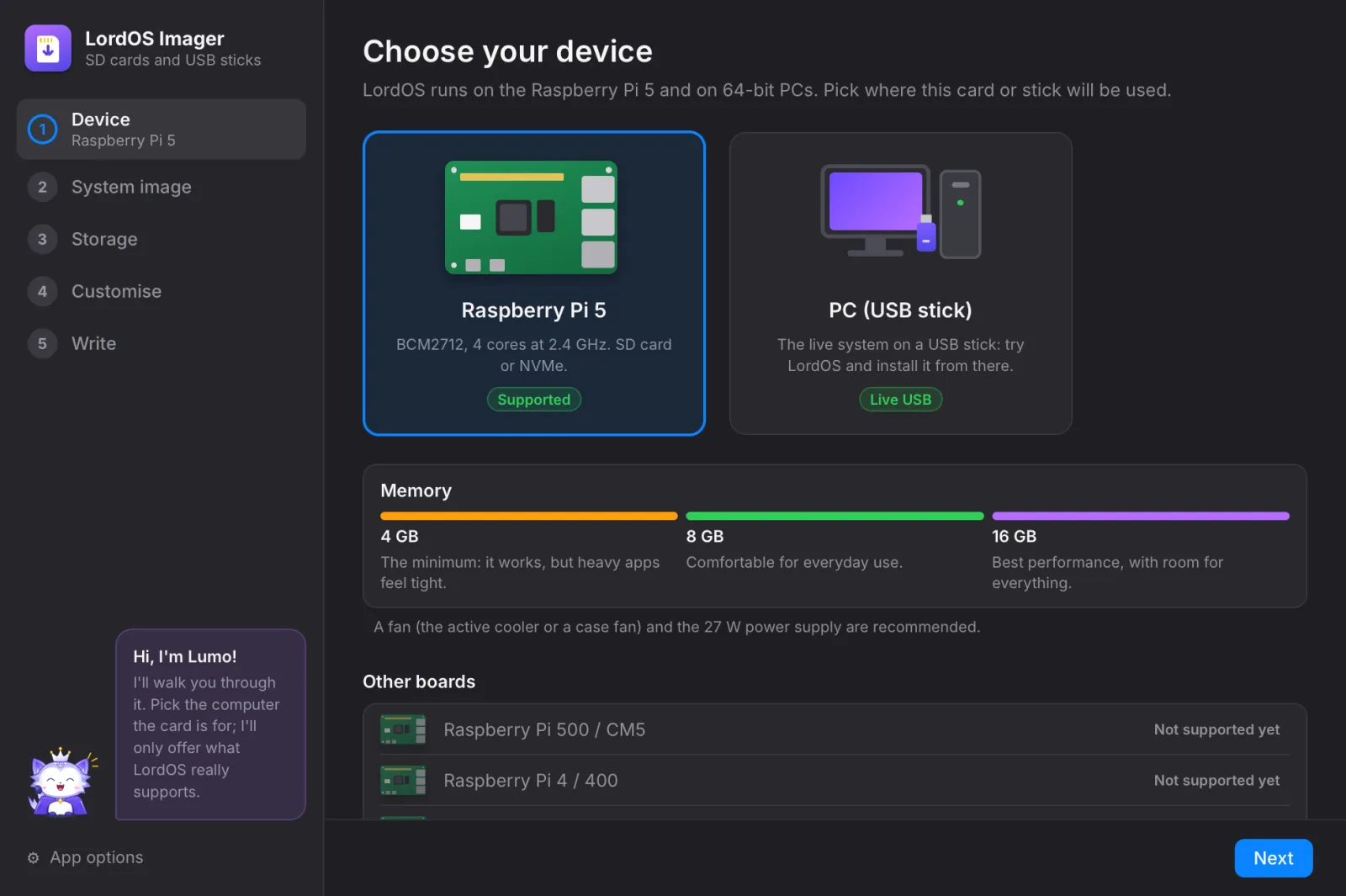
Pick Raspberry Pi 5 to prepare an SD card for the board, or PC (USB stick) to write the live system for a computer. Under the Pi, a bar shows how much memory it needs.
- 4 GB is the minimum, 8 GB is comfortable and 16 GB gives the best performance.
- Only boards LordOS really supports can be chosen.
Step 2
Choose the system image
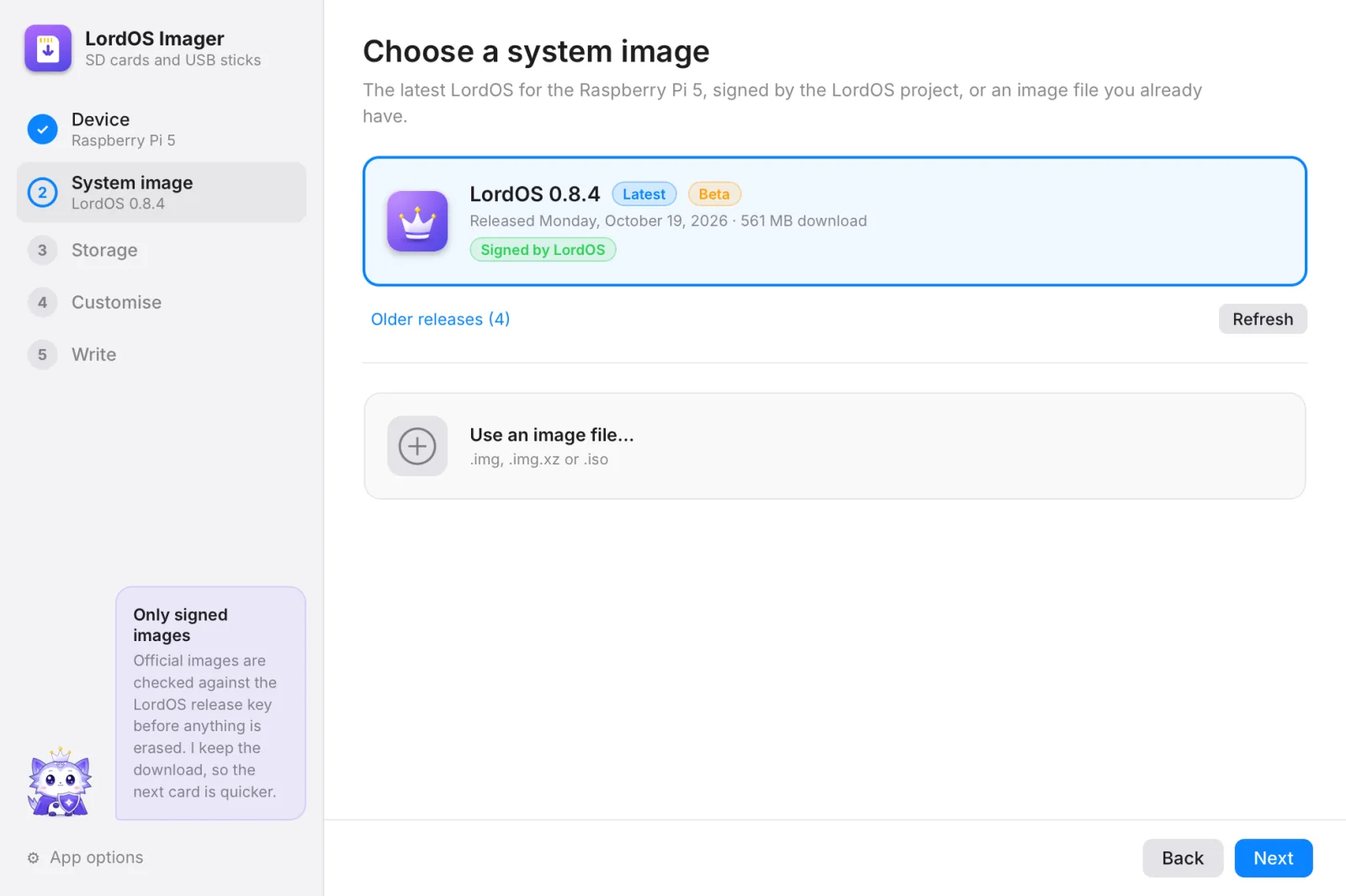
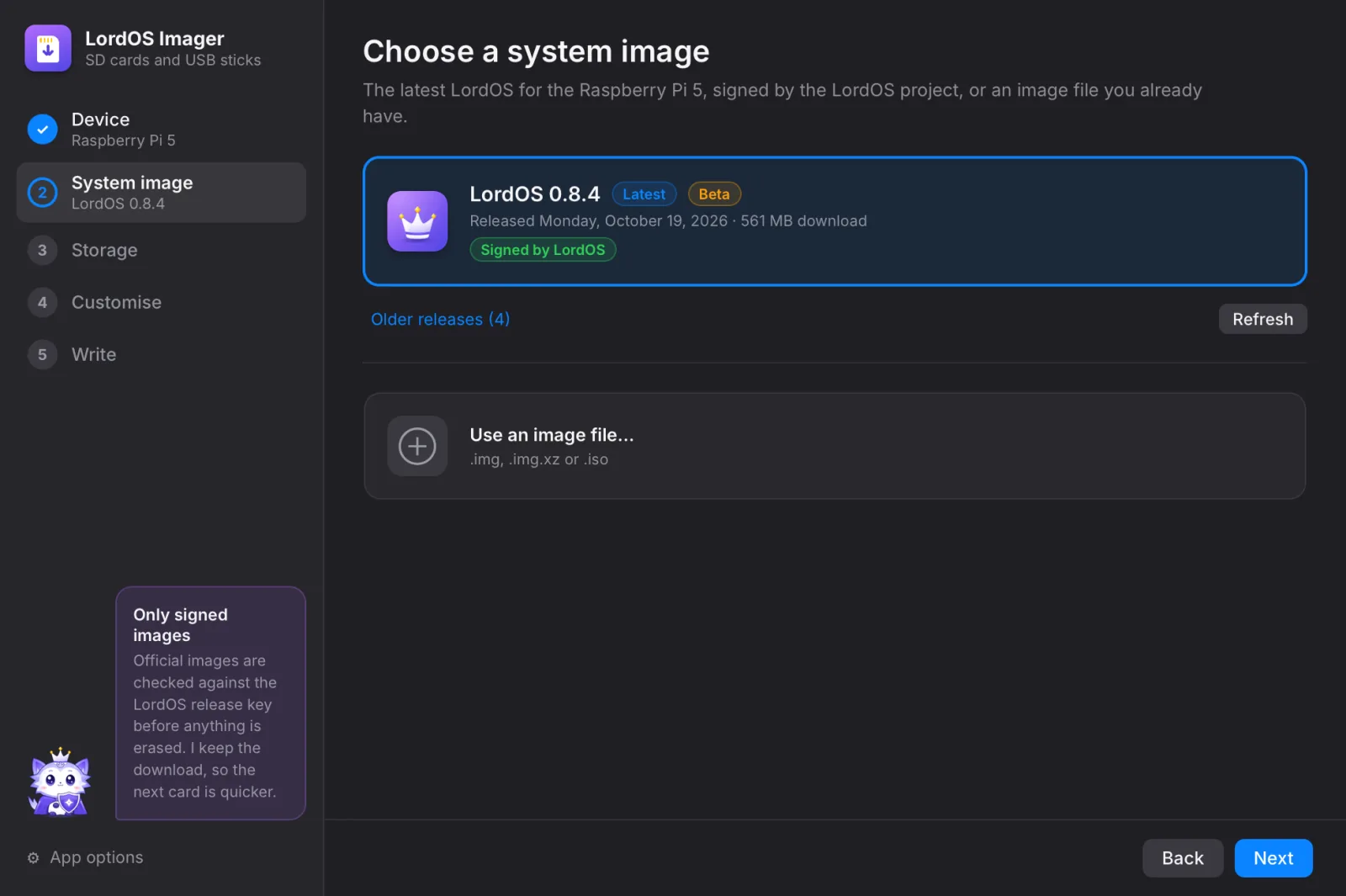
The latest LordOS release is already selected and marked Signed by LordOS. The download is kept, so the next card is quicker.
- Older releases are one click away.
- You can also use an image file of your own (
.img,.img.xzor.iso). It's written and checked, but nobody vouches for where it came from.
Step 3
Choose the card or USB stick
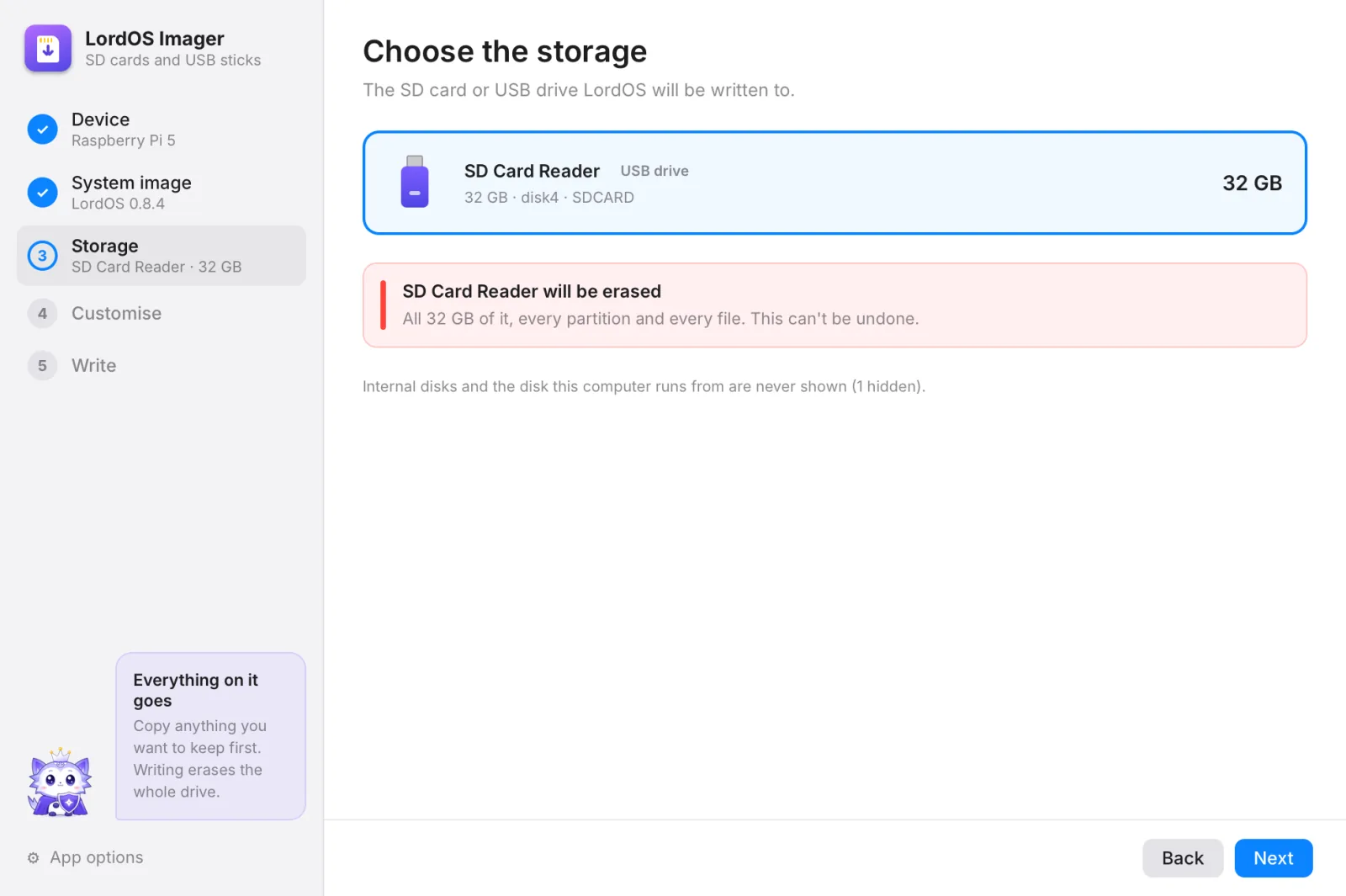
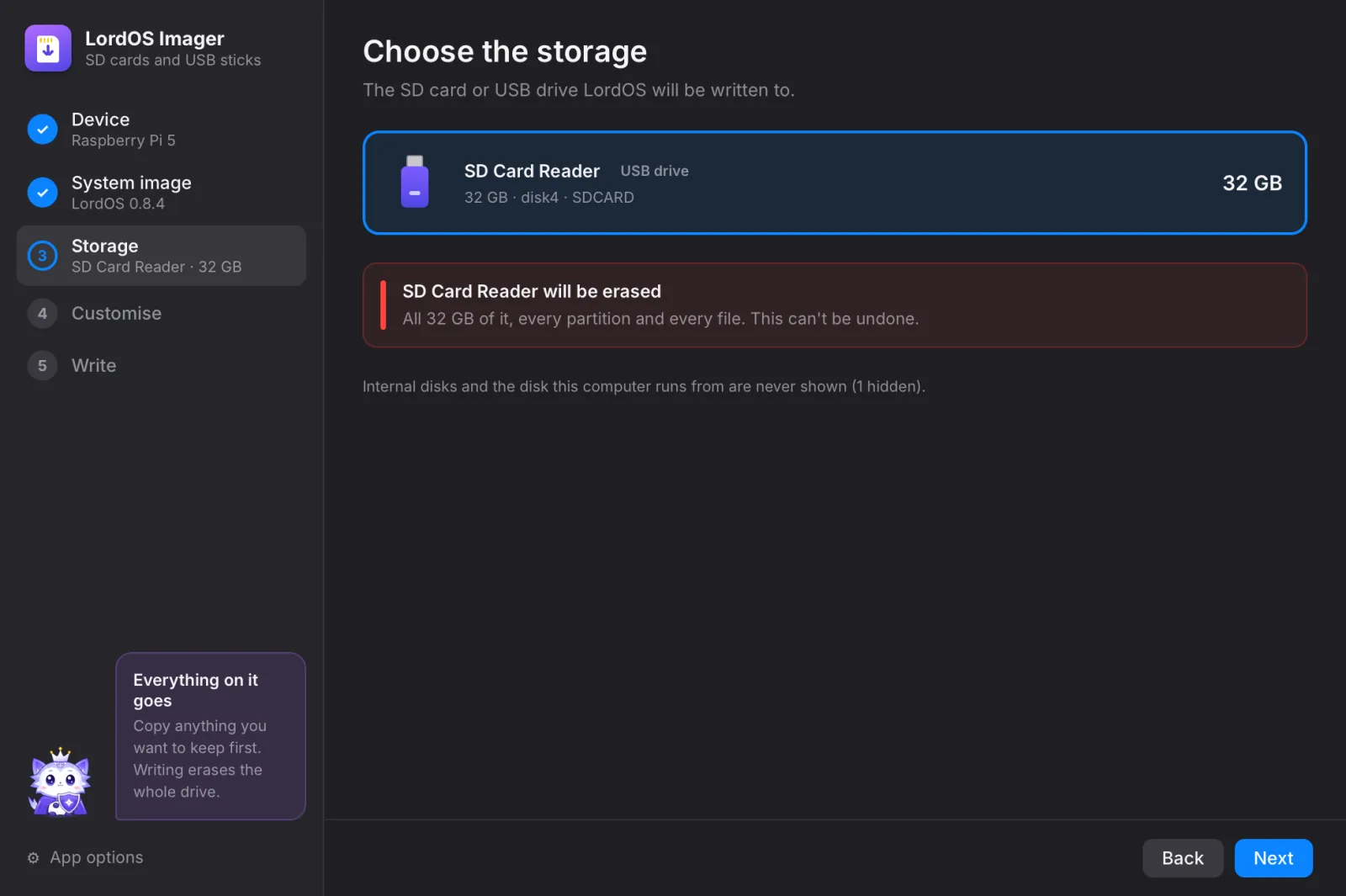
Insert the SD card (with a card reader if your computer needs one) or plug in the USB stick. It shows up by itself, with its name and size. Select it and read the red warning: everything on it will be erased.
- Only removable drives are listed. Your computer's own disks never appear here.
- A card that's too small or write-protected is shown greyed out, with the reason.
Step 4
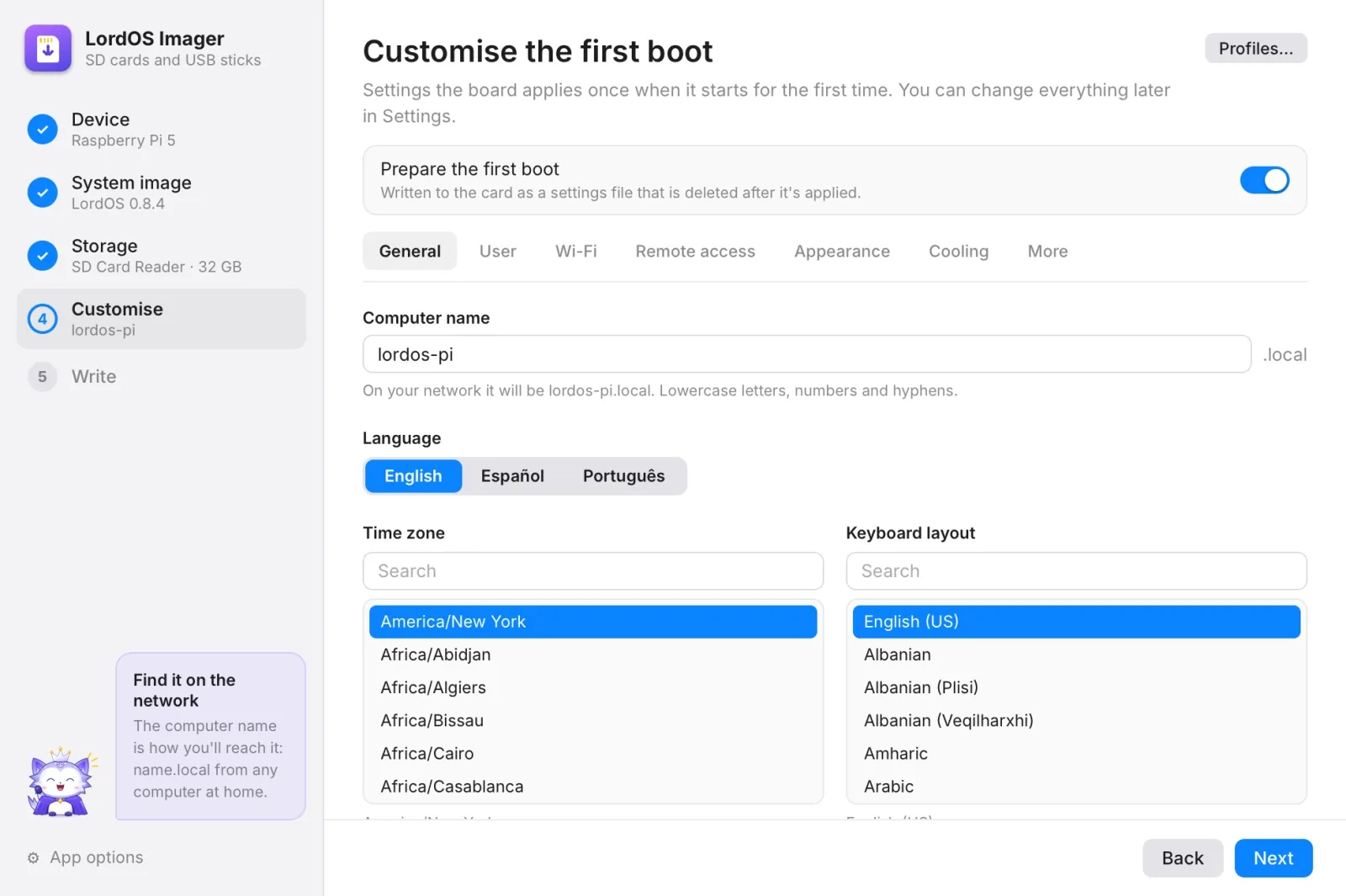
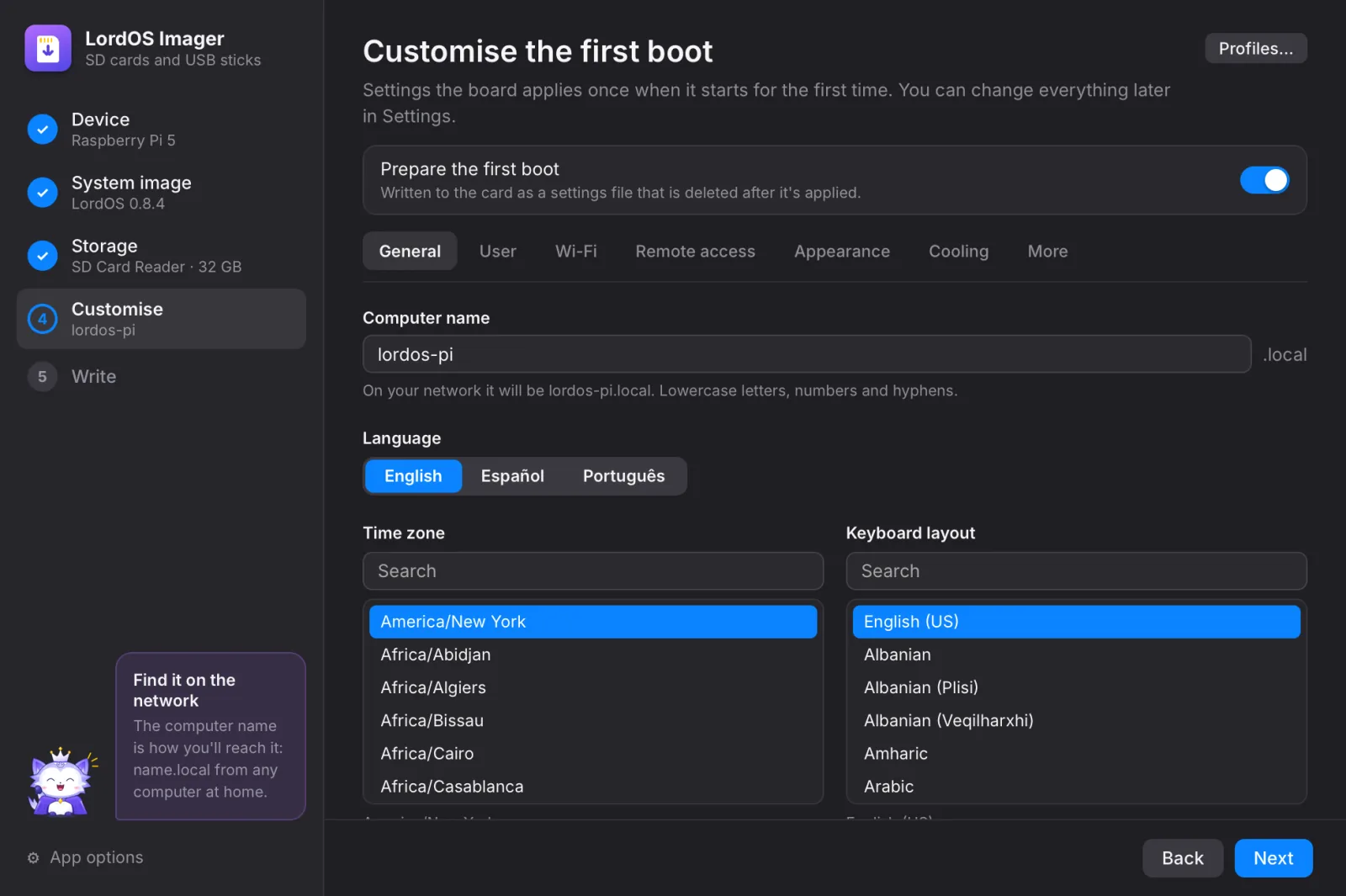
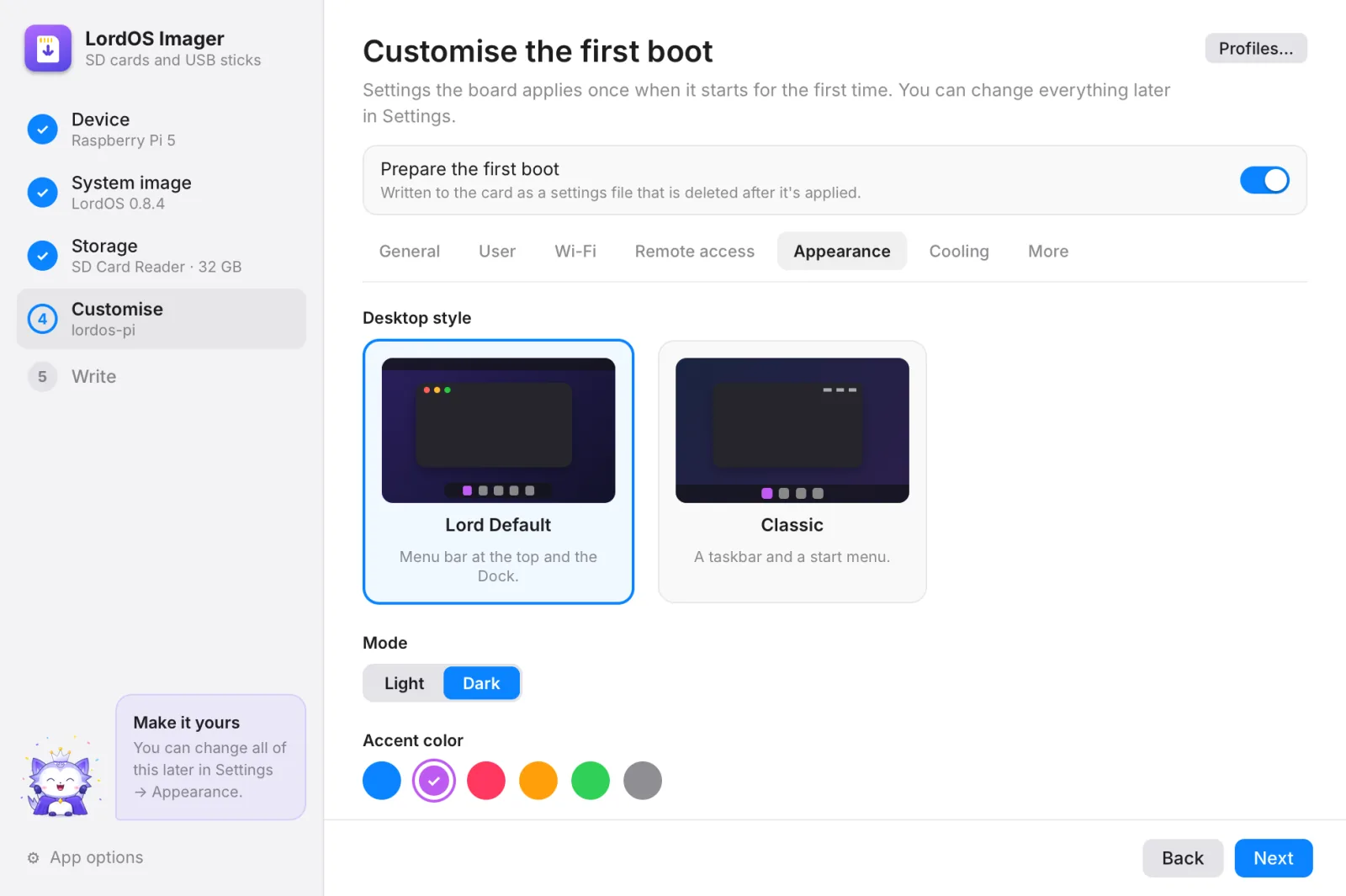
Customise the first boot
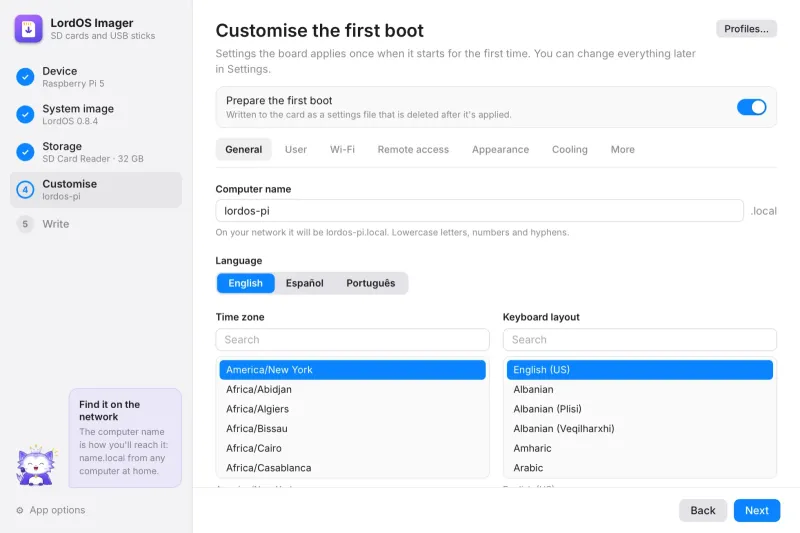
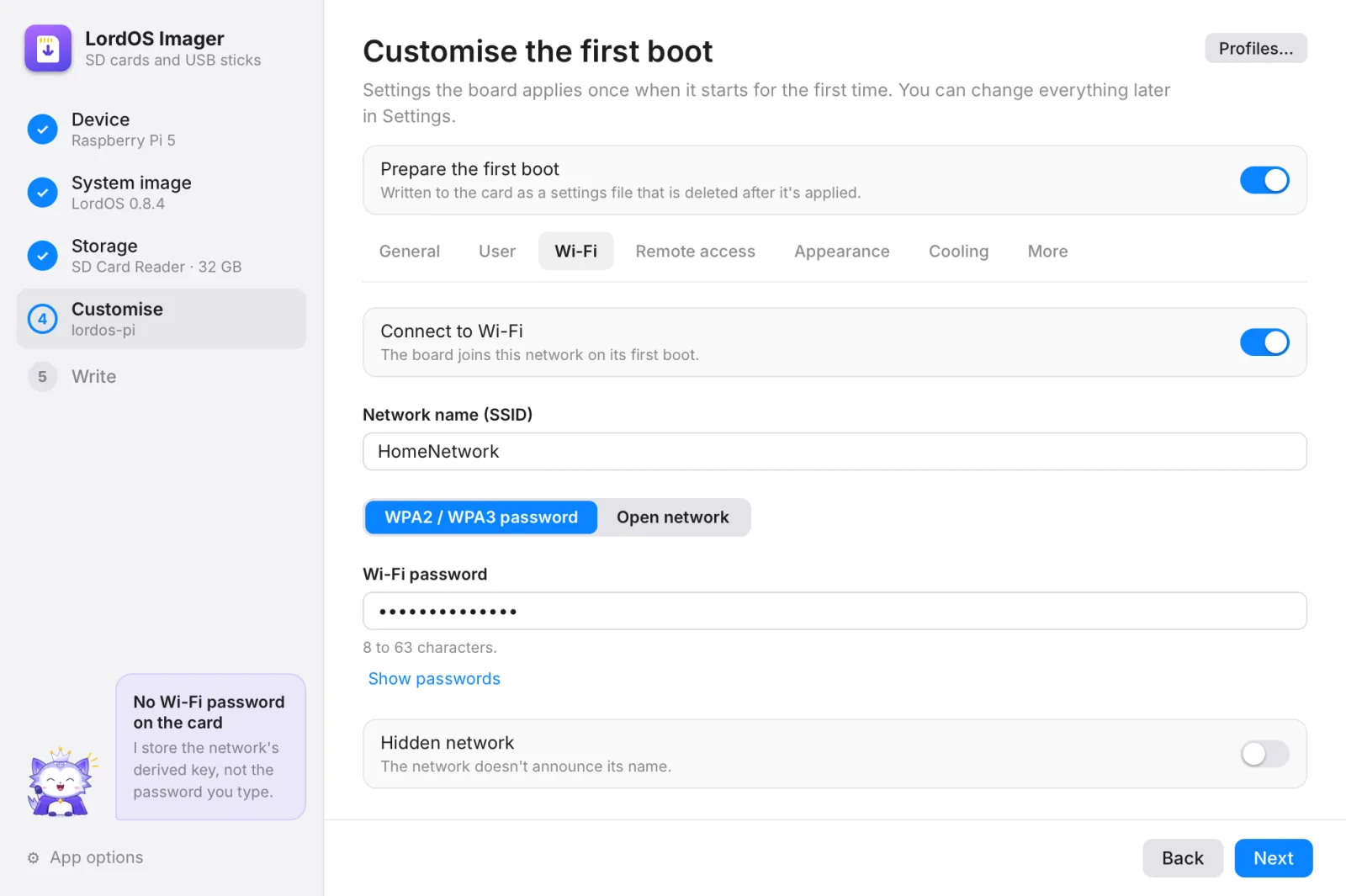
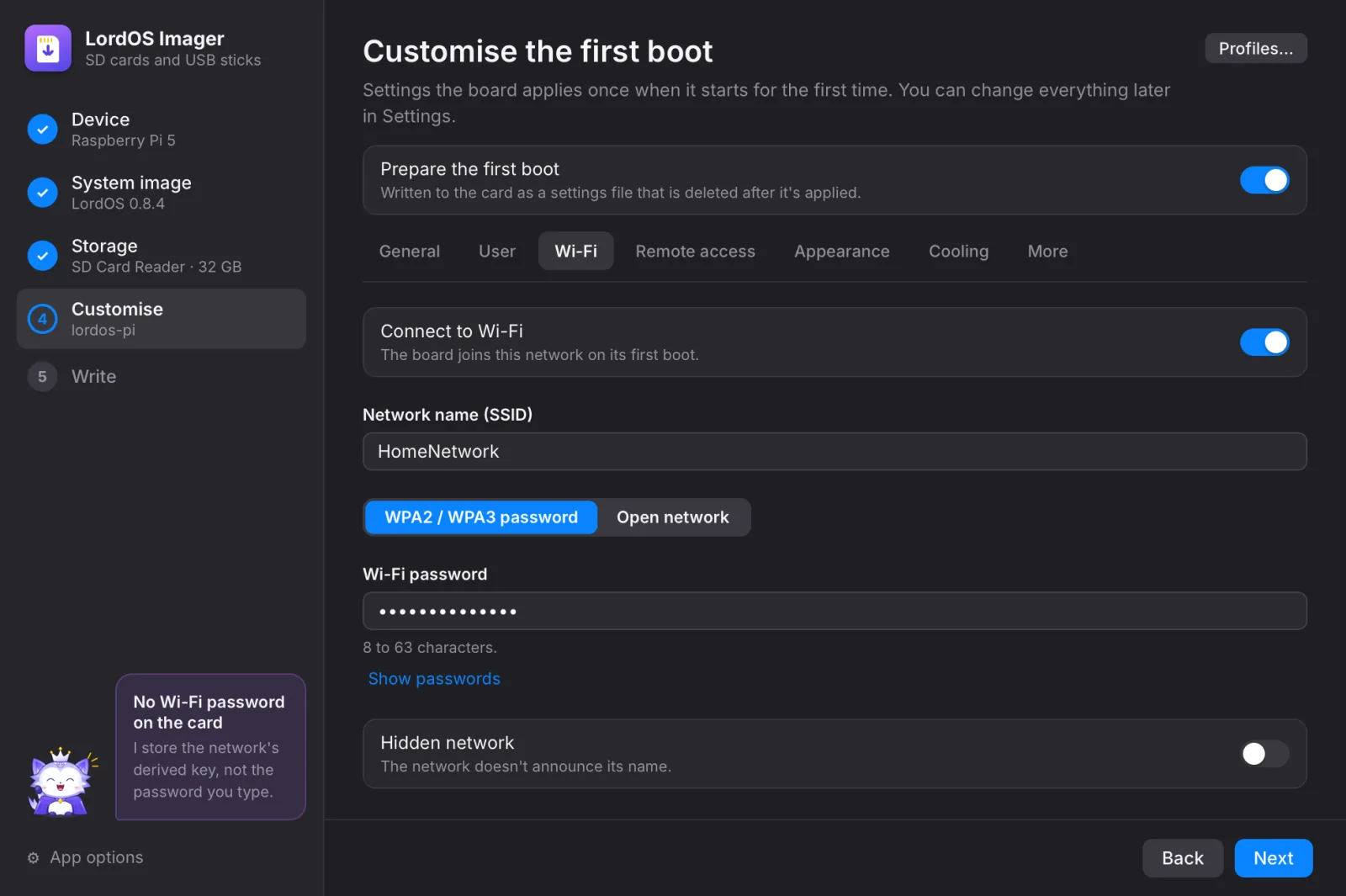
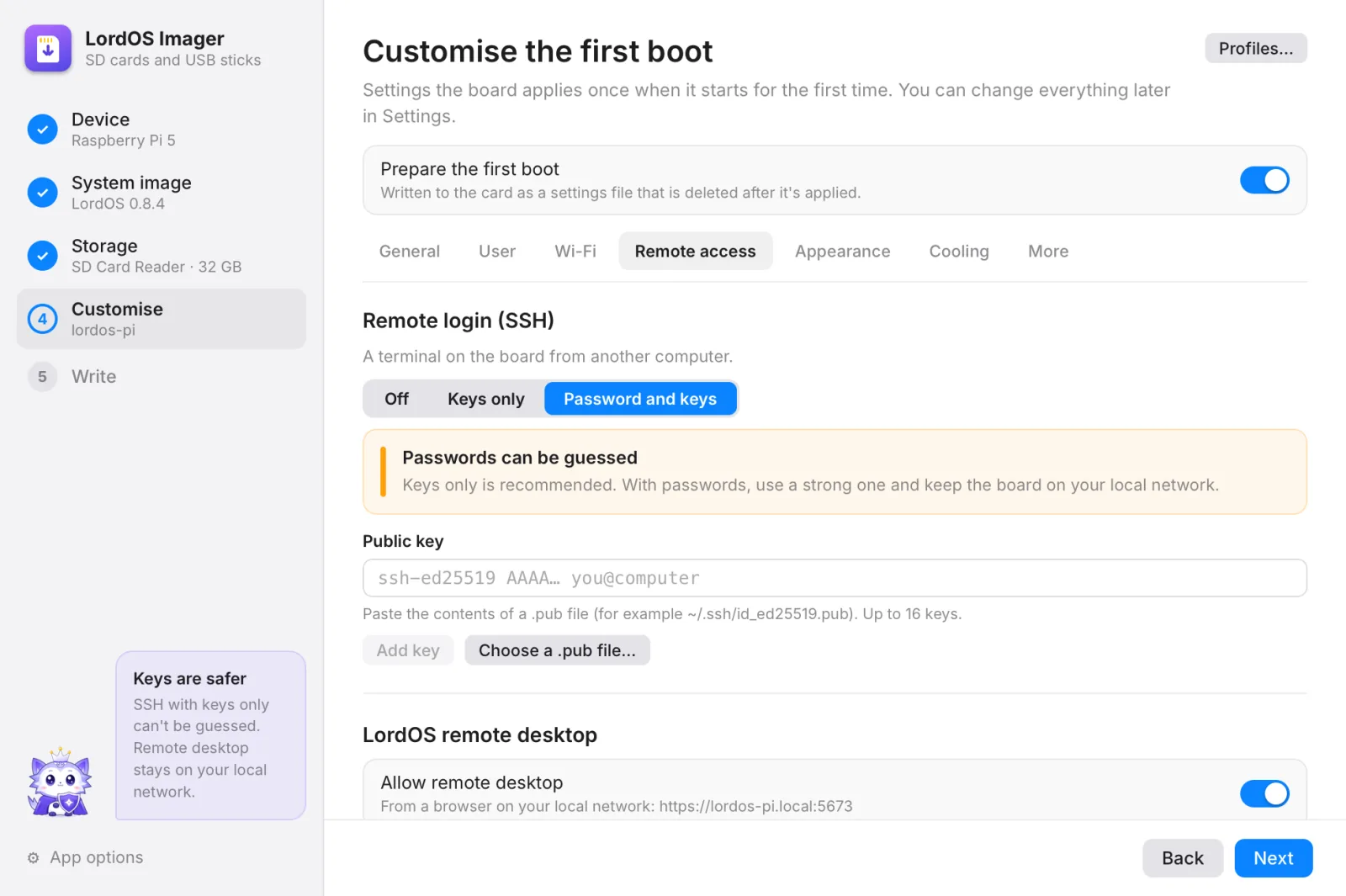
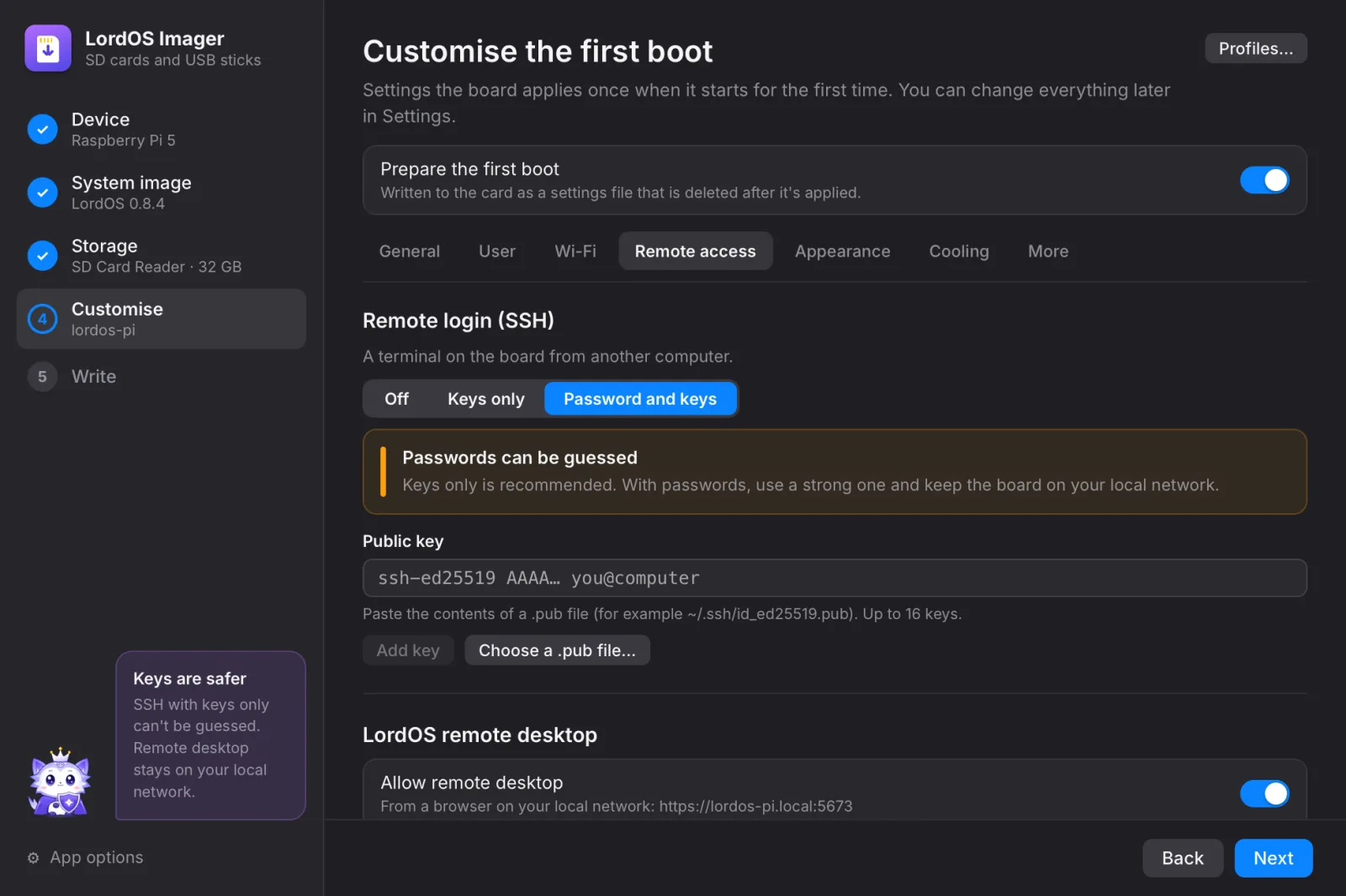
Leave Prepare the first boot on and the board starts ready: its name, your account, Wi-Fi, remote access, look and cooling. Seven tabs, and everything can be changed later in Settings. (For a PC stick there's nothing to customise: this step is skipped.)
General 1General
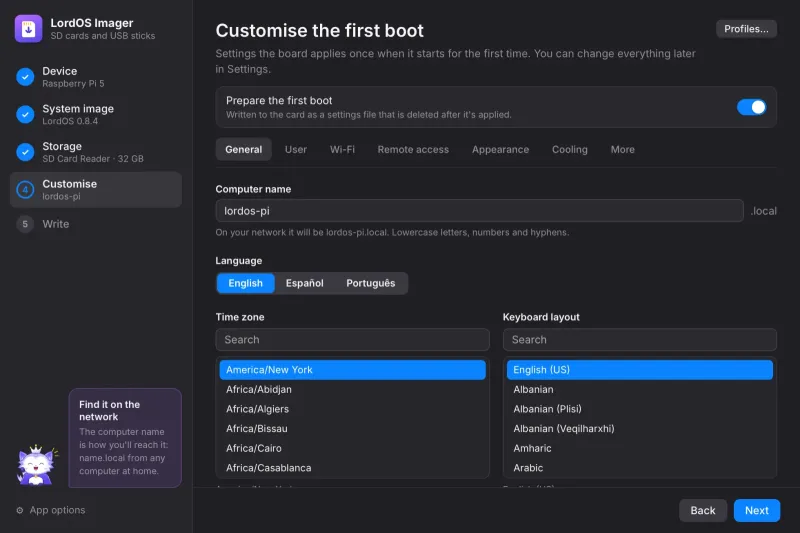
The computer name is how you'll find the board on your network: here
lordos-pi, solordos-pi.local. Then the language, time zone, keyboard layout and Wi-Fi country.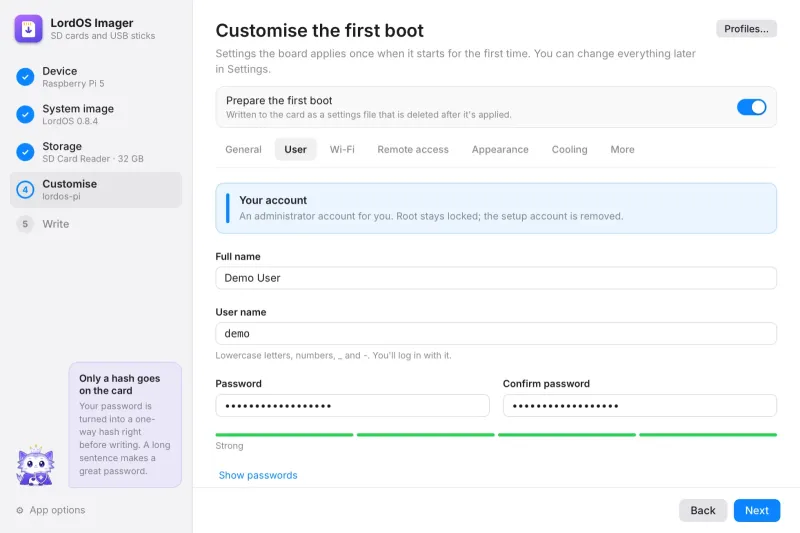
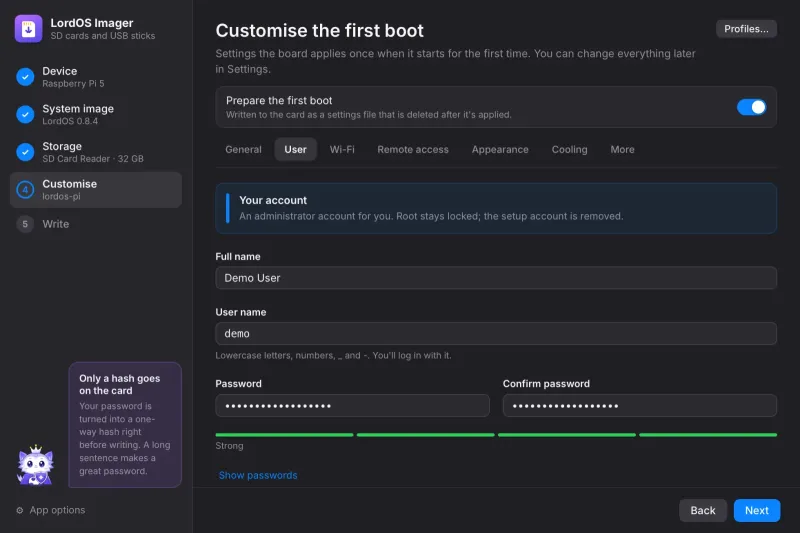
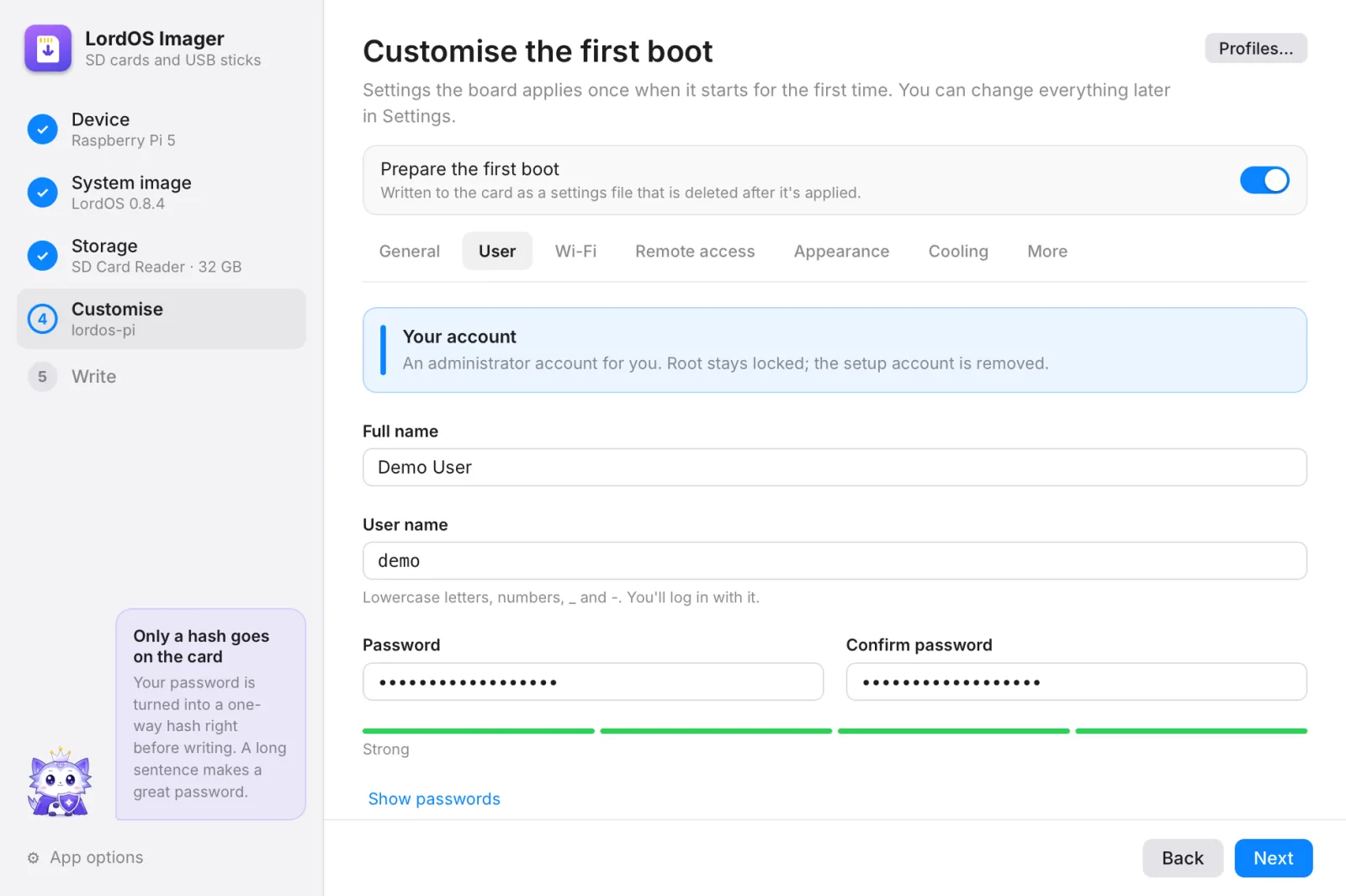
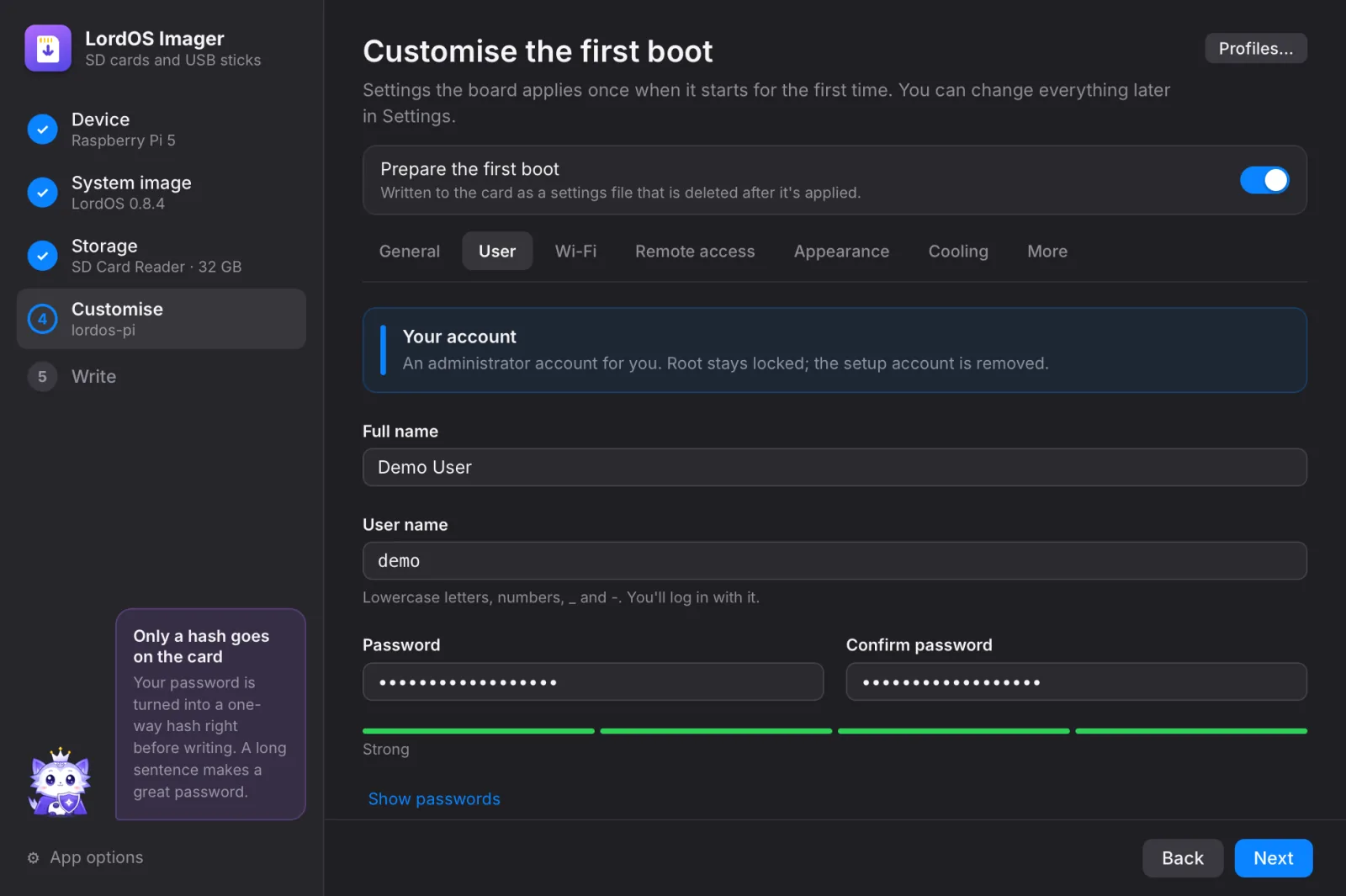
User 2User
Your administrator account: full name, user name and a password typed twice. Only a one-way hash of the password goes on the card. Automatic login is optional.
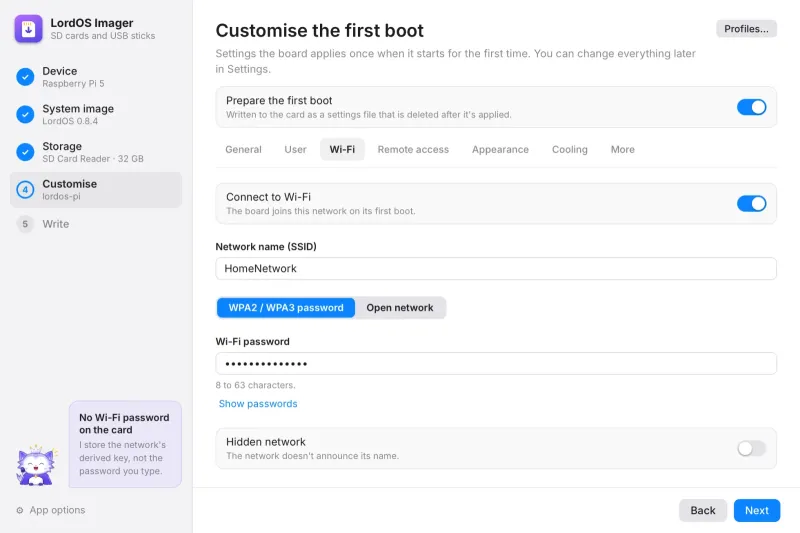
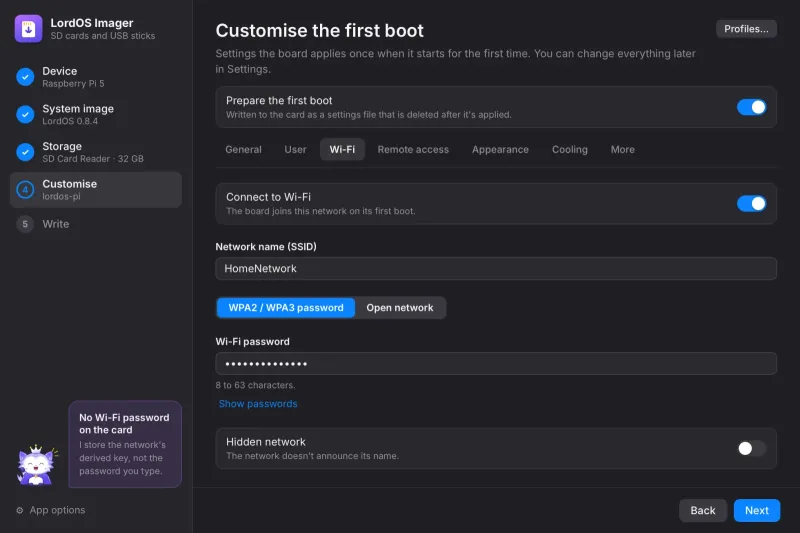
Wi-Fi 3Wi-Fi
The network name exactly as it appears (capitals count) and its password. The card keeps the network's derived key, never the password you typed. Hidden and open networks work too.
Remote access 4Remote access
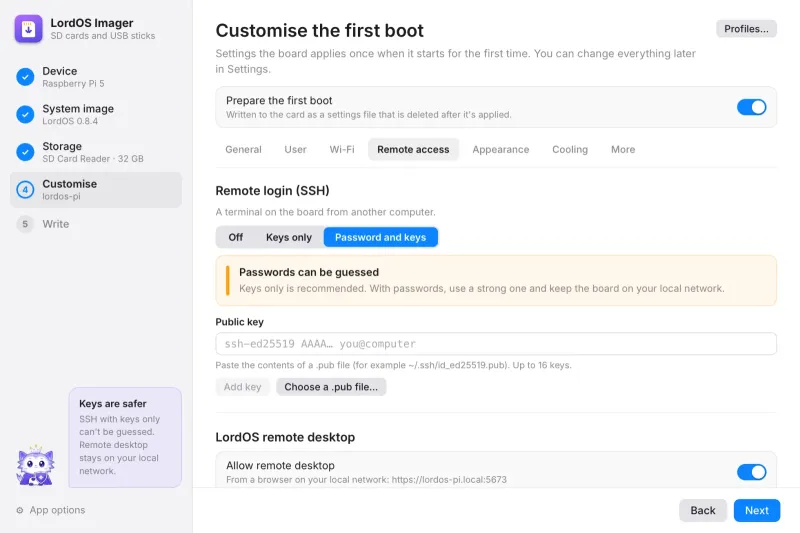
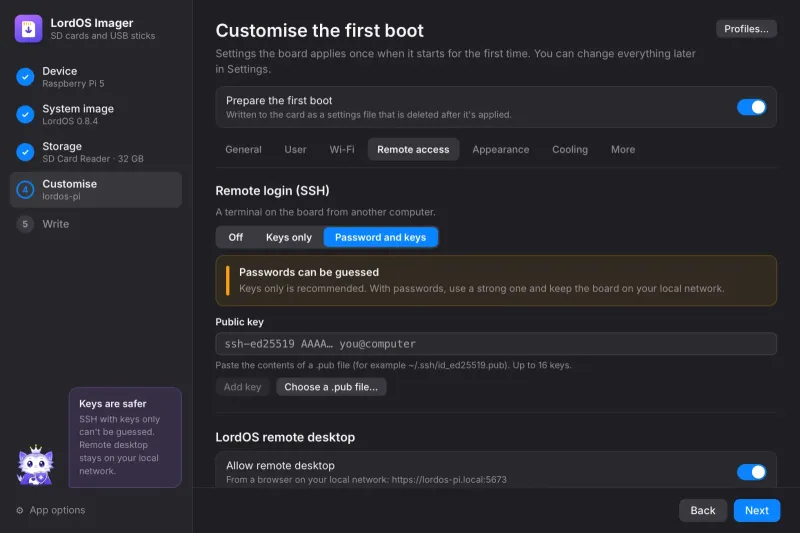
Remote login (SSH): off, keys only (recommended) or password and keys. You can also turn on LordOS remote desktop; it stays on your local network.
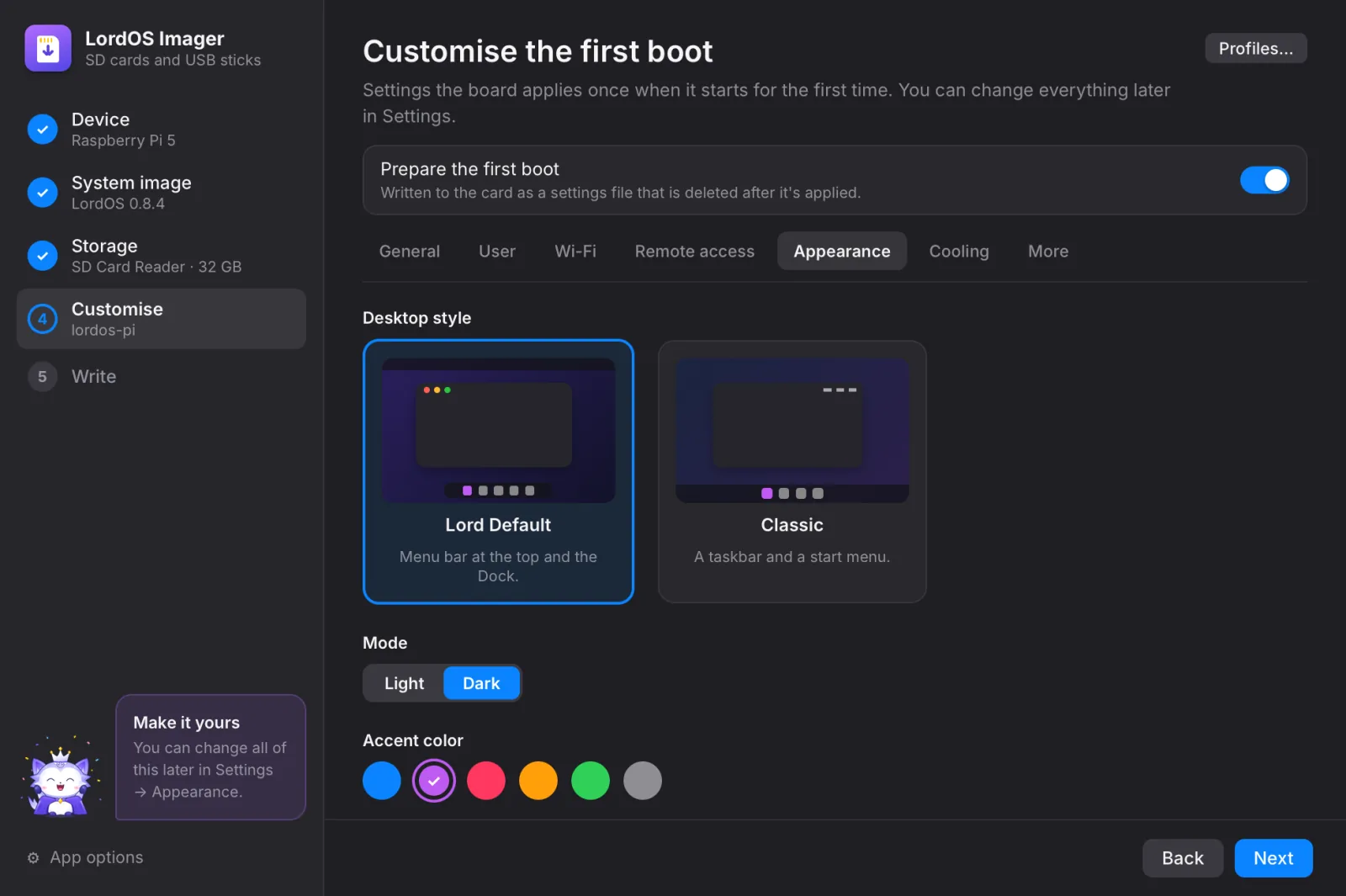
Appearance 5Appearance
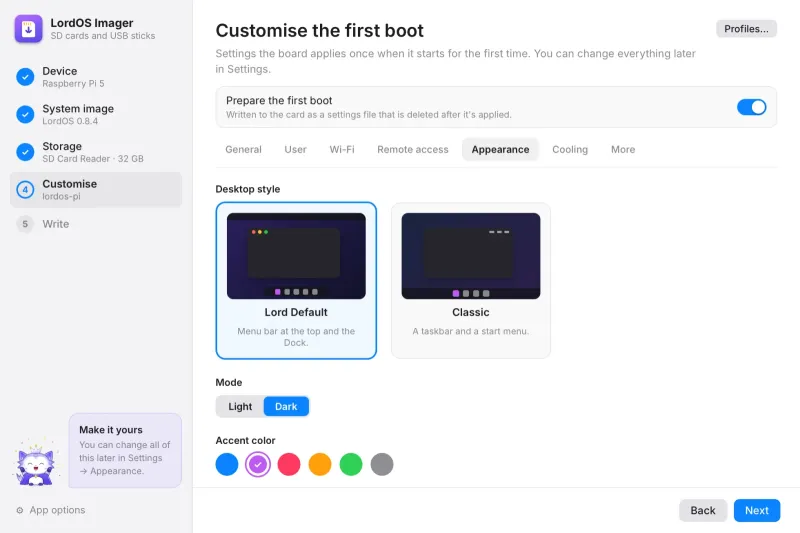
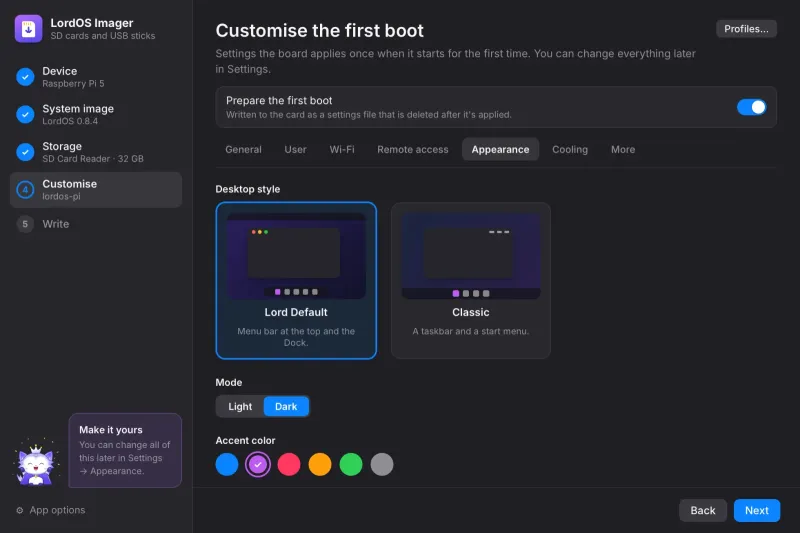
Lord Flow or Lord Classic, light or dark, an accent color and a wallpaper.
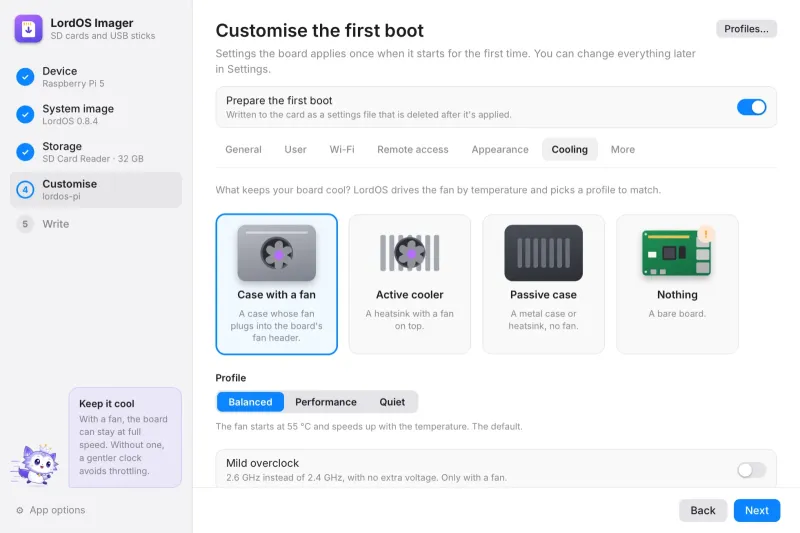
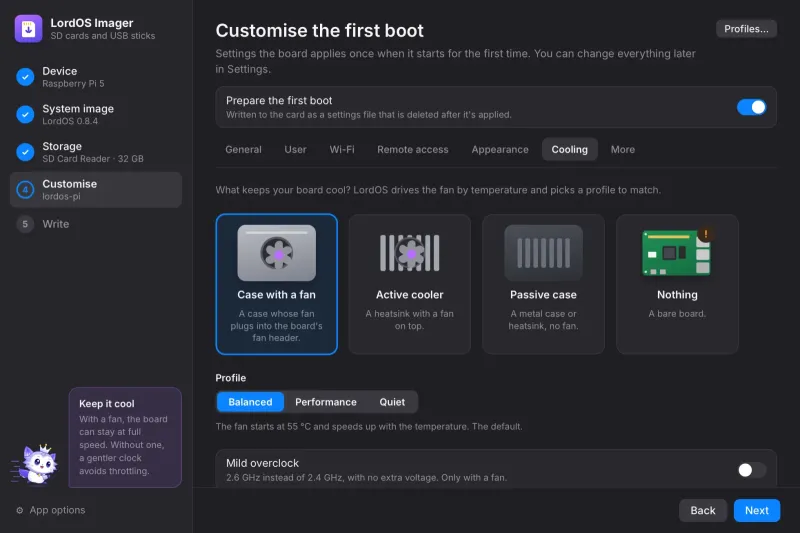
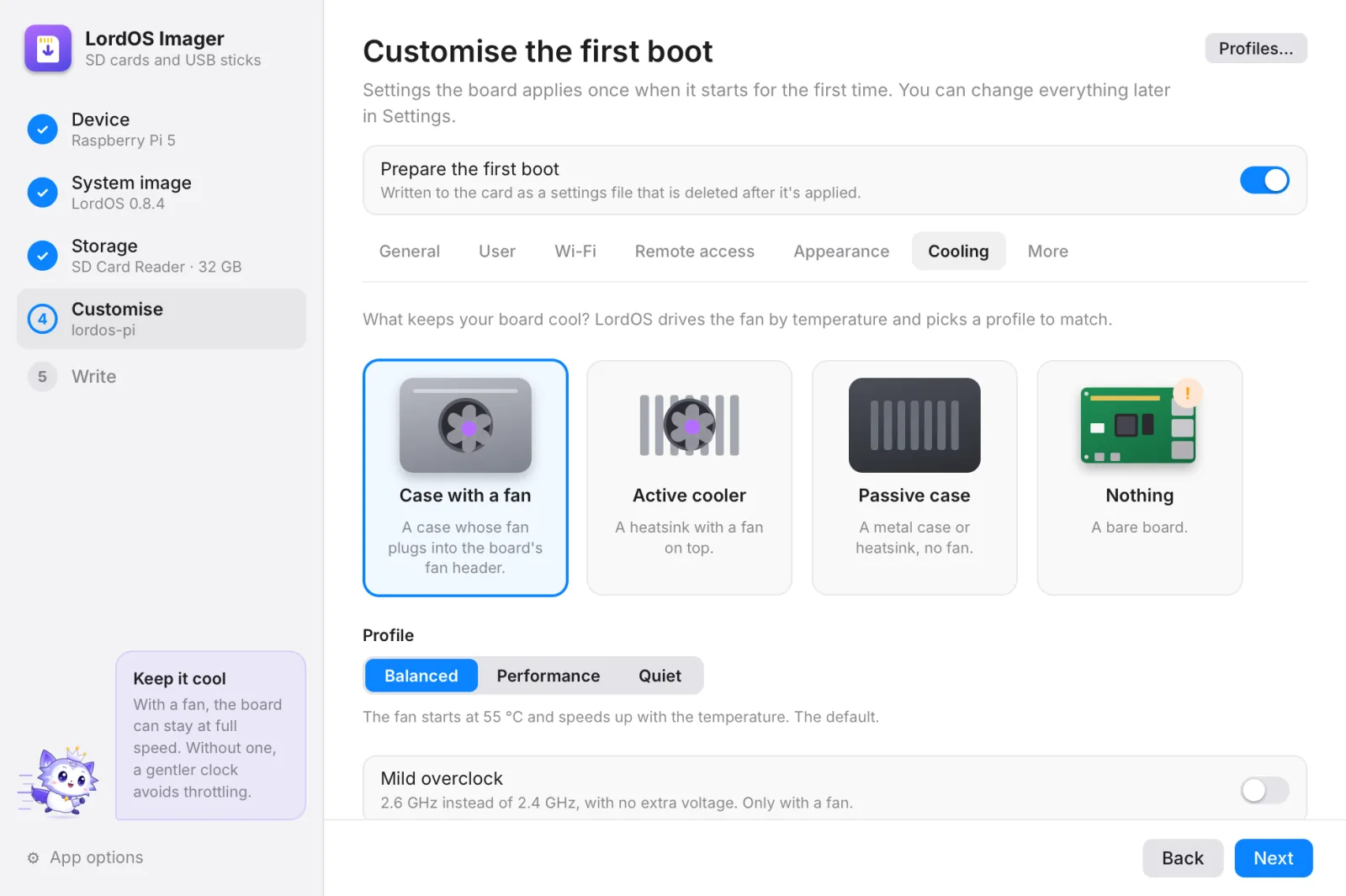
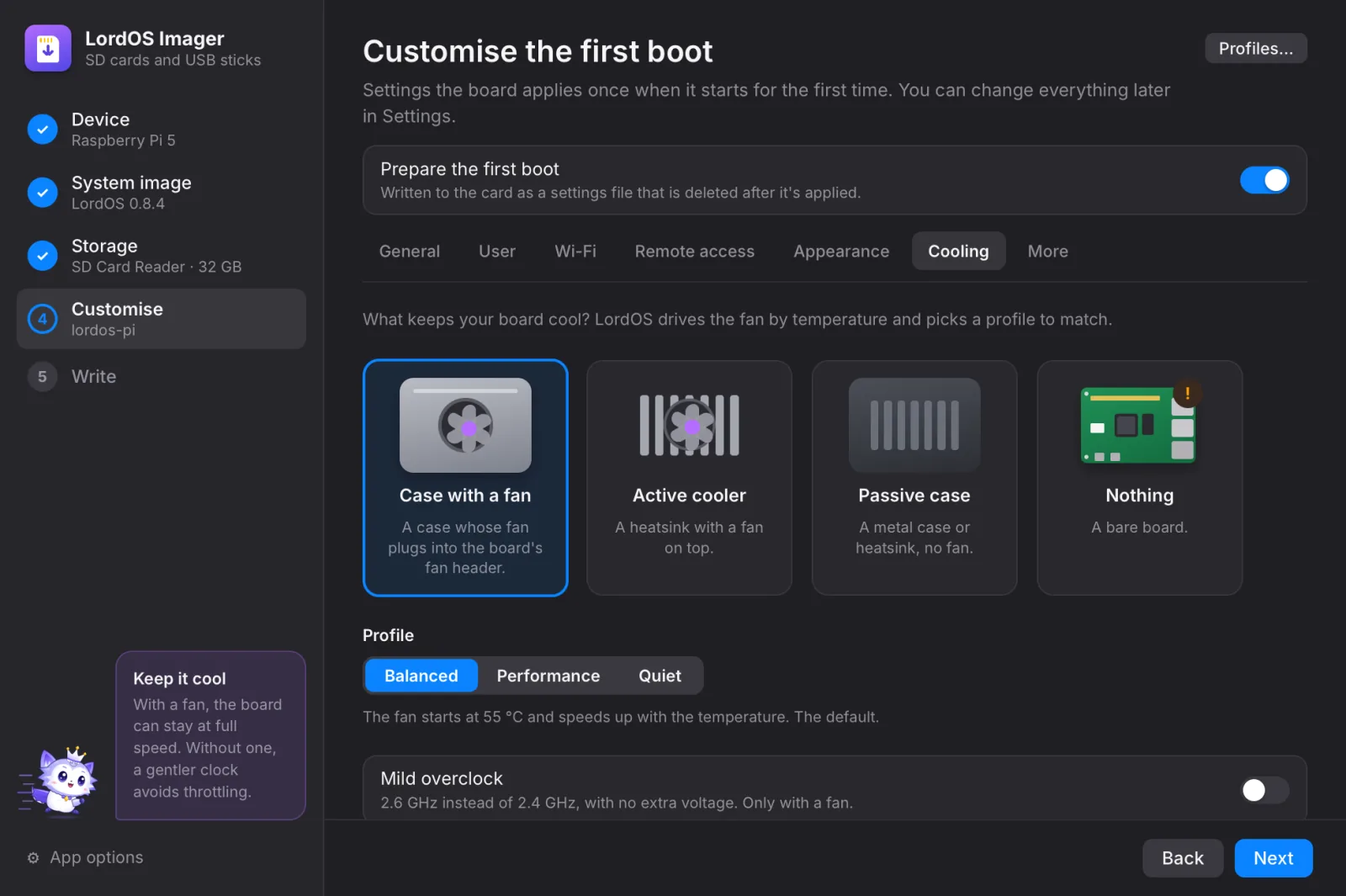
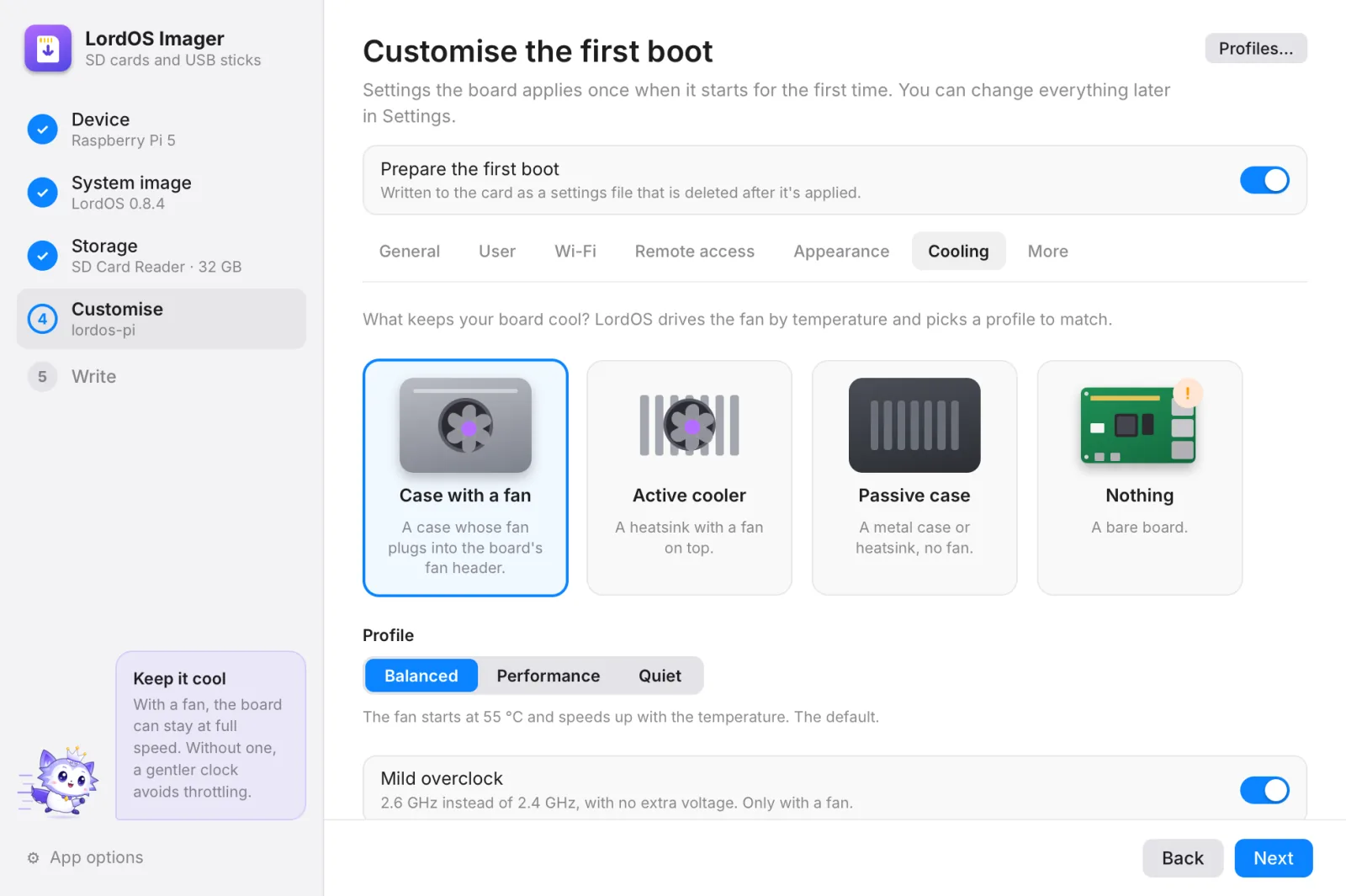
Cooling 6Cooling
Tell LordOS what keeps the board cool and it picks the fan curve to match. Not sure? See Which cooling do I have?.
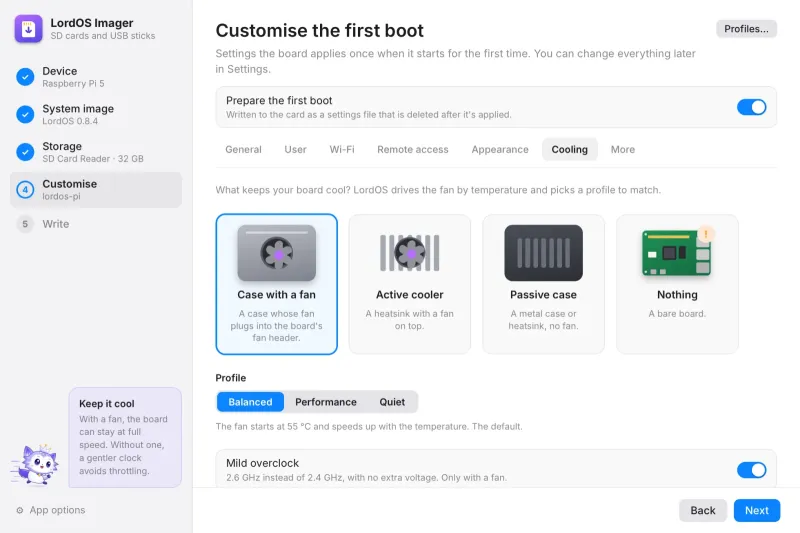
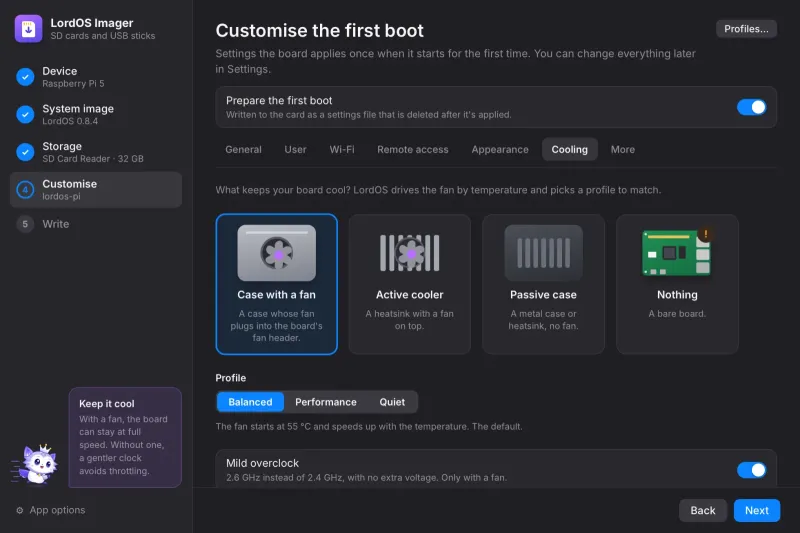
Mild overclock 7Mild overclock
Only with a fan: 2.6 GHz instead of 2.4 GHz, with no extra voltage. The warning explains how to undo it.
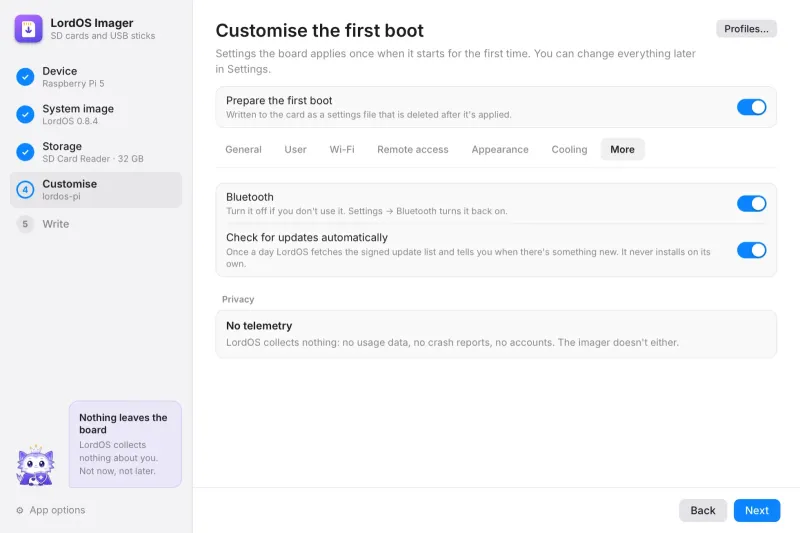
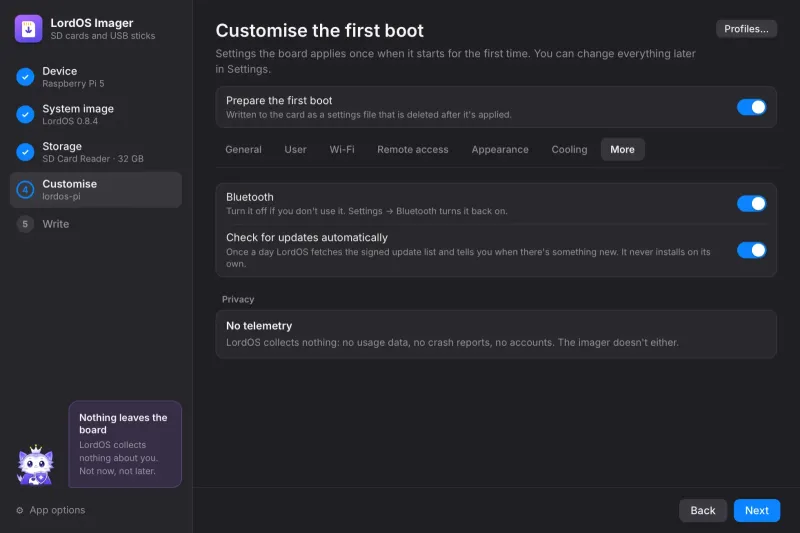
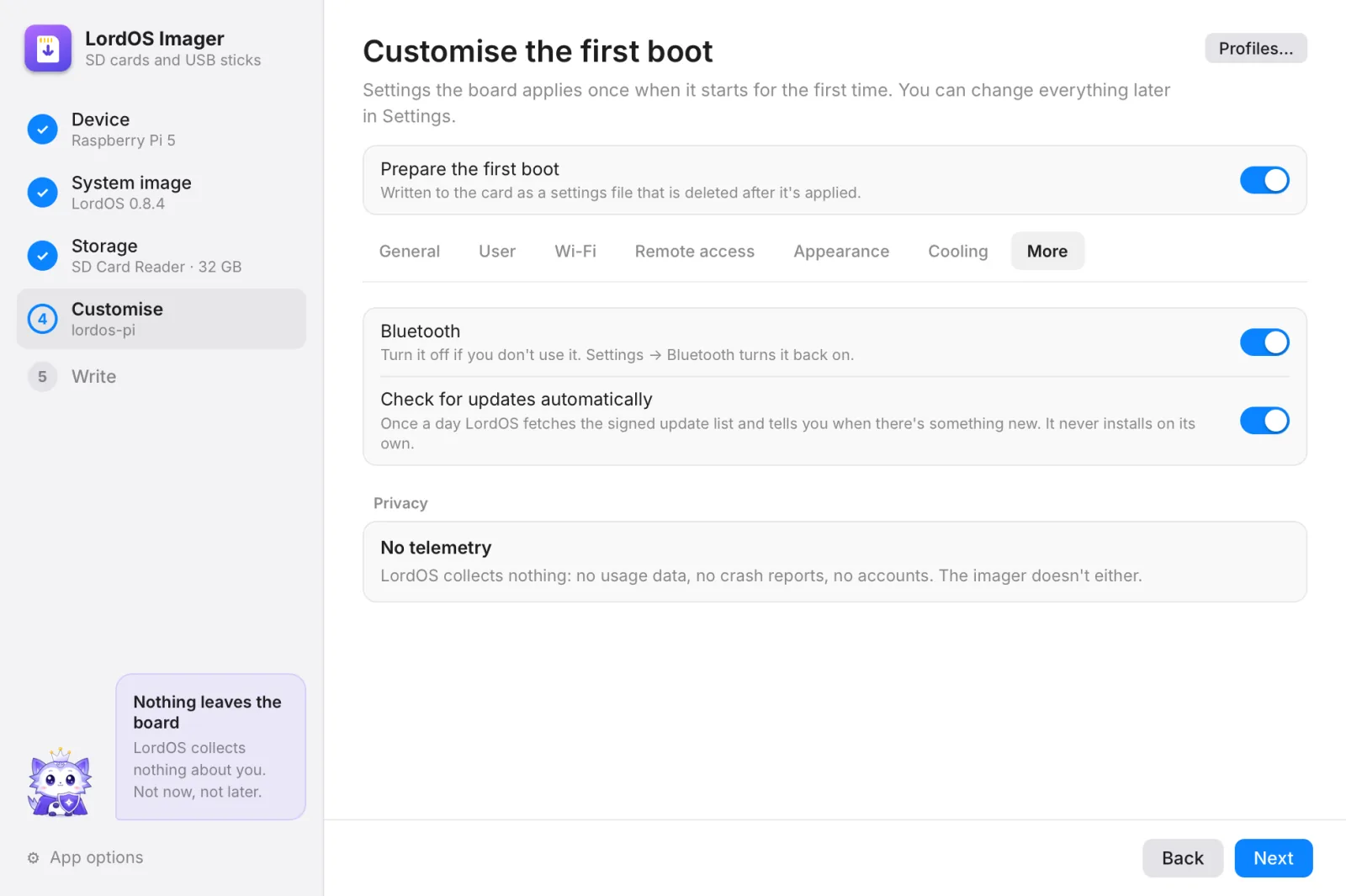
More 8More
Bluetooth, automatic update checks, and a promise: LordOS collects nothing.
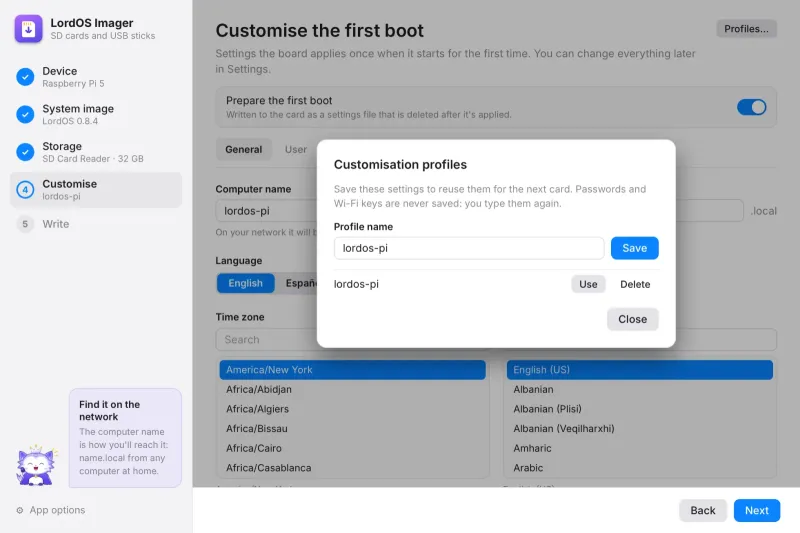
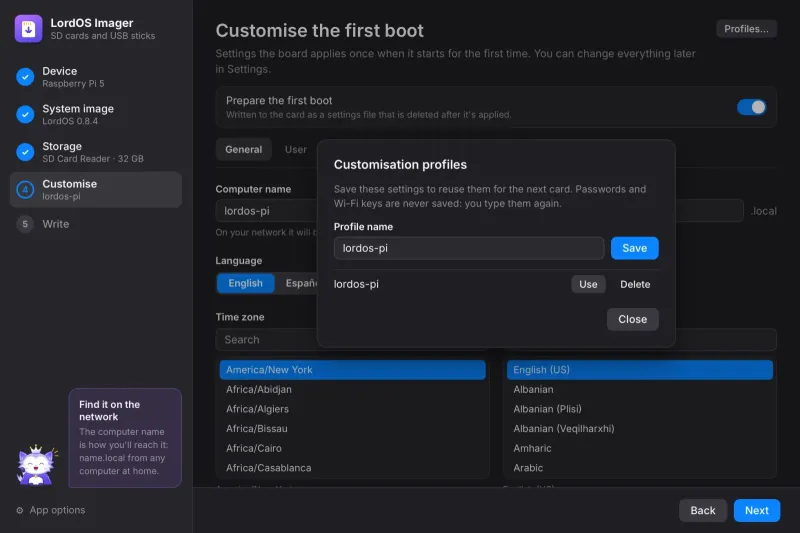
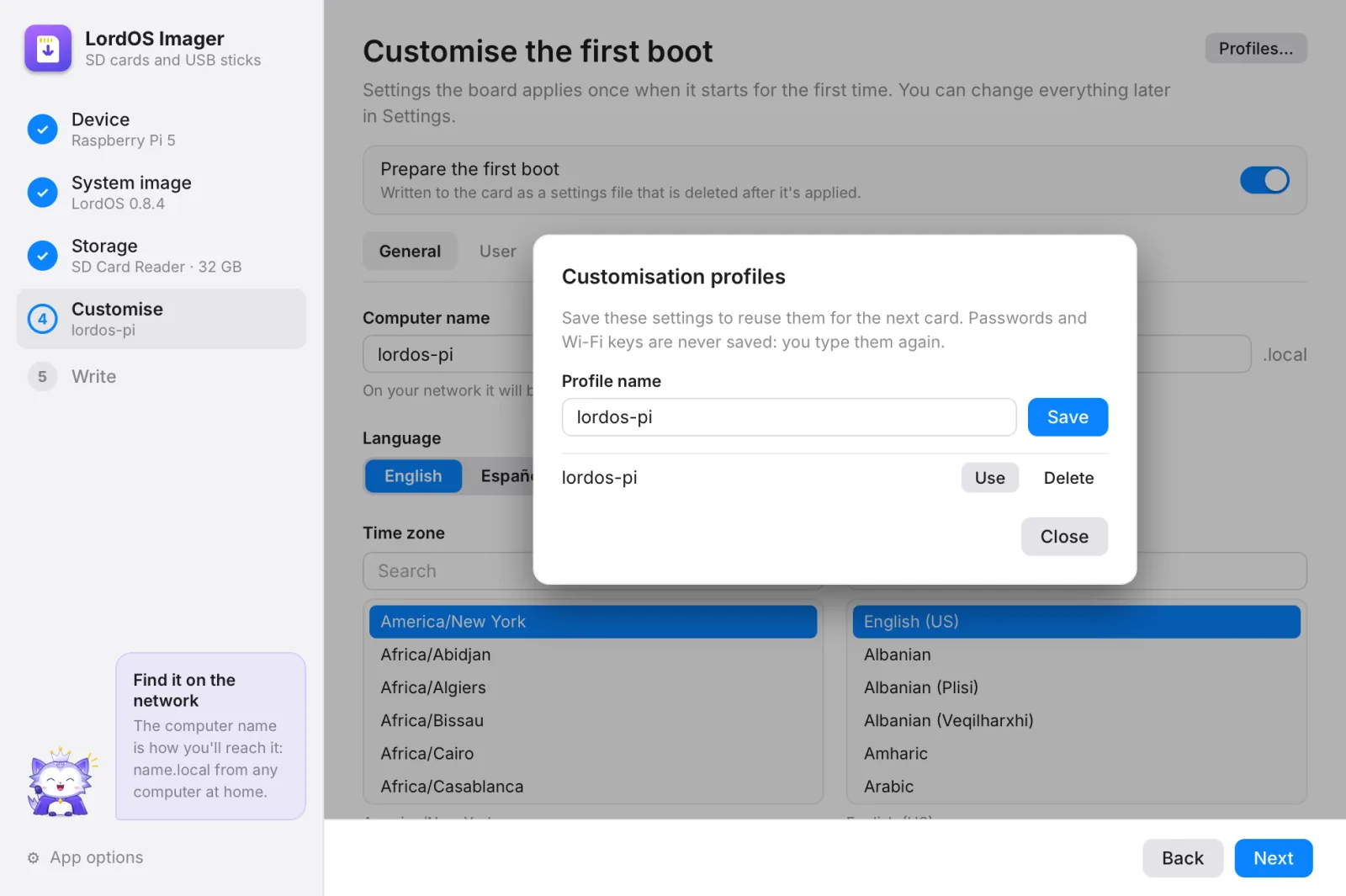
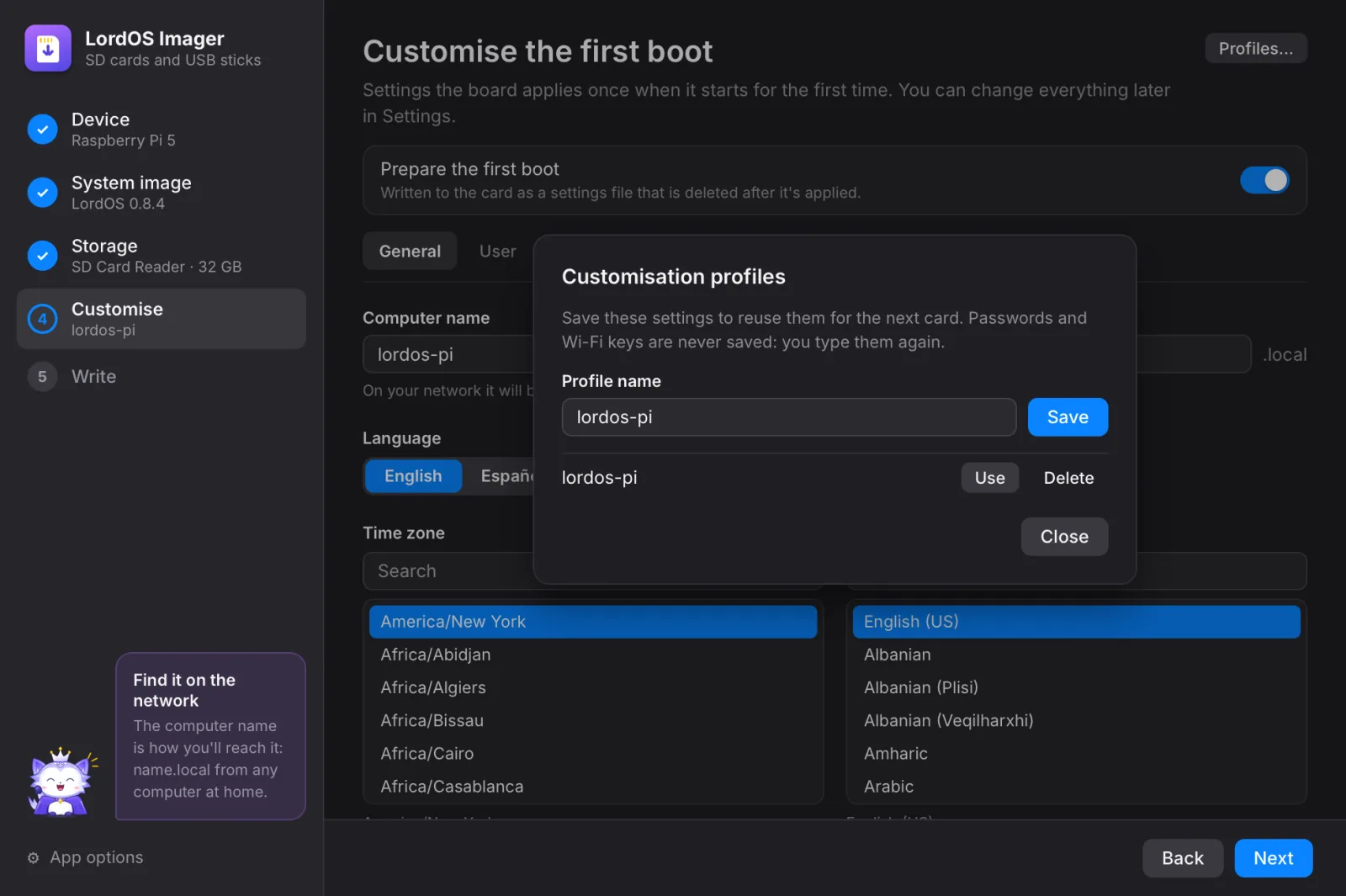
Profiles 9Profiles
Save these settings to reuse them for the next card. Passwords and Wi-Fi keys are never saved: you type them again.
Step 5
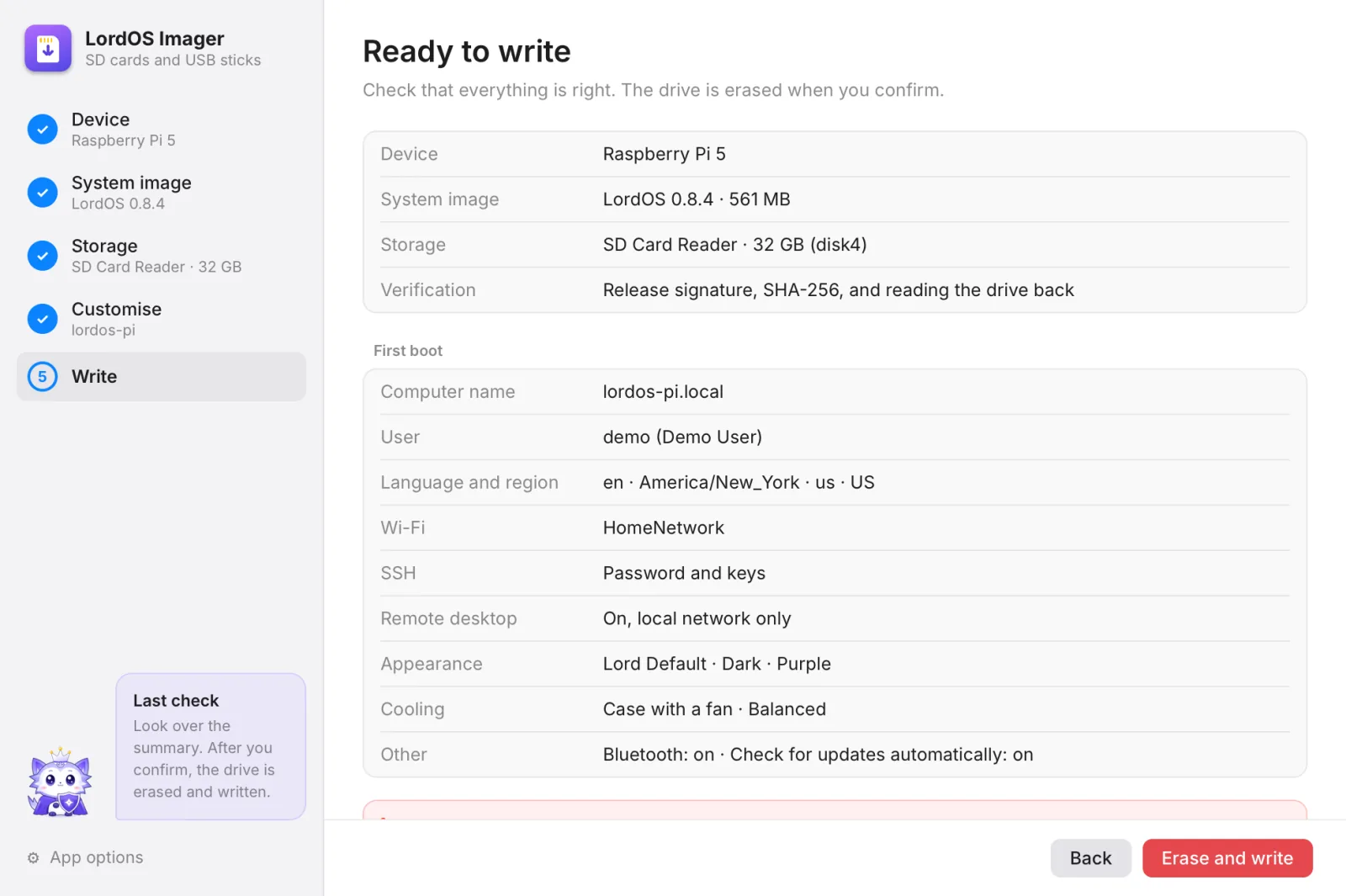
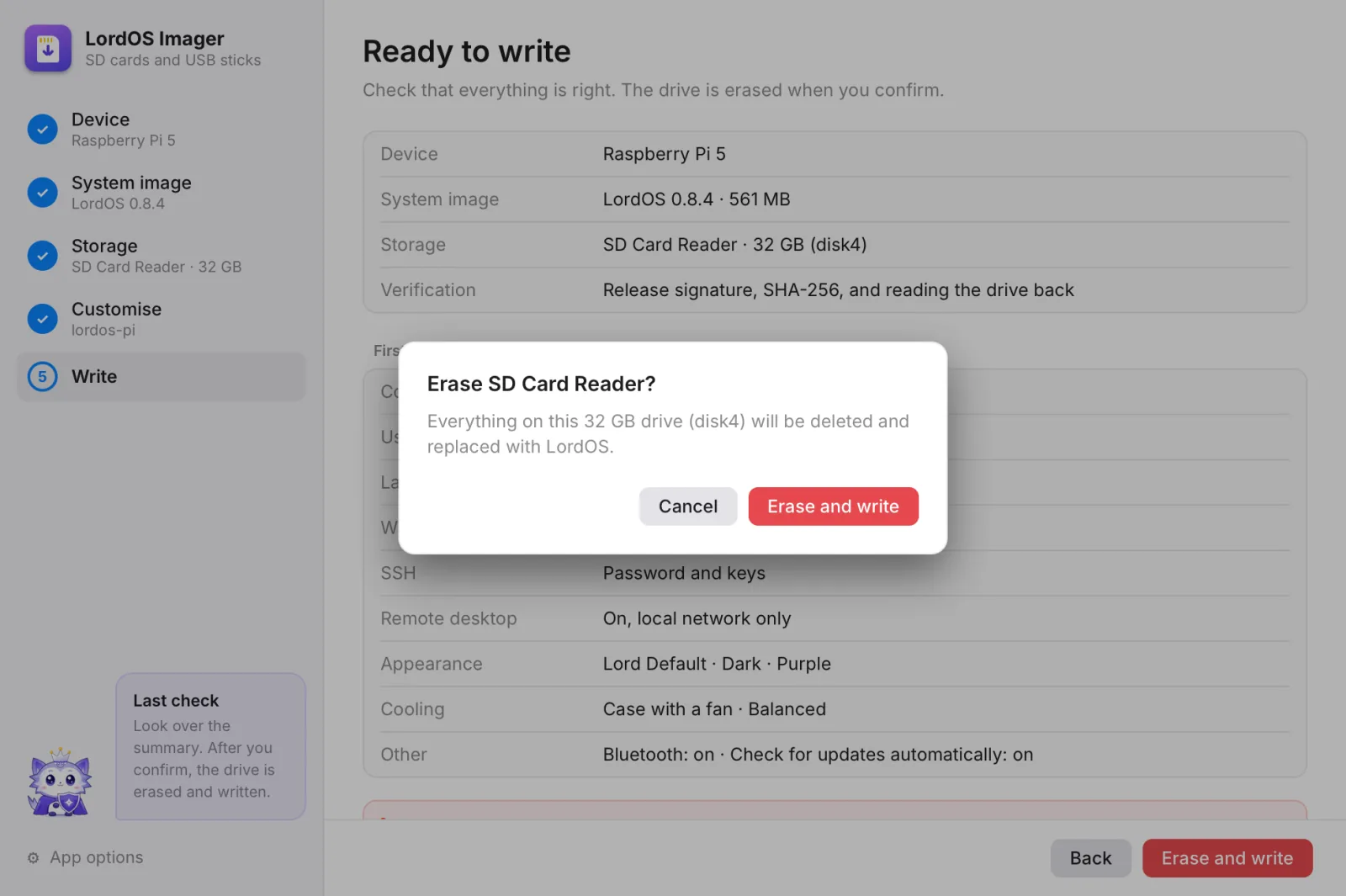
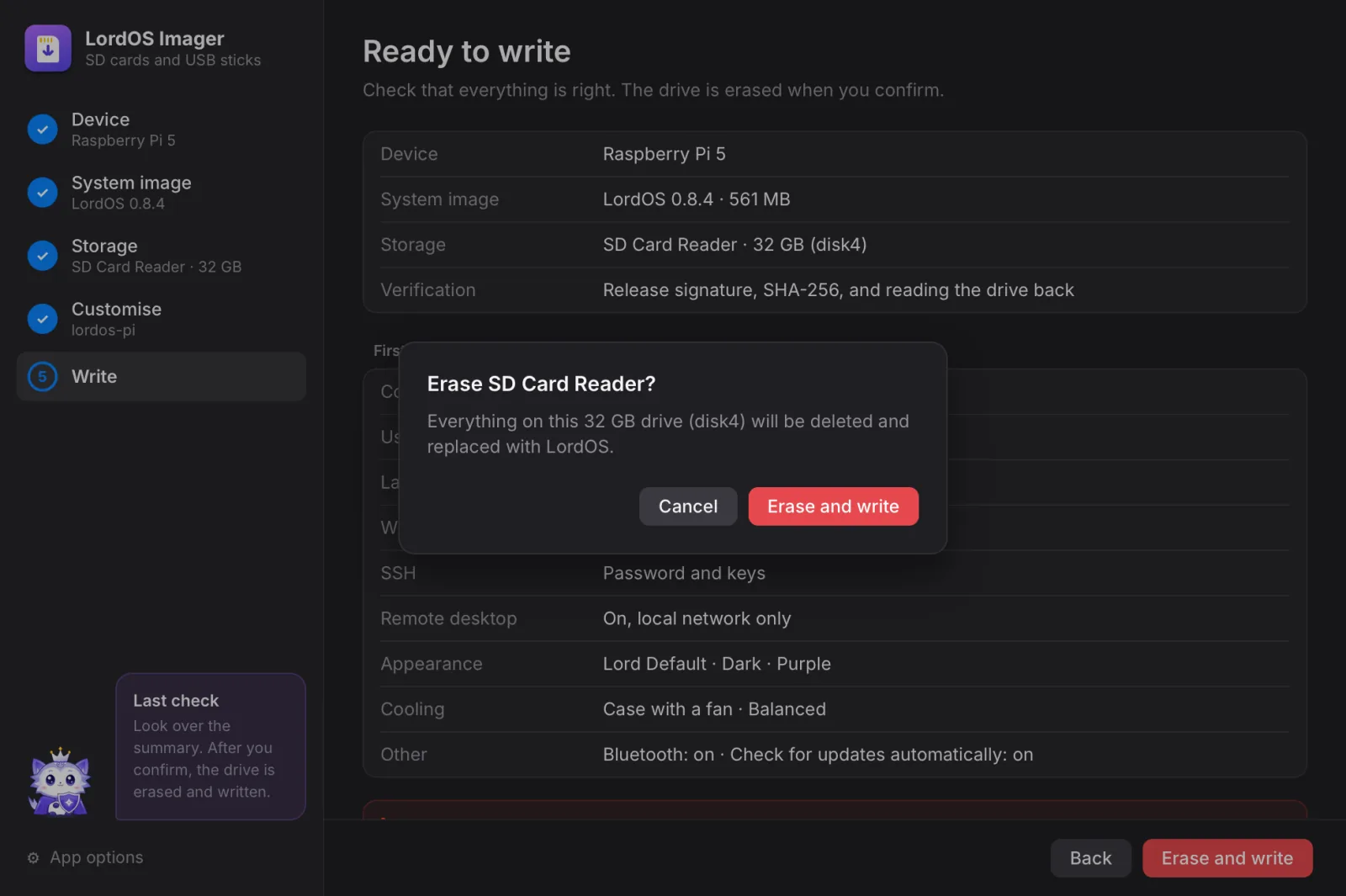
Check and write
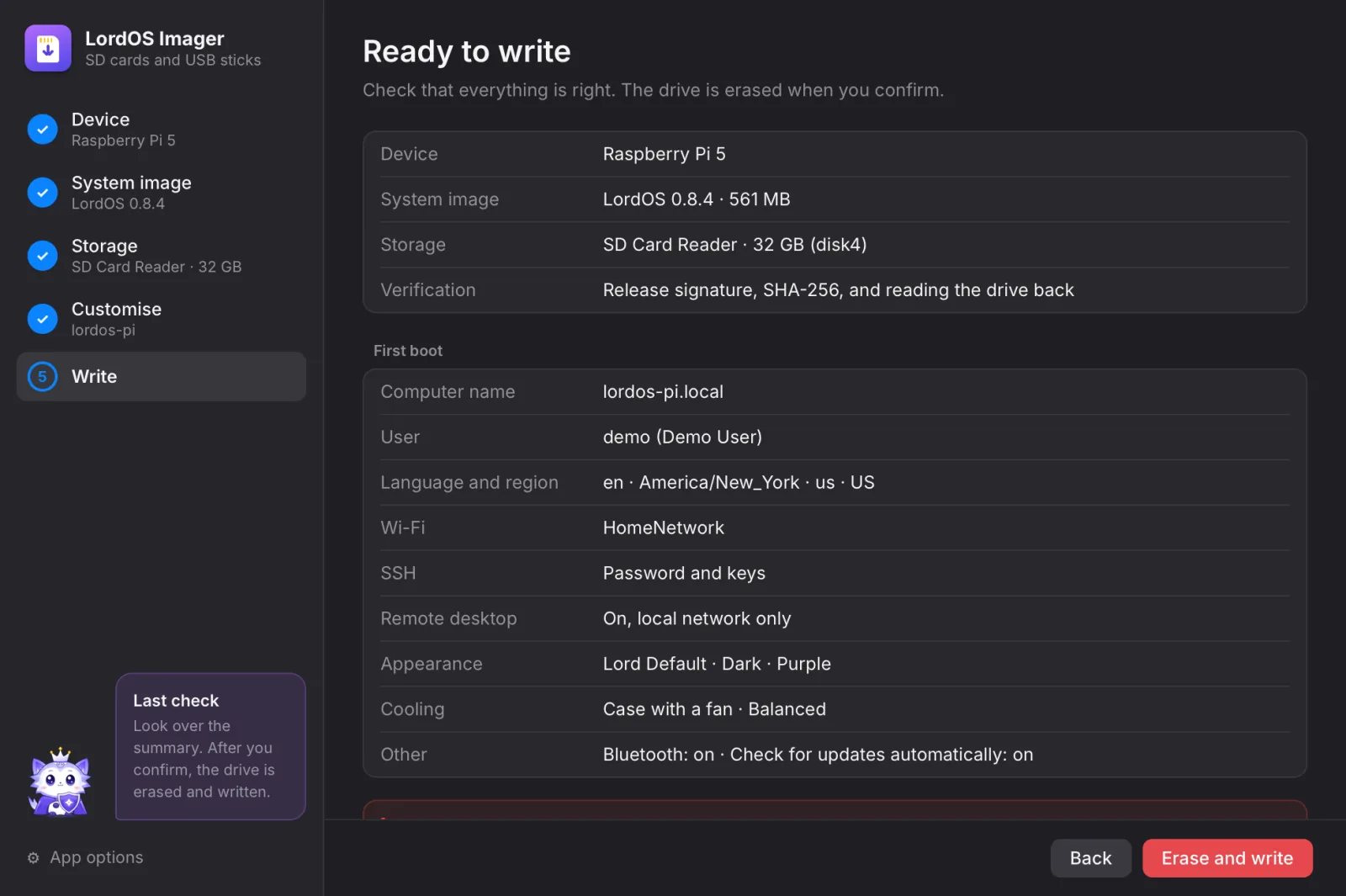
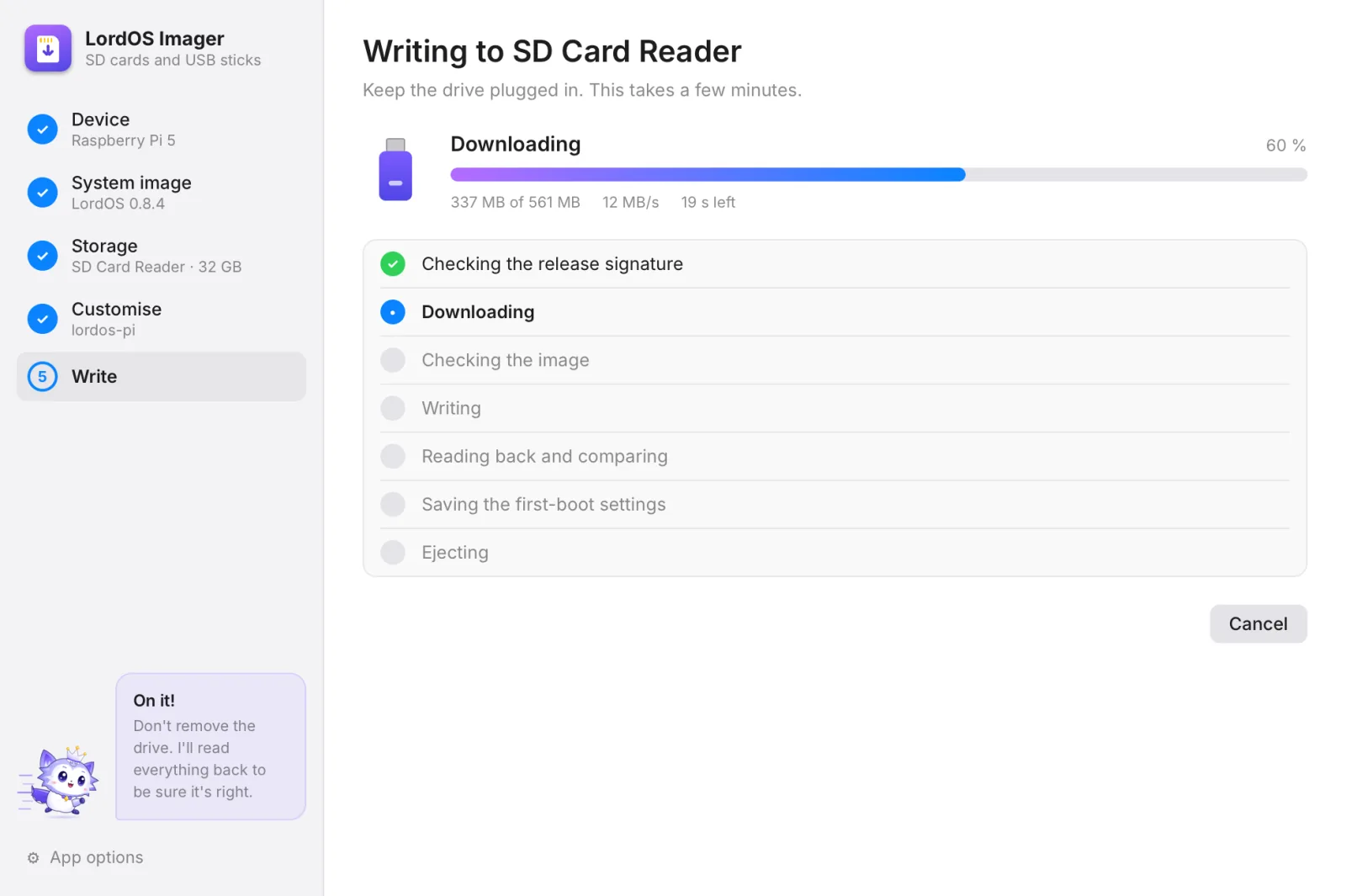
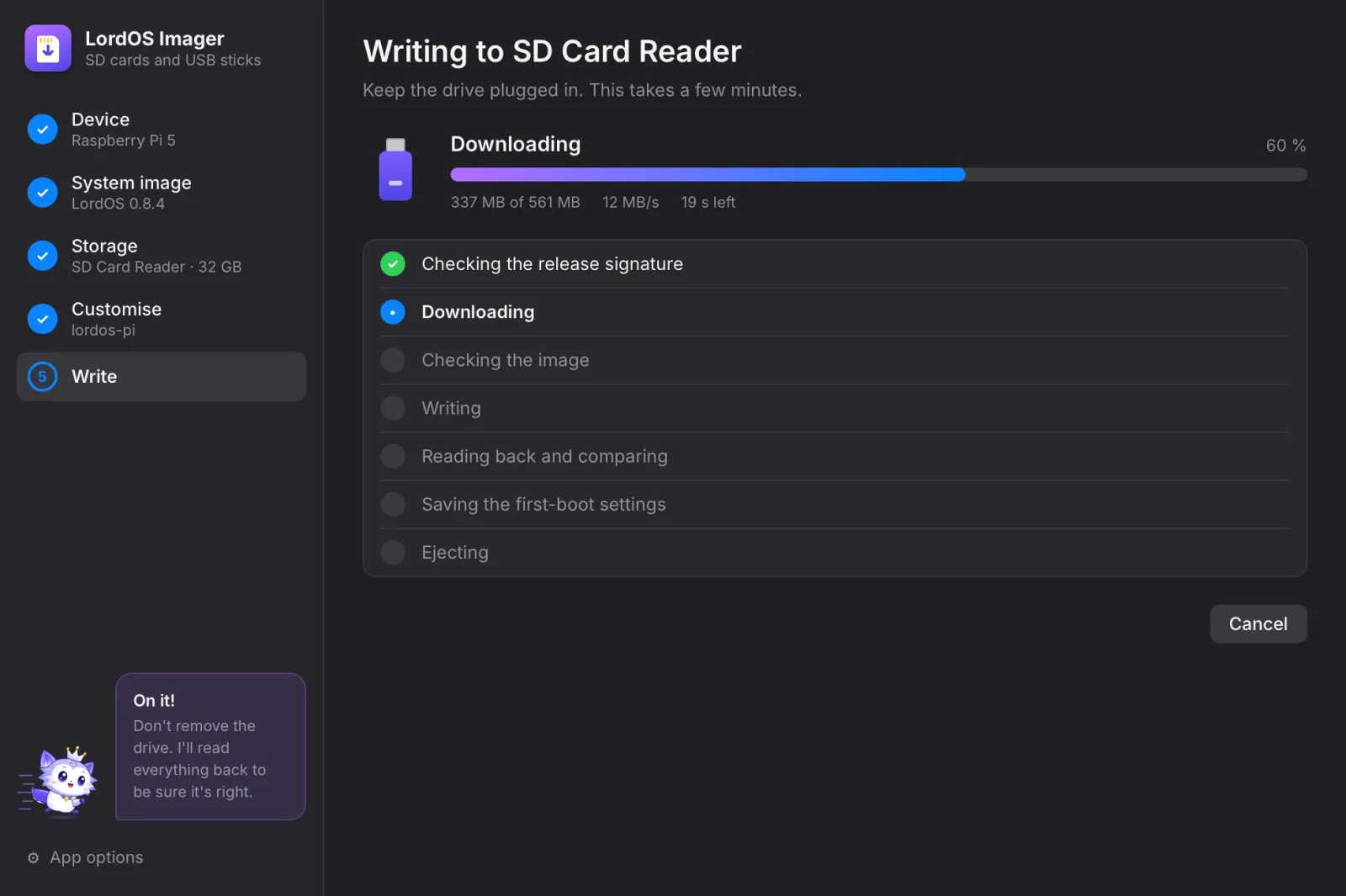
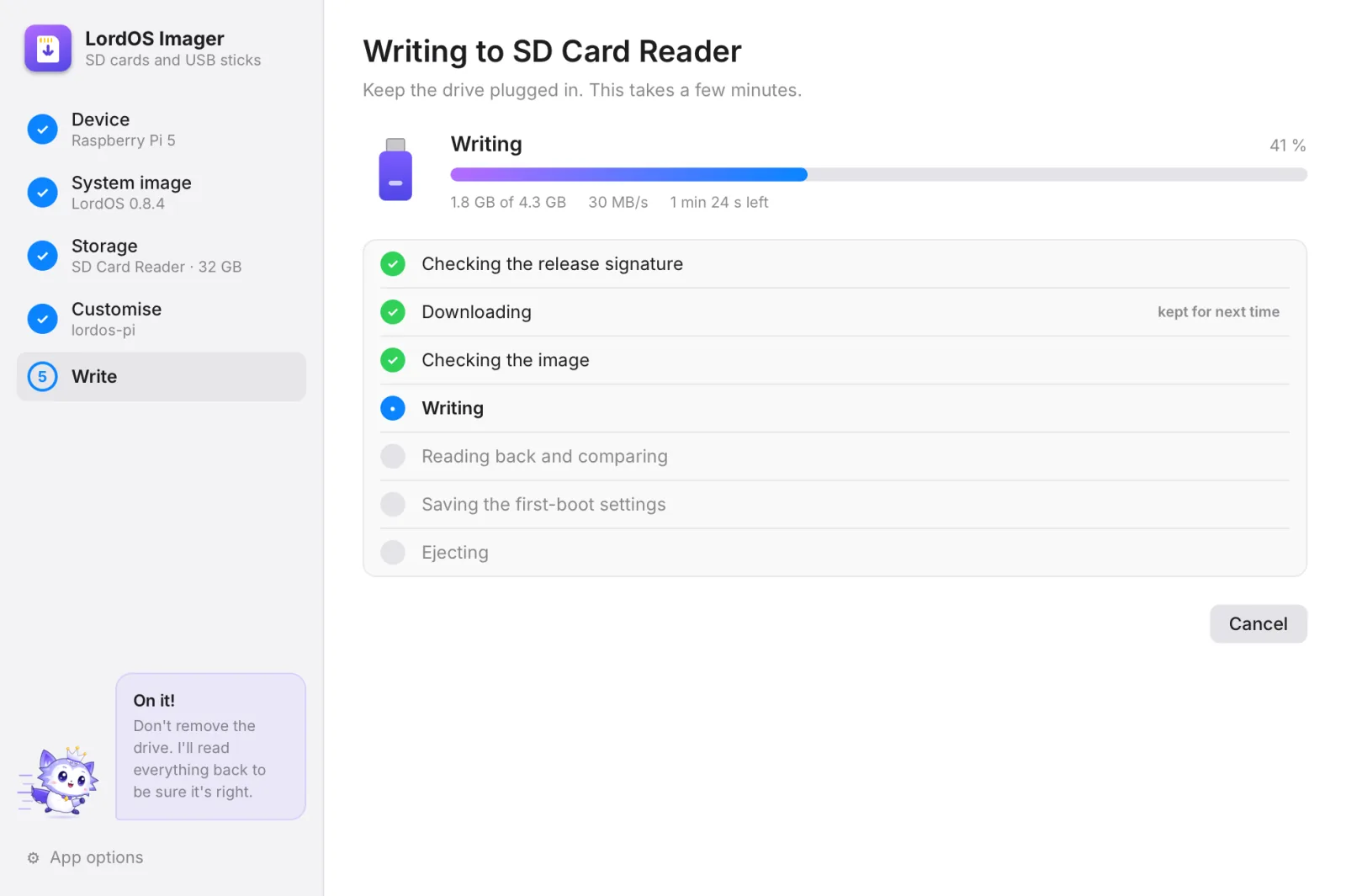
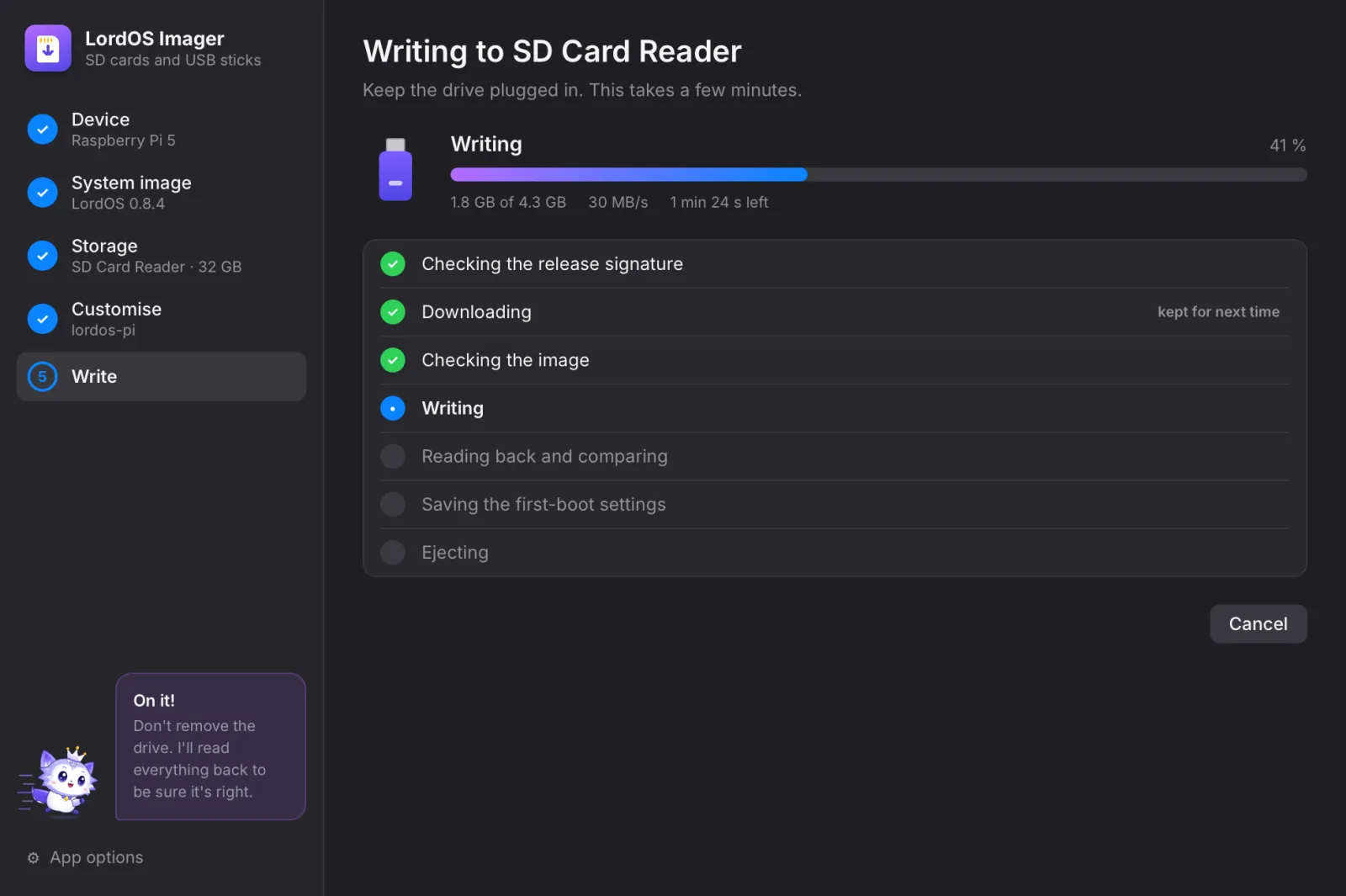
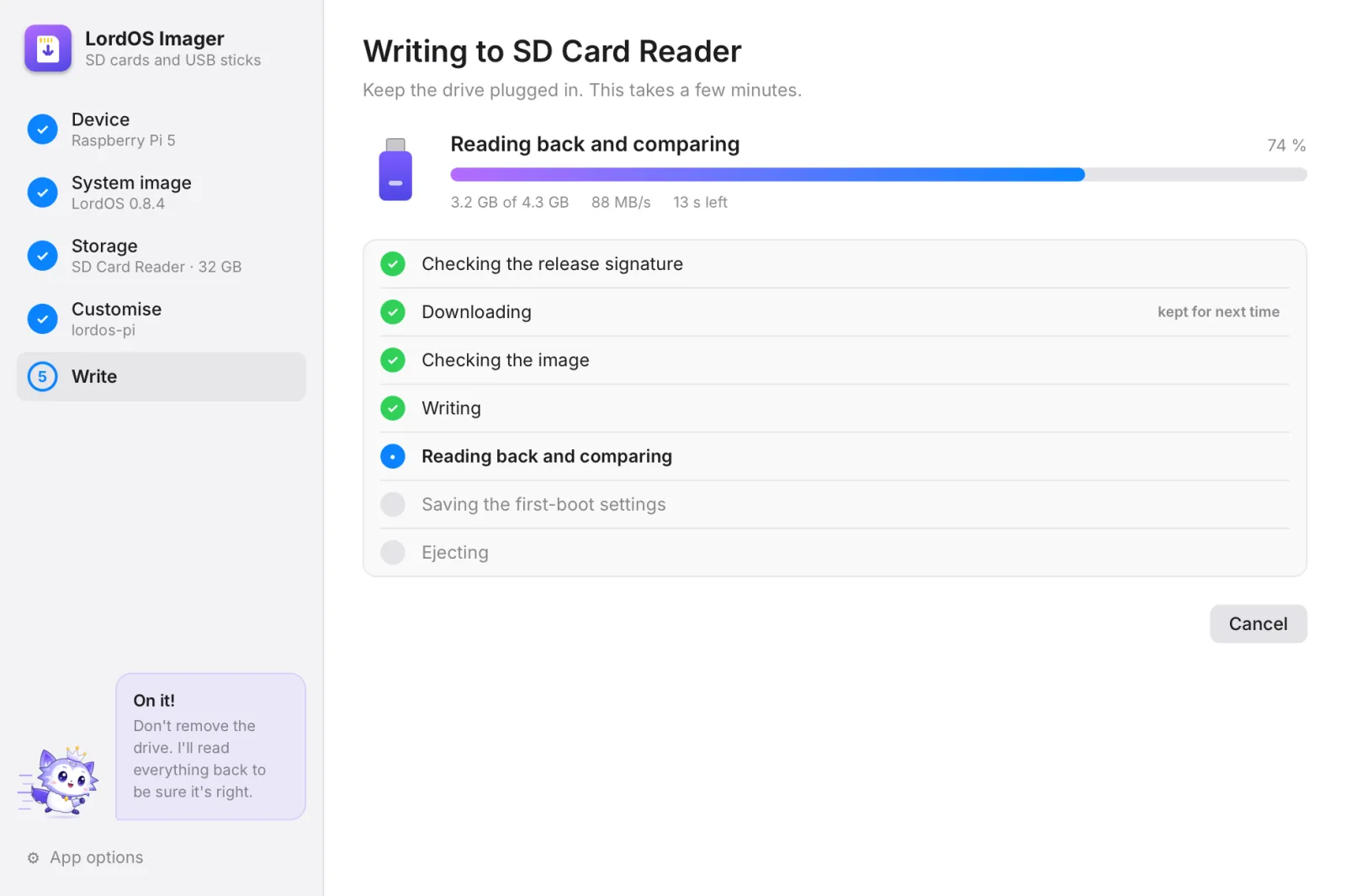
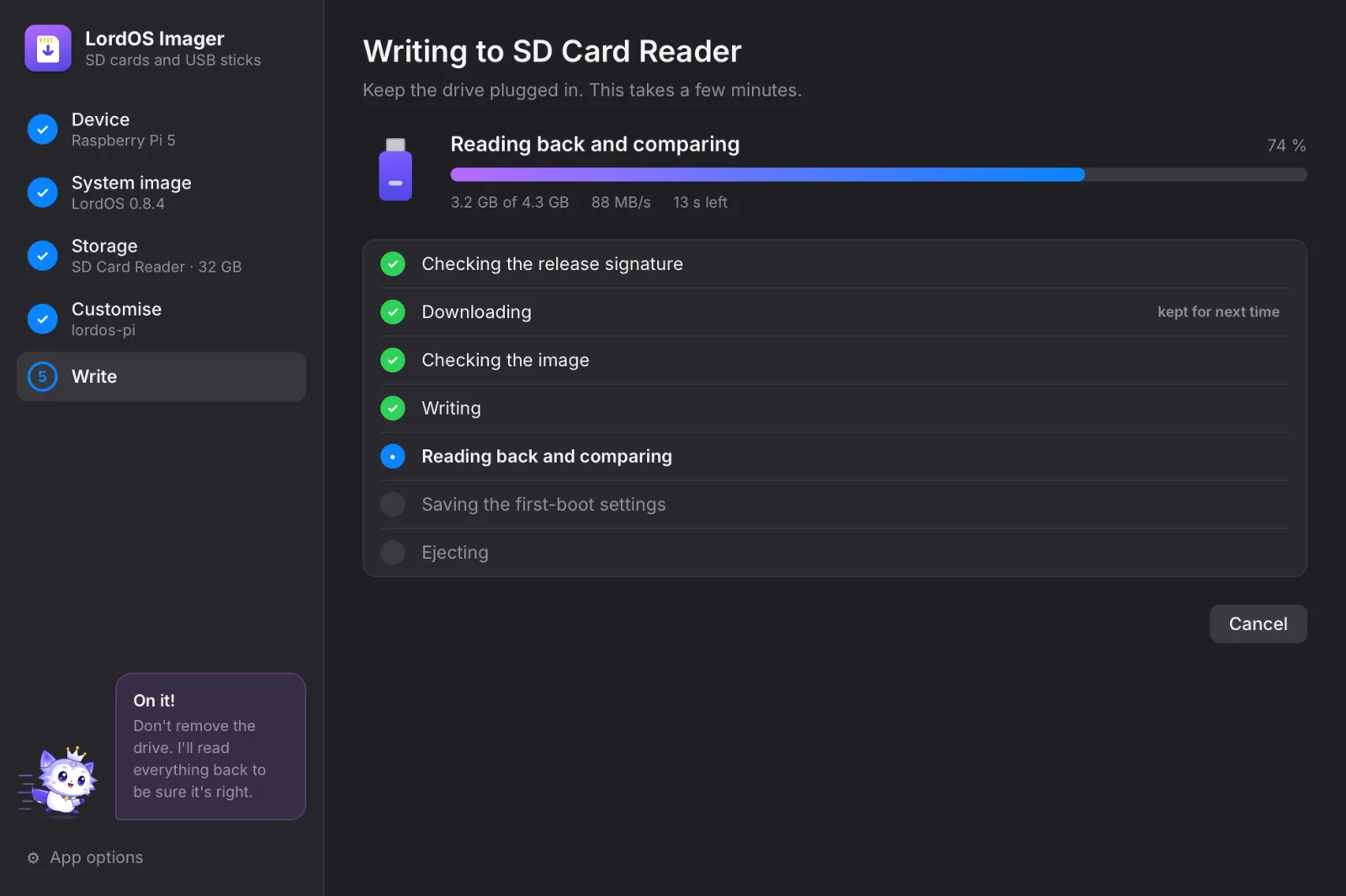
A summary of everything you chose, then Erase and write asks one last time. From there the imager does it all by itself:
- checks the release signature, then downloads the image (an interrupted download resumes);
- checks the image, writes it, then reads the whole card back and compares;
- saves the first-boot settings and ejects the card.
Step 6
Done!
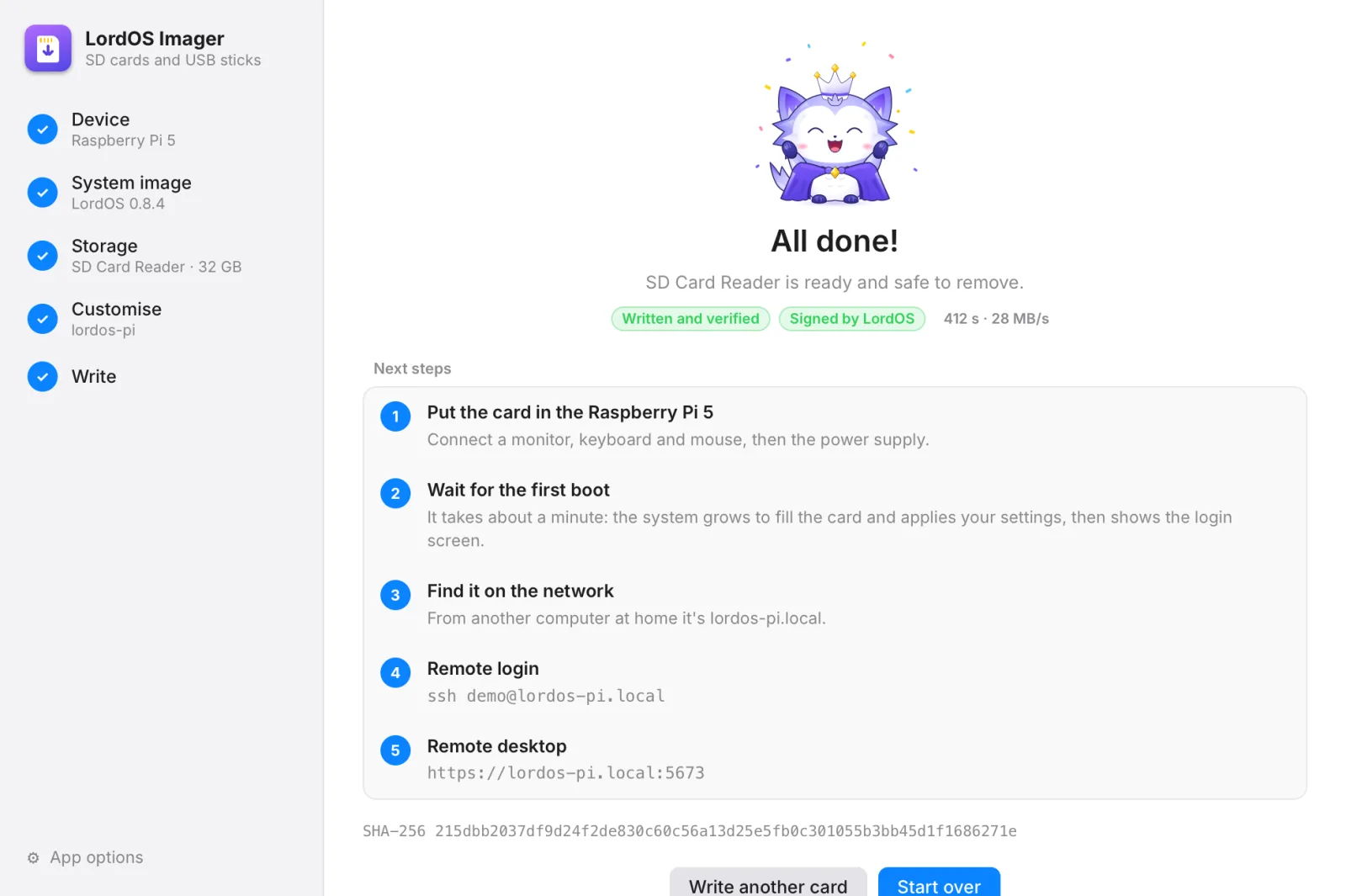
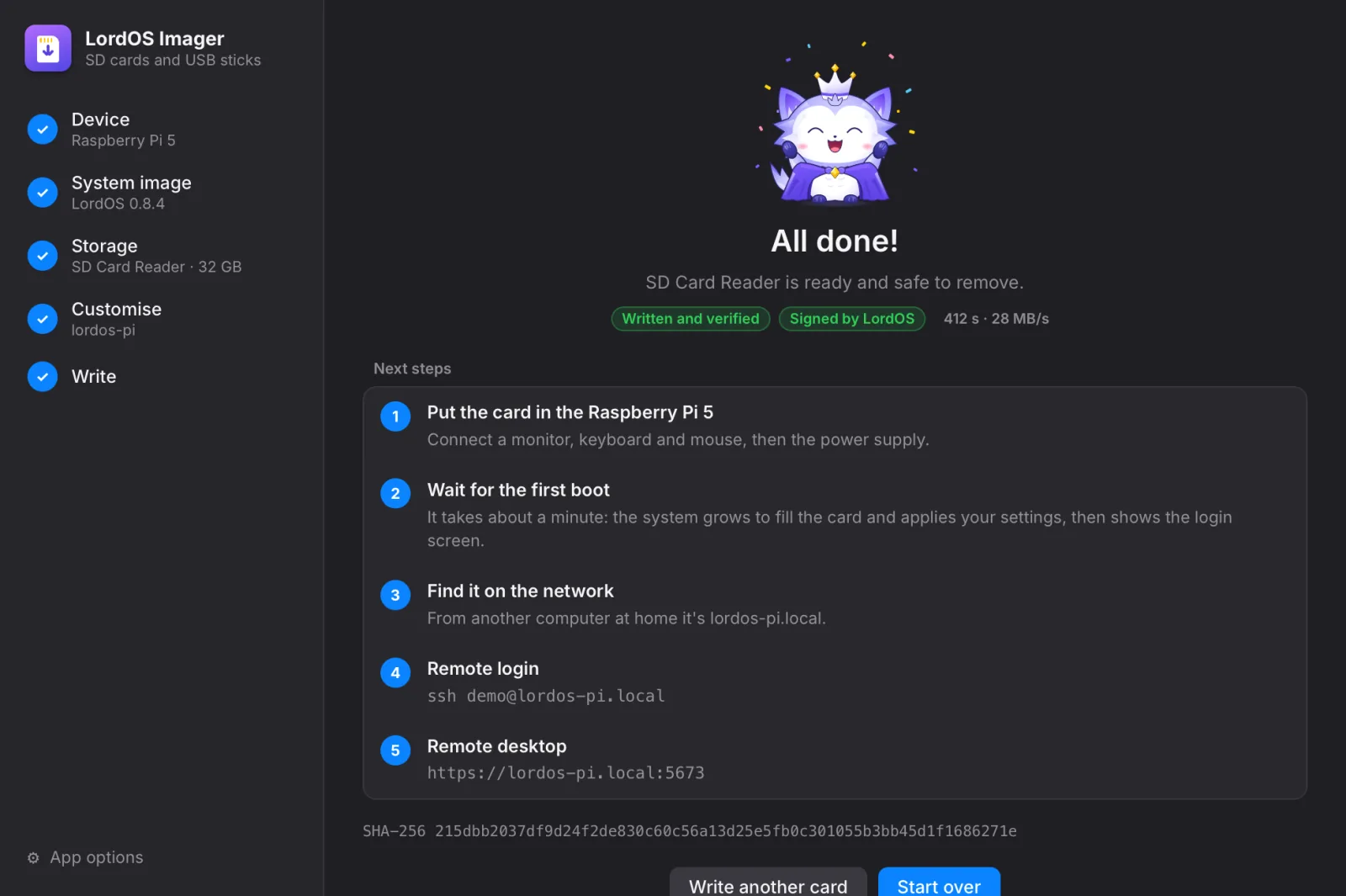
Lumo celebrates and lists what comes next, with the exact name of your board on the network and the commands for remote login and remote desktop. A sound and a notification tell you it's finished.
Step 7
The first boot on the Raspberry Pi 5
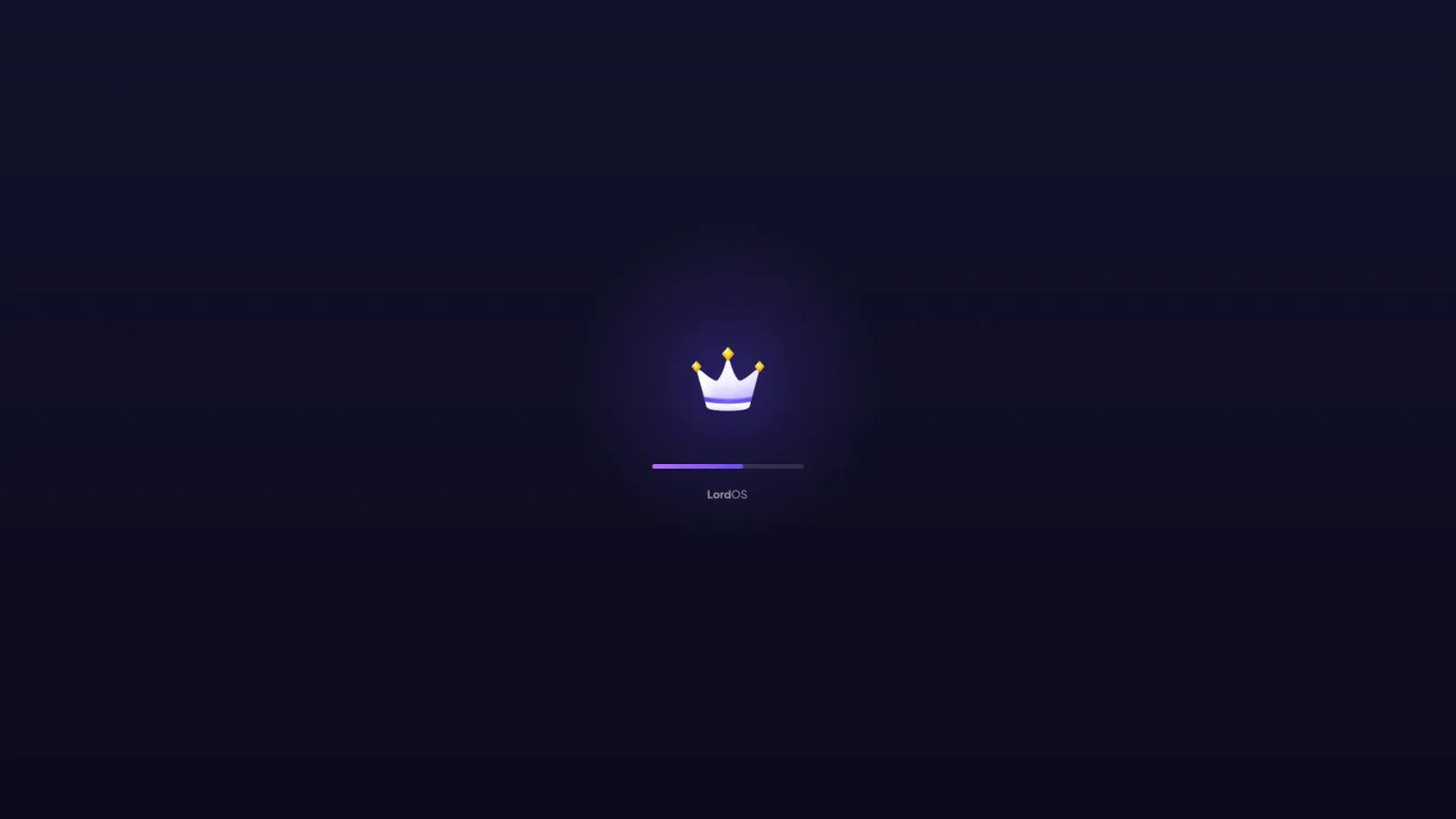
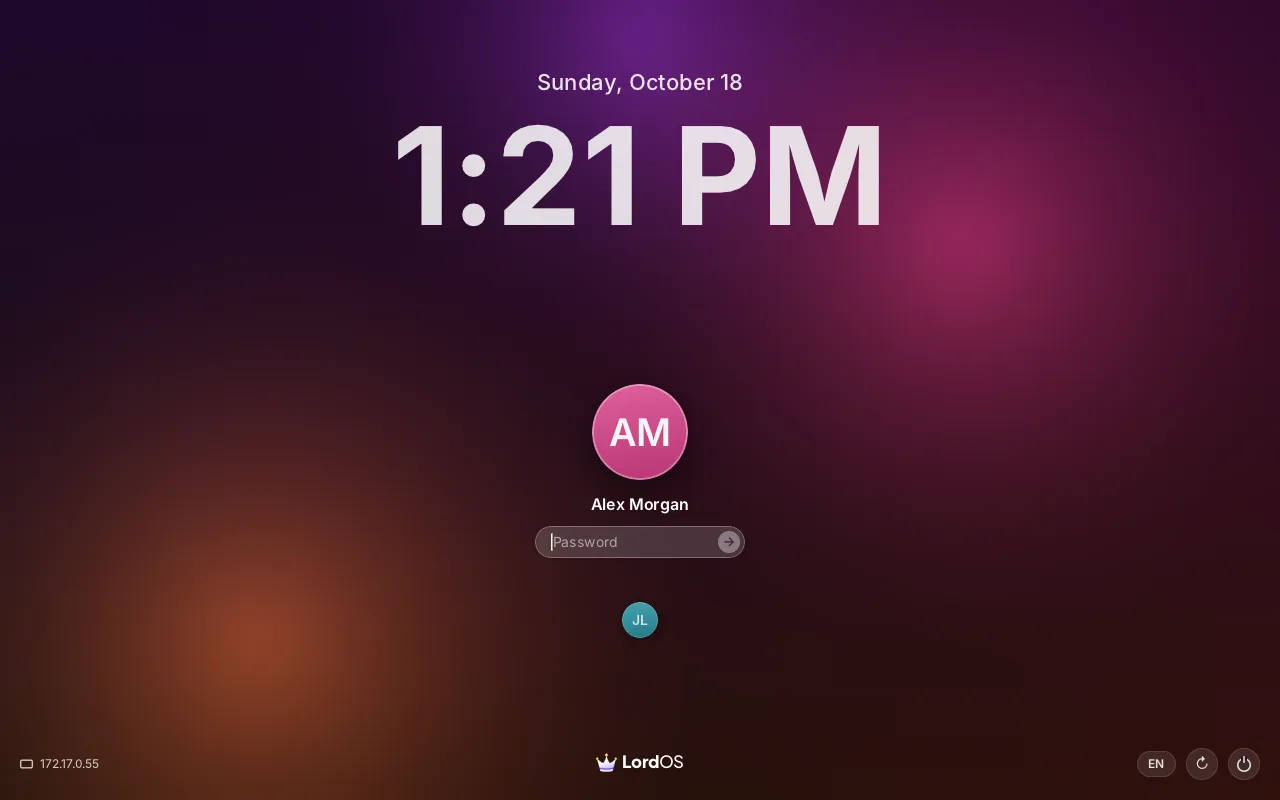
Put the card in the board, connect the monitor, keyboard and mouse, then the power supply. The LordOS crown and a progress bar appear while the system grows to fill the card and applies your settings. After about a minute the login screen shows your account.
- From another computer at home it's
lordos-pi.local. - Remote login:
ssh demo@lordos-pi.local. - Remote desktop, if you turned it on:
https://lordos-pi.local:5673.
Which cooling do I have?
Pick what is physically on your board. It sets the fan curve and the clock speed, and you can change it later in Settings.
Case with a fan
A closed case with its own built-in fan, plugged into the board's fan connector. Many aluminium cases are like this.
Have a case with a fan? Choose Case with a fan.
Active cooler
A small heatsink with a fan on top that clips straight onto the board.
Choose Active cooler.
Passive case
A metal case or a heatsink that cools without any fan.
Choose Passive case.
Nothing
A bare board. It works, but under load it slows itself down within minutes.
Choose Nothing: a gentler clock avoids that.
Profiles
| Cooling | Profiles | What they do |
|---|---|---|
| With a fan (case or active cooler) | Balanced (default), Performance, Quiet | Balanced: the fan starts at 55 °C. Performance: from 45 °C, and the processor stays at full speed. Quiet: from 60 °C. |
| Passive case | Balanced (default), Conservative | There's no fan to drive. Conservative caps the clock at 2.0 GHz. |
| Nothing | Conservative (default), Balanced | 2.0 GHz, so a bare board doesn't reach 85 °C and throttle. |
Mild overclock (only with a fan)
2.6 GHz instead of 2.4 GHz, with no extra voltage. Not every board is stable: if yours doesn't start, open the card's boot partition on another computer and delete the lordos-firstrun block in config.txt.
App options
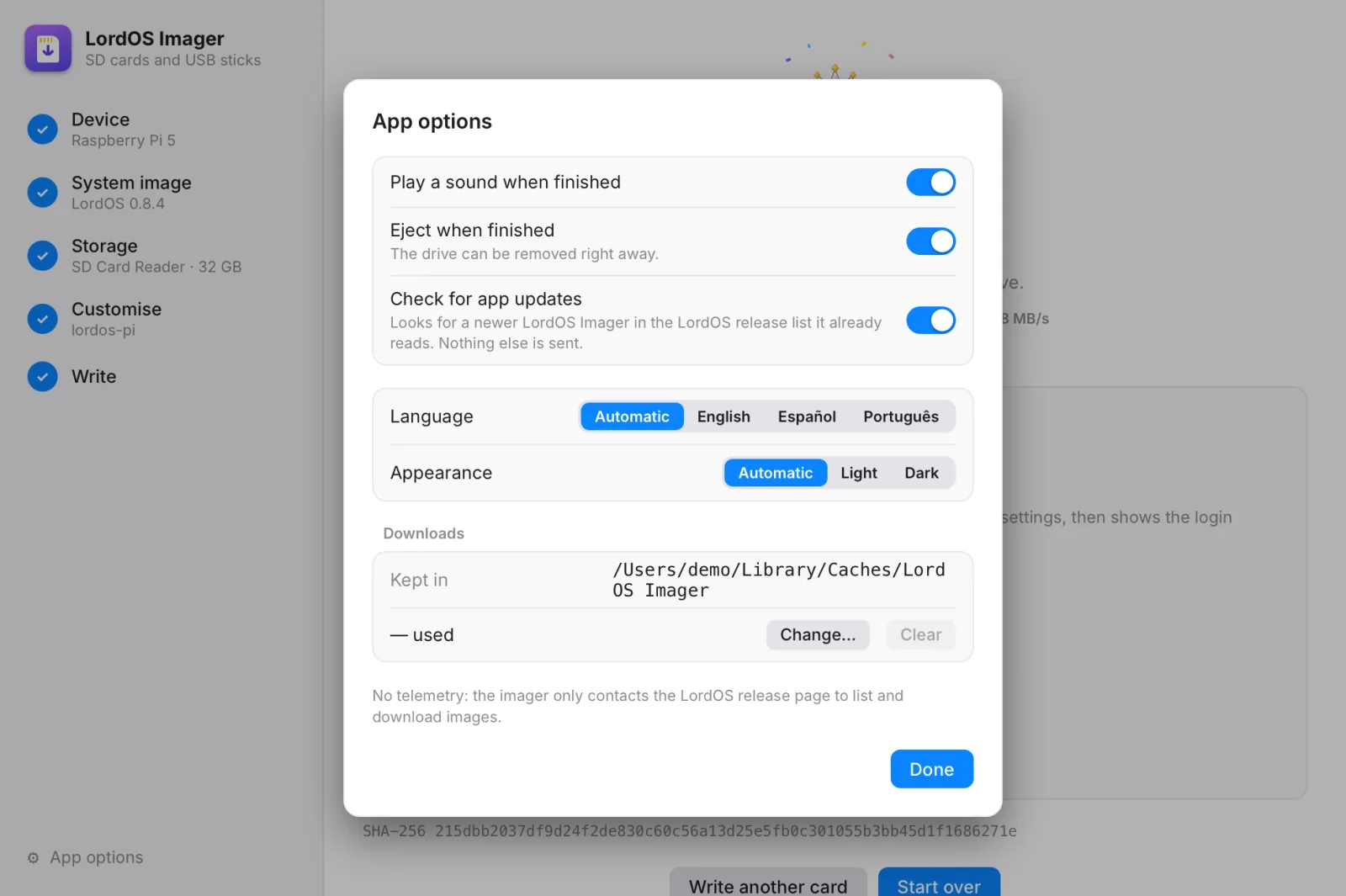
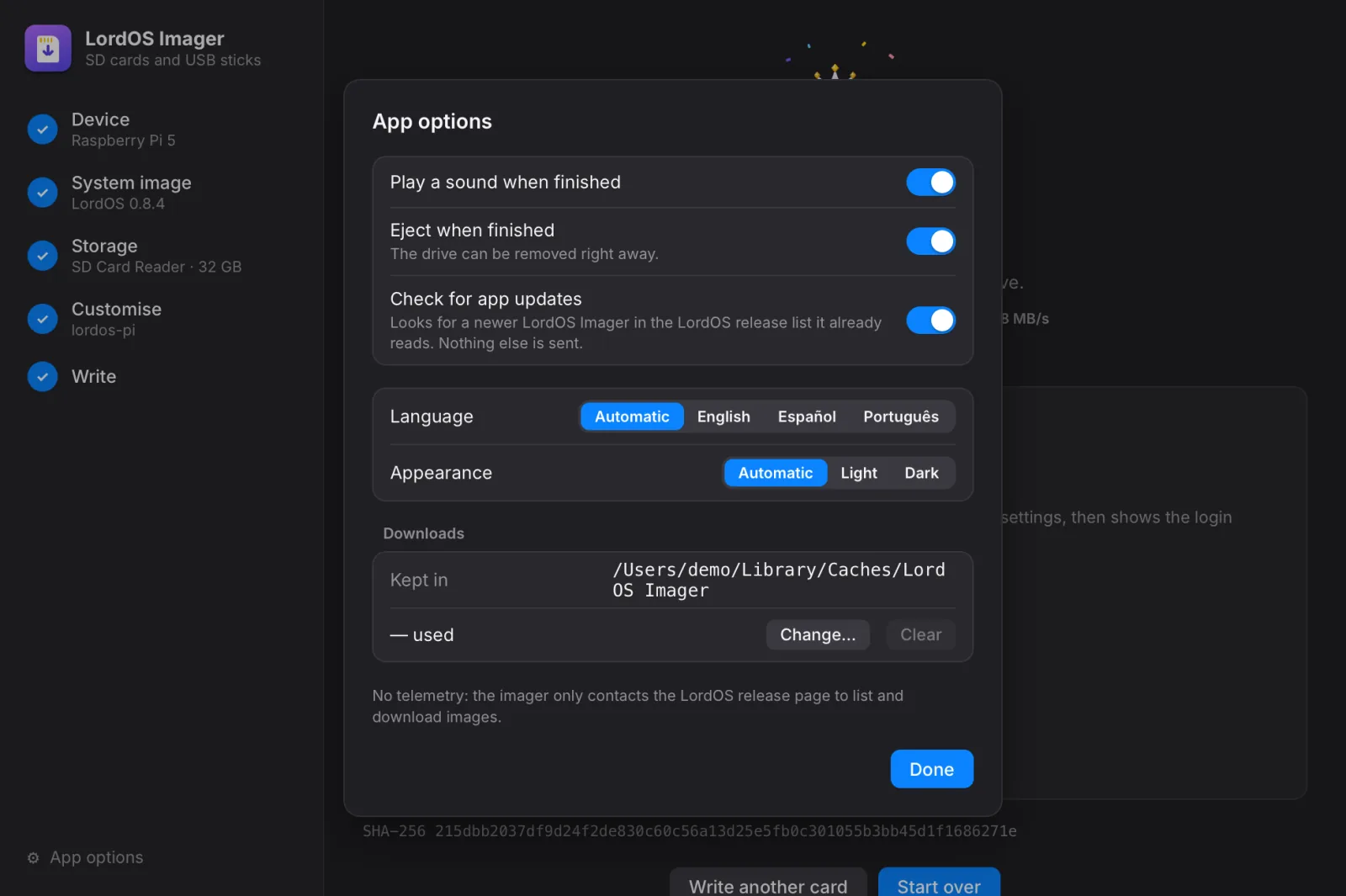
App options, at the bottom of the sidebar: a sound and ejecting when finished, checking for app updates, language and appearance, and the download folder, with how much it uses and a button to clear it.

Safe by design
What LordOS Imager does to protect your card, your board and you.
Signed images only
Before anything is erased, the release's list of files is checked against the LordOS release key, and the image's SHA-256 against that list. While writing, the image is hashed again.
Read back and compared
After writing, the whole card is read back and compared with what was written.
Your password stays yours
It becomes a one-way hash before it's written. Wi-Fi is stored as the network's derived key.
Applied once, then deleted
The board checks the settings file strictly, applies it once, then overwrites and deletes it. An invalid file applies nothing.
Only cards and USB drives
Your computer's own disks are never listed, and your computer asks for an administrator's approval before the drive is opened.
Nothing collected
No account, no usage data, no crash reports. The imager only talks to the LordOS releases page to list and download images.
Troubleshooting
My card isn't listed
Only removable drives appear: SD cards and USB drives. Use a card reader if your computer has no slot, and wait a few seconds: the list updates by itself. A card whose lock switch is on, or one under 8 GB, is shown greyed out with the reason. Your computer's own disks are never shown, on purpose.
It says the signature didn't verify
Then nothing was written and nothing was erased. The downloaded files don't match what LordOS signed, usually because a download broke. Open App options → Downloads → Clear and try again. If it keeps happening, tell us (see the security page).
The board doesn't join my Wi-Fi
Check the network name (capitals count), the password and the Wi-Fi country in General. A network that only accepts WPA3 needs its password on the board itself: connect a network cable once and add it in Settings → Network.
I can't find lordos-pi.local
Give the first boot a minute or two, and make sure your computer is on the same network (guest networks often keep devices apart). The login screen shows the board's address in its corner; you can use that address instead of the name.
How do I log in with SSH?
If you turned it on: ssh demo@lordos-pi.local (with your user name and computer name). Keys only is the safest choice. You can turn it on or off later in Settings → Sharing. The root account never logs in.
The board doesn't start after the overclock
Put the card in your computer, open its boot partition and delete the block between # >>> lordos-firstrun and # <<< lordos-firstrun in config.txt. The board starts at its normal speed again.
I skipped Customise. Now what?
The board starts in setup mode and logs in by itself. Create your account in Settings → Users; on the next start the setup account is removed. Don't turn on remote desktop until then.
Can I write a USB stick for a PC?
Yes: choose PC (USB stick) in step 1. It writes the LordOS live system; boot the PC from the stick to try it, then install it from there.

Ready? Get LordOS Imager
Free and open source. Every official image is checked against the release signature before anything is erased.
Prefer another way to write the card? See the download section.
Screens from LordOS Imager 0.8.6 with demo values: user “demo”, computer “lordos-pi”, network “HomeNetwork”.