
LordOS comes as a ready virtual machine for amd64: lordos-<version>-amd64.ova. It is already installed, so there is no installer to run. You open it in your hypervisor, start it and create your account.
What you need#
- A 64-bit PC (amd64) with hardware virtualization turned on in its firmware. The OVA doesn't run on computers with an ARM processor: for those, use the arm64 ISO.
- VirtualBox 7 (tested on 7.2) or VMware Fusion or Workstation.
- Memory and processors for the machine: at least 4 CPUs and 4 GB of memory. 2 CPUs are too few for good performance. With many apps open, 16 GB is the ideal. The computer running it needs that much free on top of its own use.
- Disk: the download is about 1.3 GB. The machine's disk is 32 GB and grows as it is used; it starts at a few GB.
All the figures for every image are in System requirements.
1. Download and check it#
Download lordos-<version>-amd64.ova, SHA256SUMS and SHA256SUMS.sig from the latest release. In the folder with the files:
shasum -a 256 -c SHA256SUMS --ignore-missing"OK" next to the file name means it is the file we published. Checking the signature too is explained in Code signing.
2. Import it#
VirtualBox#
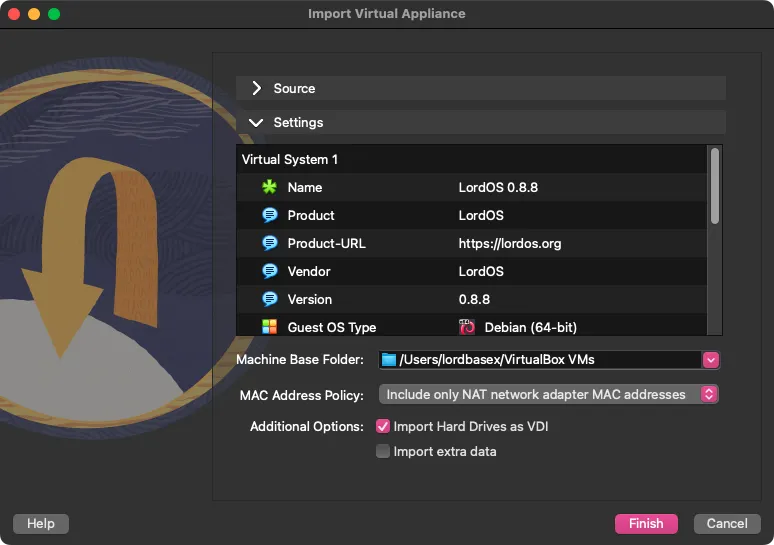
File → Import Appliance, choose the .ova and click Finish. Under Settings you can see what the machine brings: 4 CPUs, 4 GB of memory and its display already set.
VMware Fusion#
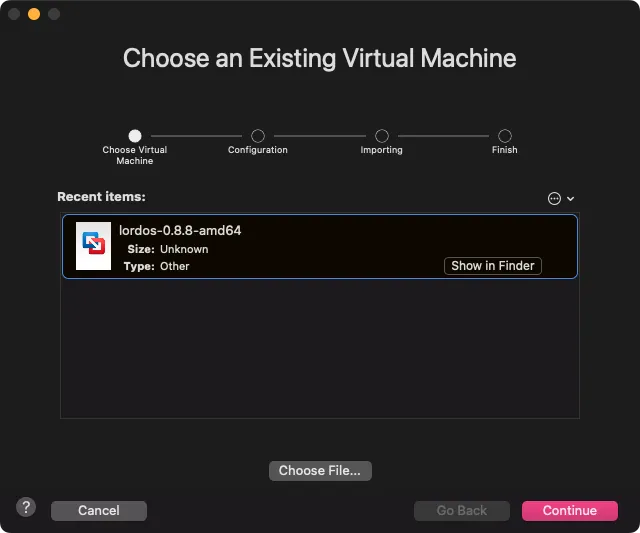
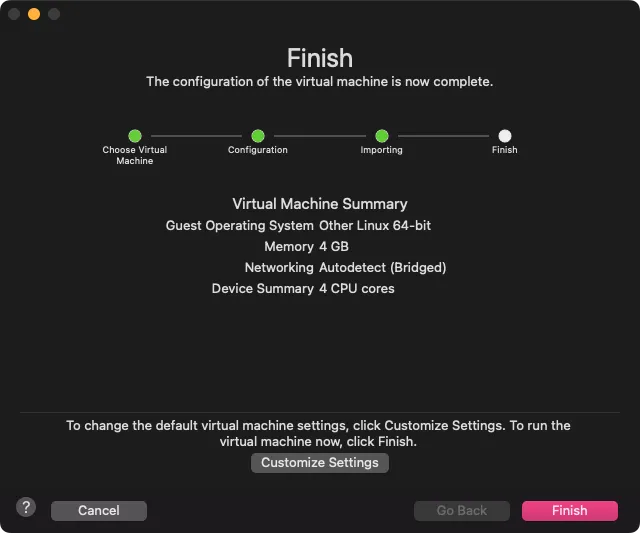
File → Import, choose the .ova and click Continue. Give the machine a name and a folder, then Save. When the import ends, Finish starts it.
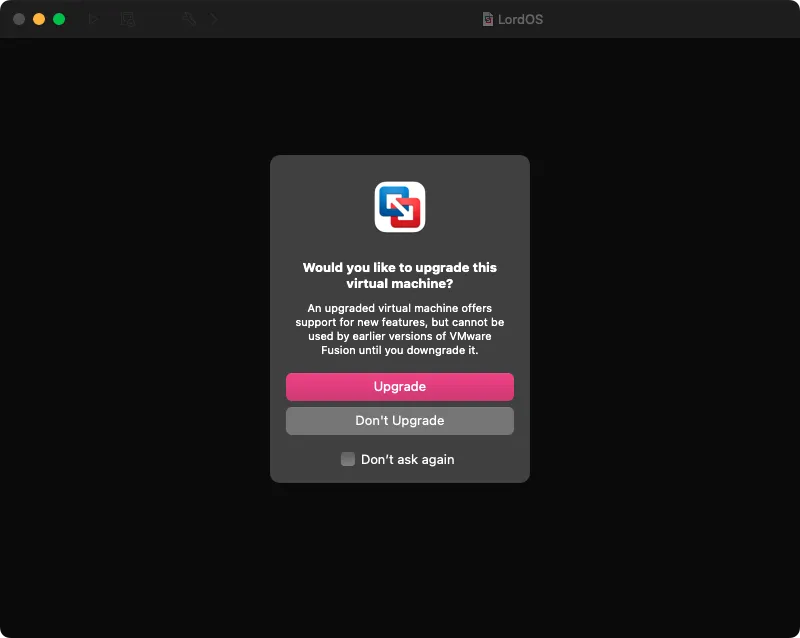
The first time it starts, Fusion may ask whether to upgrade the virtual machine. Either answer works; Upgrade is fine unless you also open it with an older version of VMware.
On VMware Workstation: File → Open, choose the .ova. If VMware says the file doesn't meet the OVF specification, click Retry.
3. Create your account#
Start the machine. It opens Set up LordOS by itself:
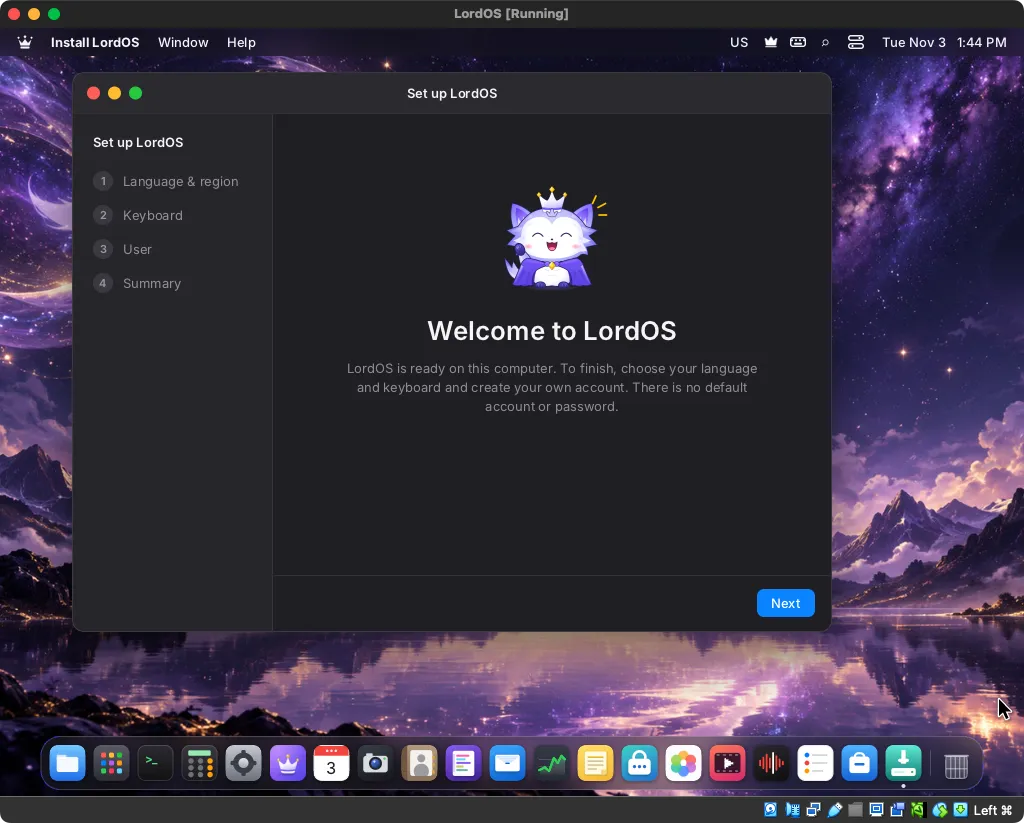
- Language & region and Keyboard.
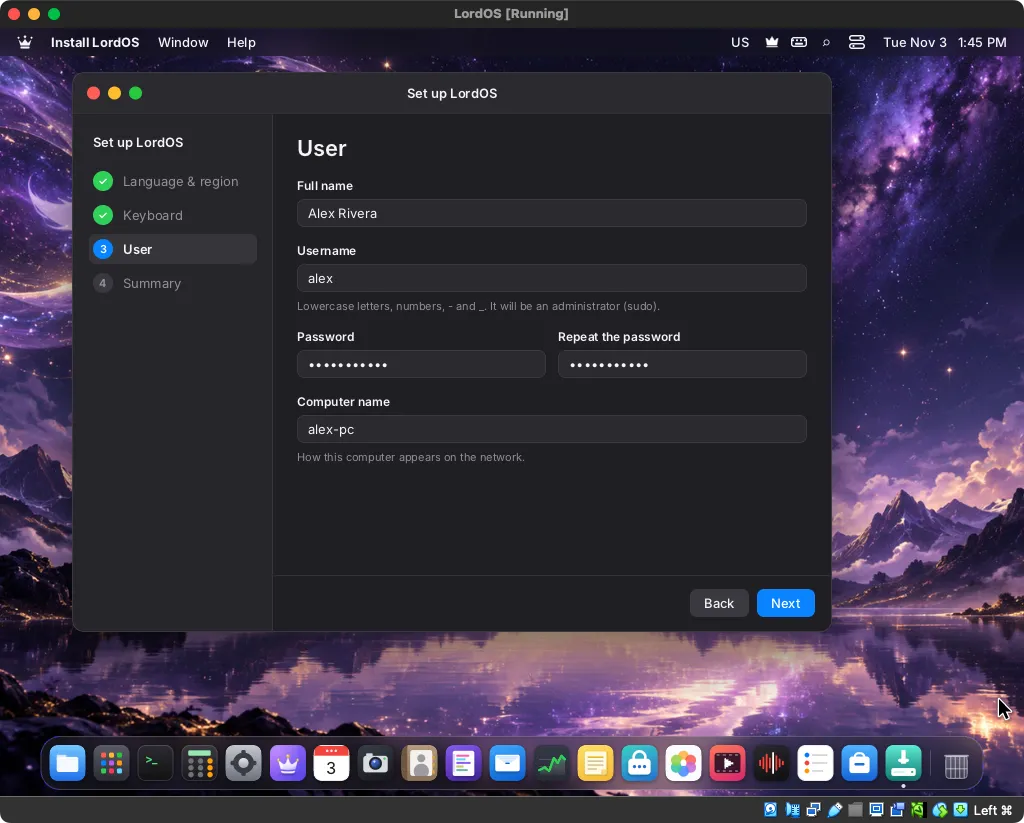
- User: your name, user name, password and the computer's name.
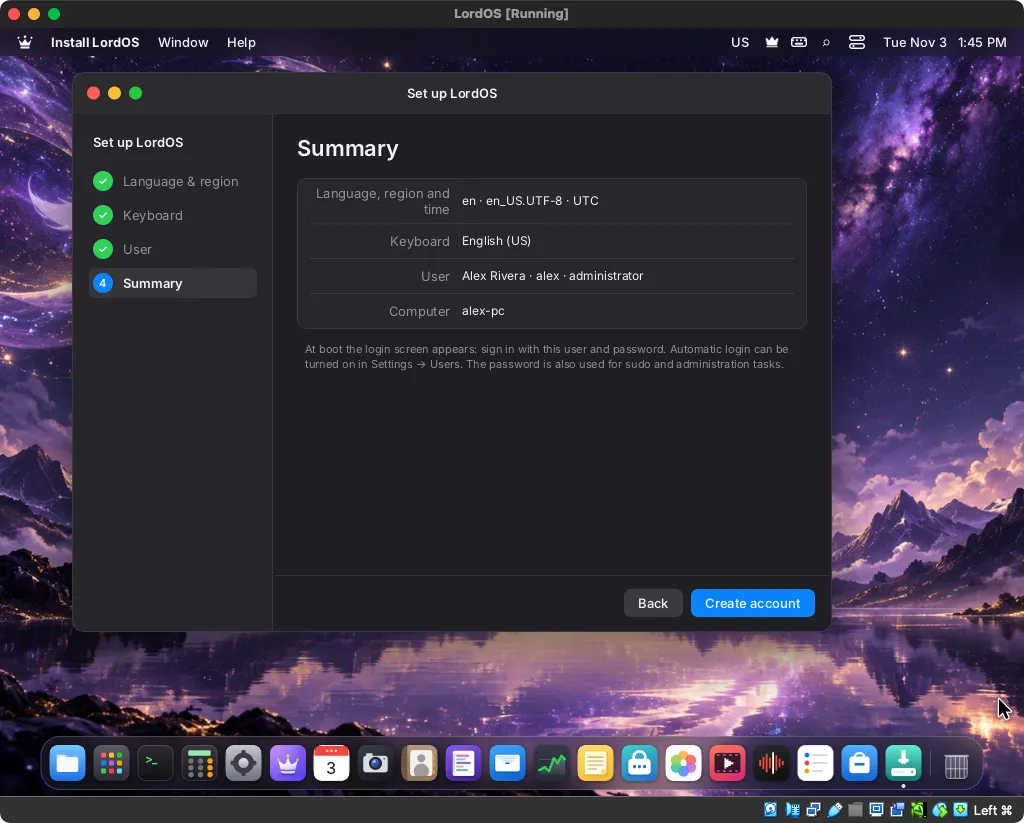
- Summary, then Create account.
- Restart. The login screen appears: sign in with the password you chose.
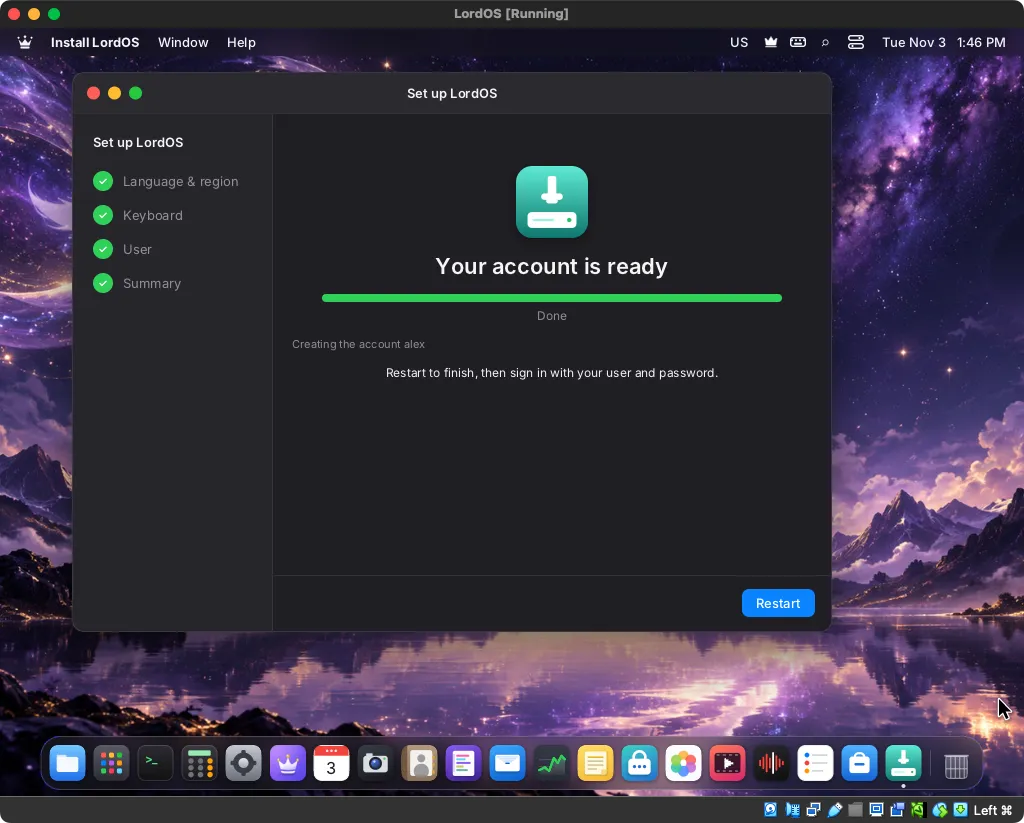
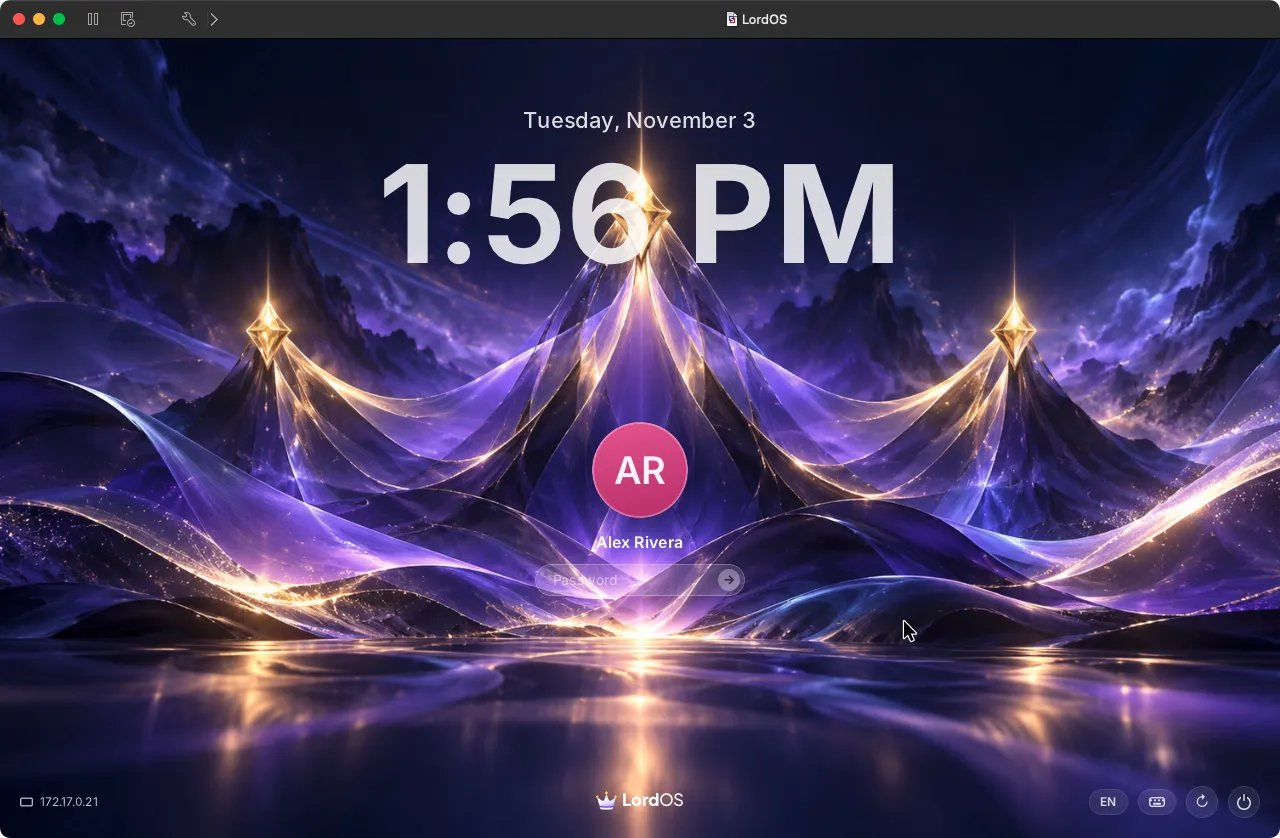
It is the same in VirtualBox and in VMware. Until the account exists, the machine runs a setup session with no password, reachable only from its own screen. Finish this step before leaving the machine running.
Adjusting the machine#
With the machine off, in its settings:
- Processors and memory: raise them if the host has room; 16 GB of memory is the ideal with many apps.
- Display: on VirtualBox, VBoxSVGA comes set; VMSVGA works too.
- Network: VirtualBox sets NAT, enough to browse and update; VMware Fusion picks a bridged connection, which puts the machine on your network. For other computers to reach it (remote desktop, for example), use a bridged adapter.
If something goes wrong#
- VirtualBox says
VERR_ALREADY_EXISTSwhen importing: a folder from an earlier machine with the same name is still inVirtualBox VMs. Removing a machine with "Remove only" keeps its files. Change the name on the import screen, or delete that old folder. - A black screen or a small window: check the display controller (above) and give the machine at least 4 GB of memory.
- It's slow: check that it has 4 CPUs or more and that hardware virtualization is on in the host's firmware.
For a bug report, run lordos-issue in the machine's Terminal and attach the file it writes to the issue.