LordOS draws its desktop on the Pi's GPU, decodes HEVC video in hardware, drives the fan and knows the Argon ONE V5 case by name. One image for both boards, written with LordOS Imager.
Raspberry Pi 5 in the Argon ONE V5 caseRaspberry Pi 500: a Pi 5 inside a keyboard
Tested on real boards
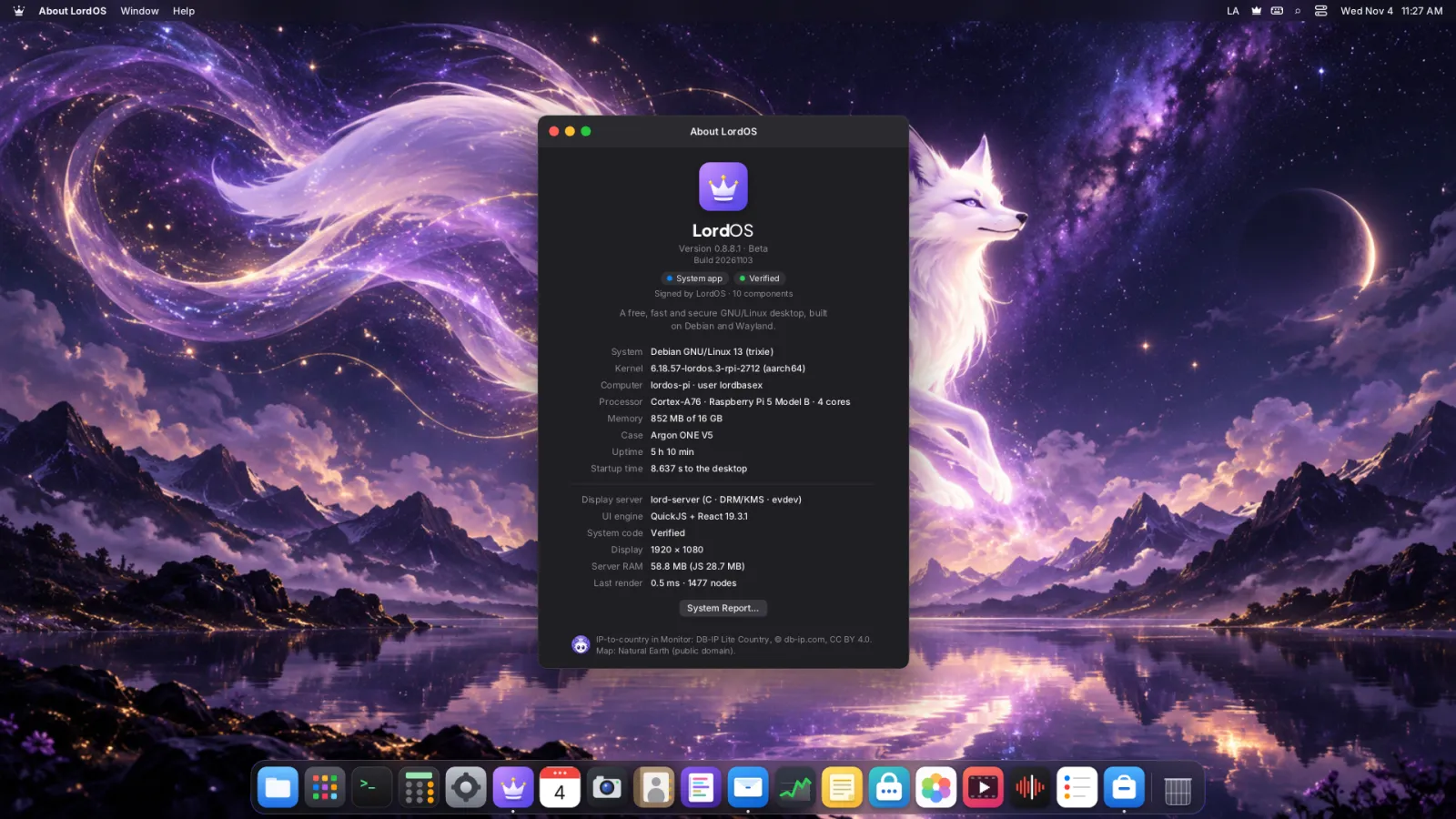
Numbers from the reports LordOS makes itself (lordos-issue and About LordOS), not from a spec sheet.
Raspberry Pi 5 · 16 GB
LordOS 0.8.8.1
Boot to desktop
8.6 s
Memory in use
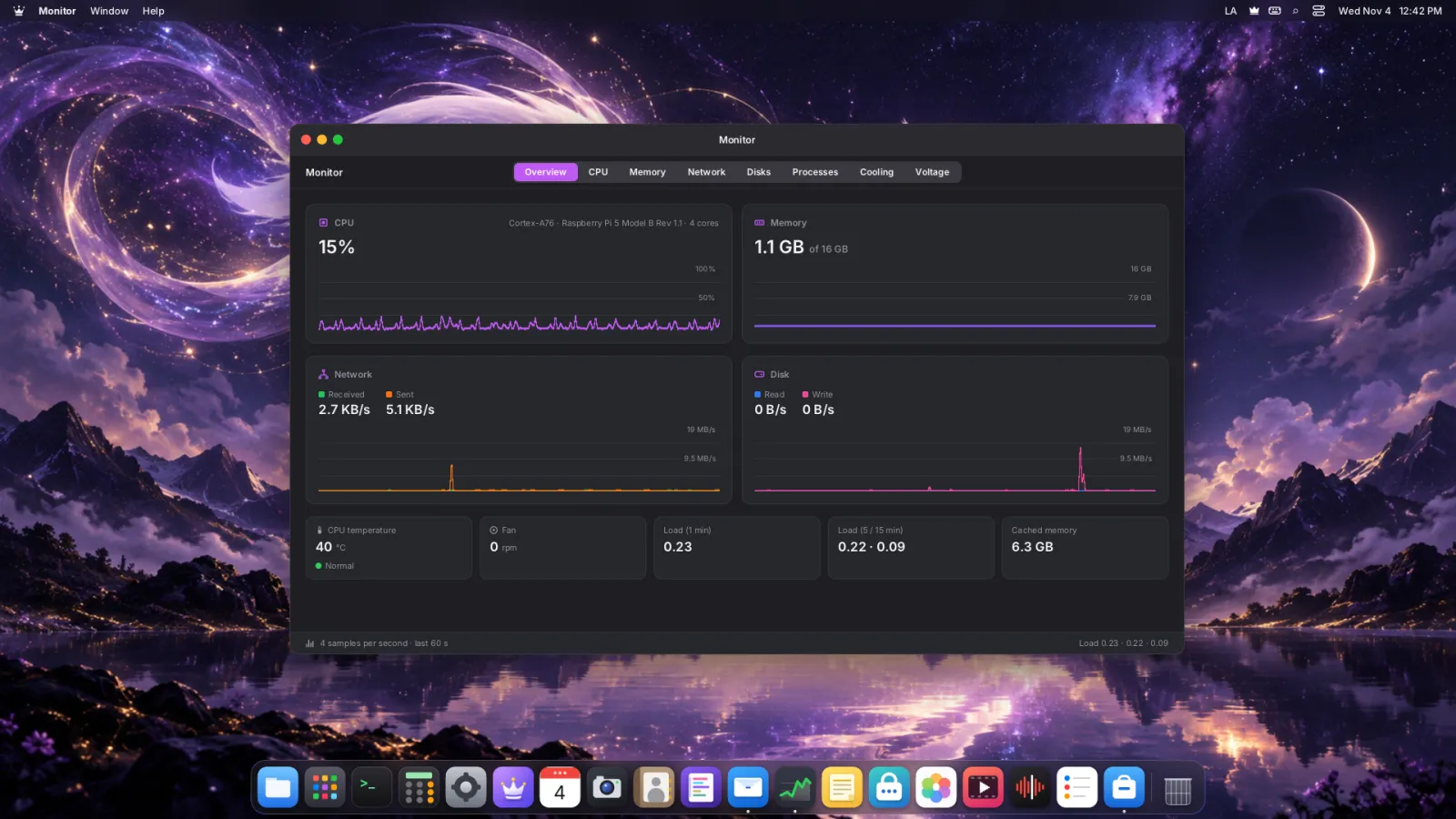
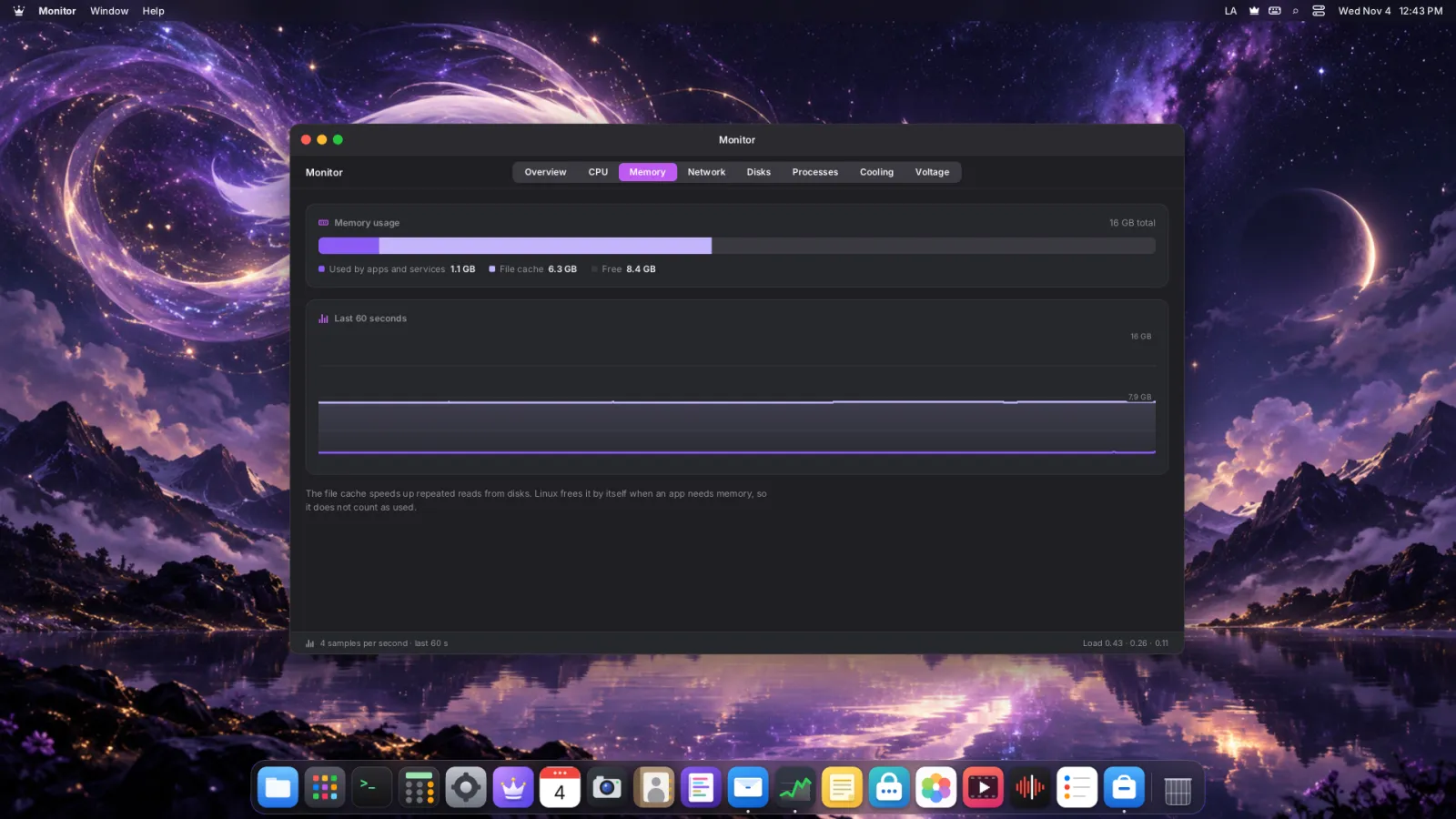
0.6 GB of 16 GB, desktop open
Display server
56 MB of RAM, a frame in 5.8 ms
Dragging a window
58.8 FPS at 1920 × 1080, on the GPU
Video
HEVC decoded in hardware
Case
Argon ONE V5, detected
Also working
Bluetooth keyboard and mouse, USB audio, Wi-Fi, Ethernet
Raspberry Pi 500 · 8 GB
LordOS 0.8.8
Display
4K, 3840 × 2160 at 150 %, composed on the GPU
Memory in use
1.8 GB of 7.9 GB, browser and Mail open
Keyboard
The built-in keyboard, recognized as is
Camera
USB webcam with its microphone
Signed code
Verified, 10 components
Still improving
Dragging windows at 4K (9 to 37 FPS)
Tested by Steve Sande. Thank you, Steve!
The Argon ONE V5 case, supported
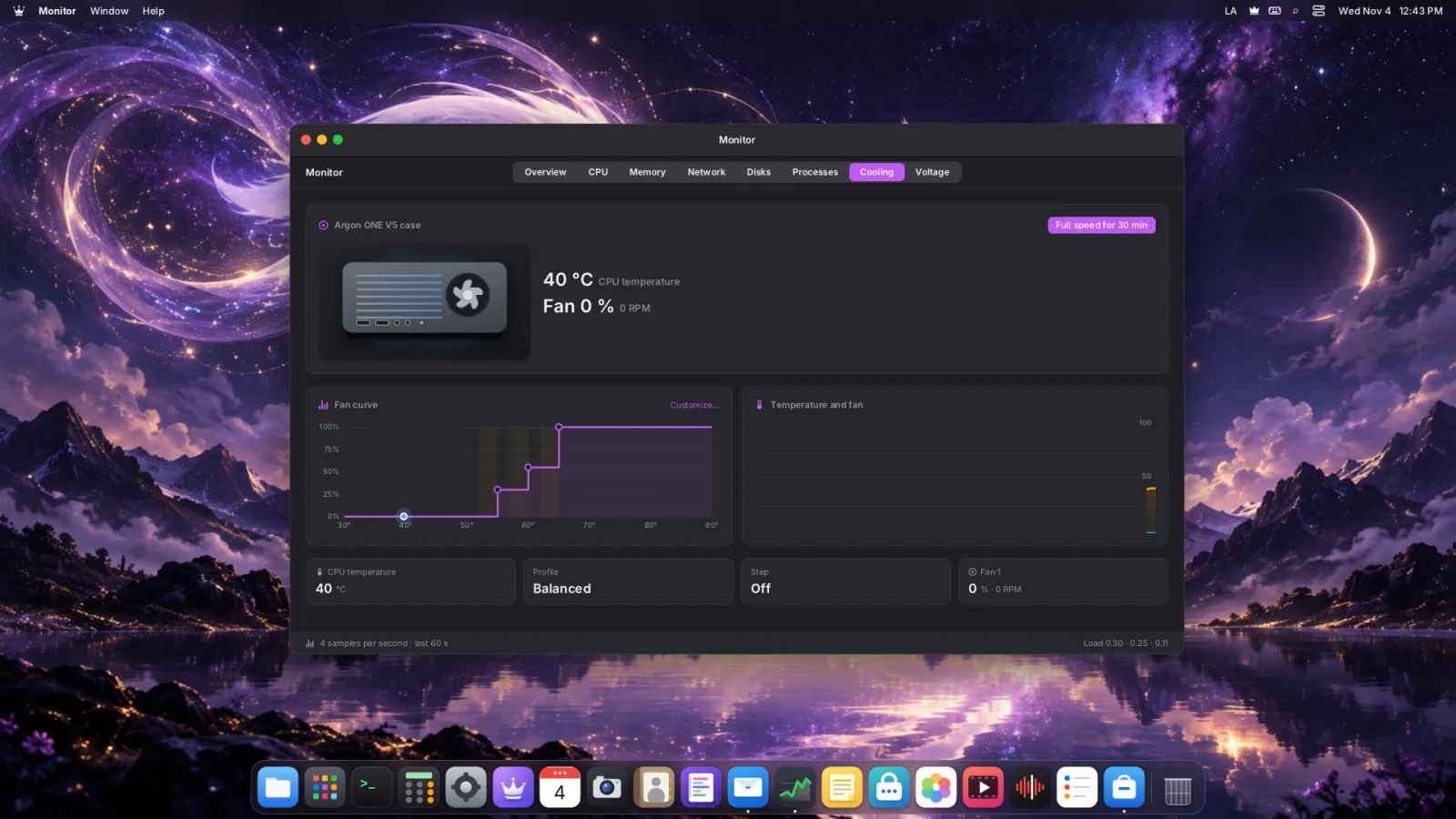
LordOS finds the case on the first boot and asks you once. After that, Settings → Cooling drives its blower with LordOS's own fan service, and its front USB ports and audio jack work. No vendor scripts.
Quiet by design: the aluminium body is a big heatsink. With Balanced, the fan stayed off at 50–53 °C under a full four-core load.
When it's needed: 2,700 RPM at 30 %, 4,500 at 55 %, up to 7,400 at full speed.
Front ports: two USB 2.0 ports, microphone and headphones, on after you pick the case in Settings and restart.
Safe: LordOS never changes the bootloader's power settings.
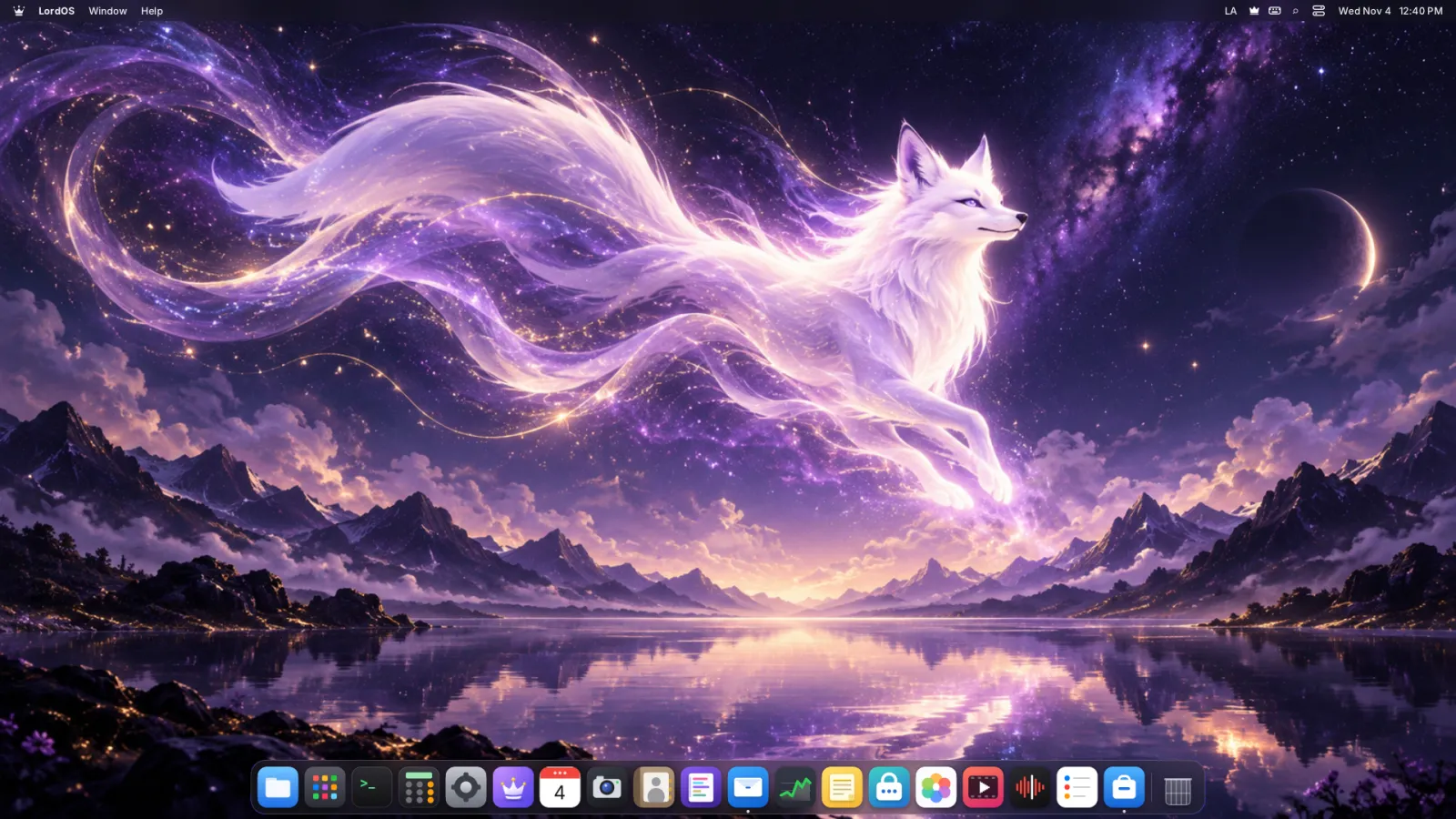
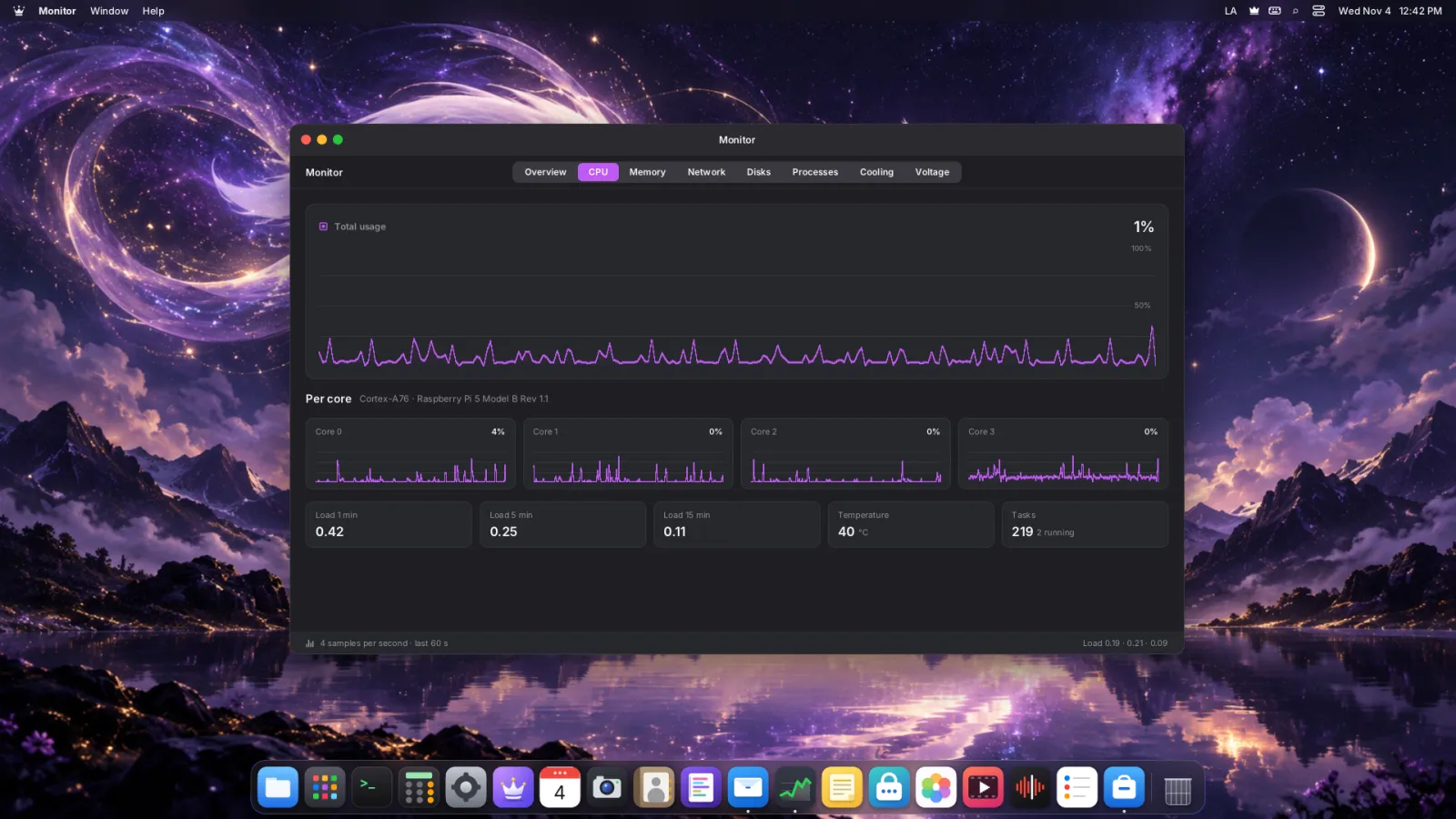
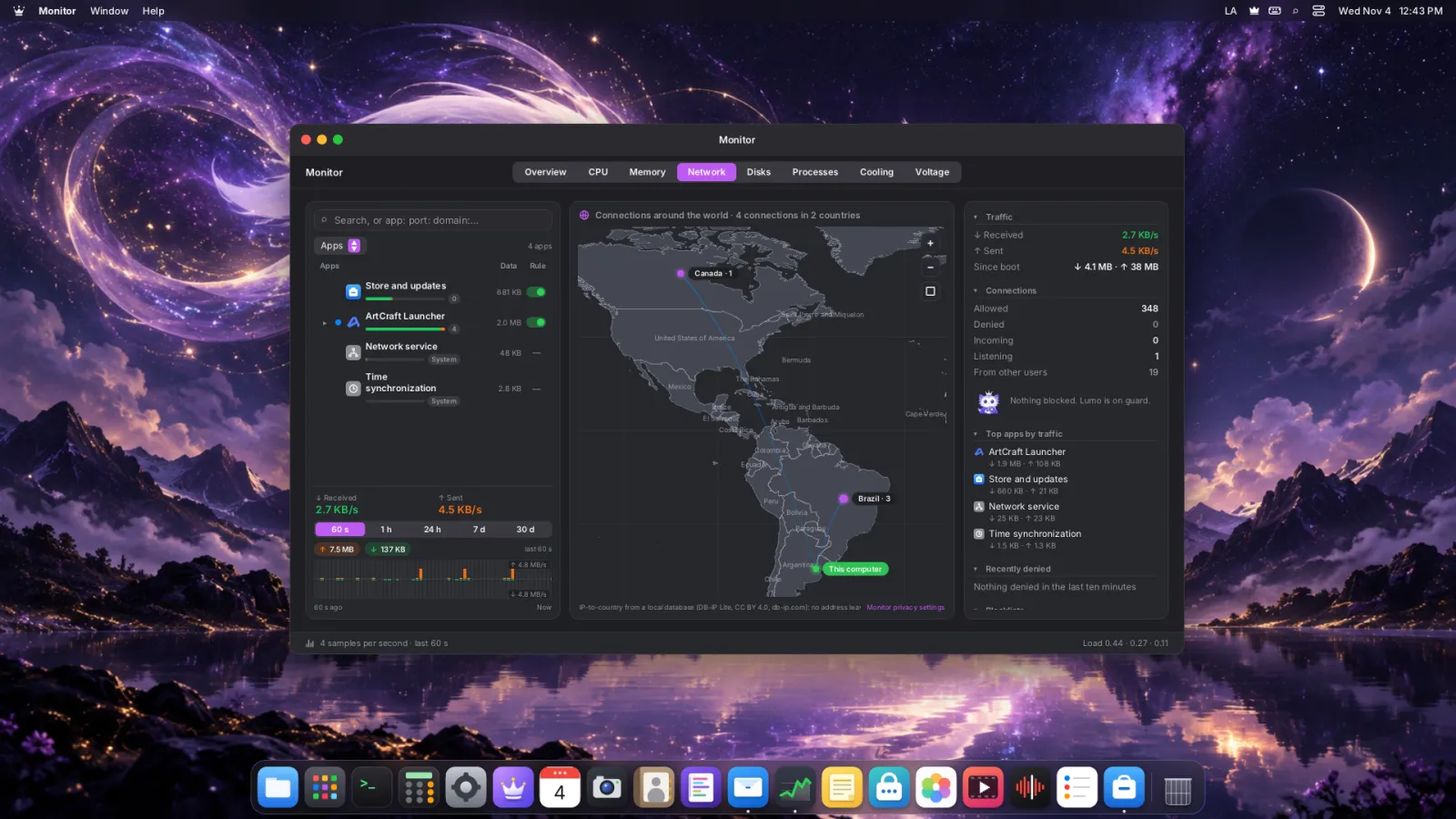
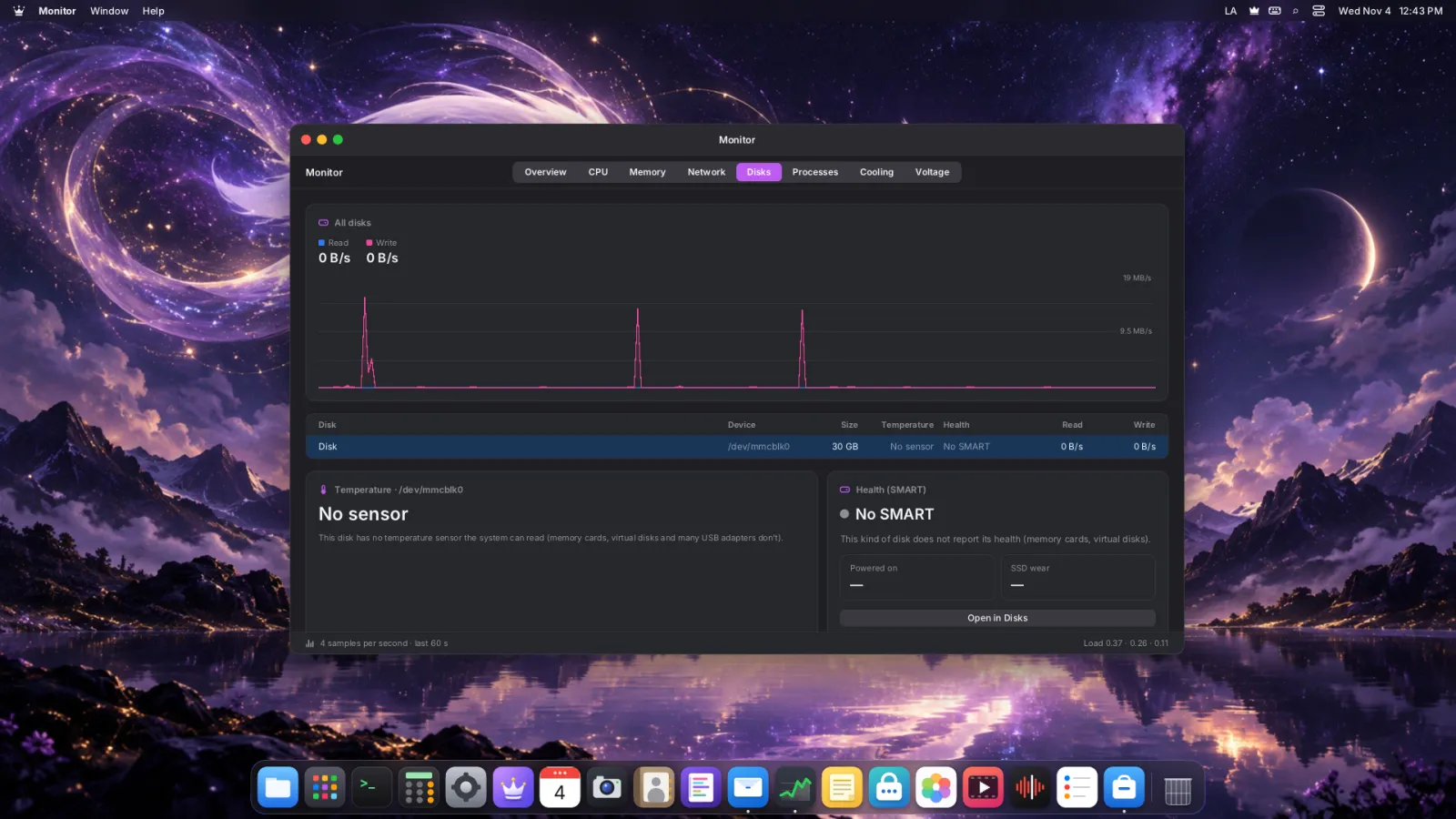
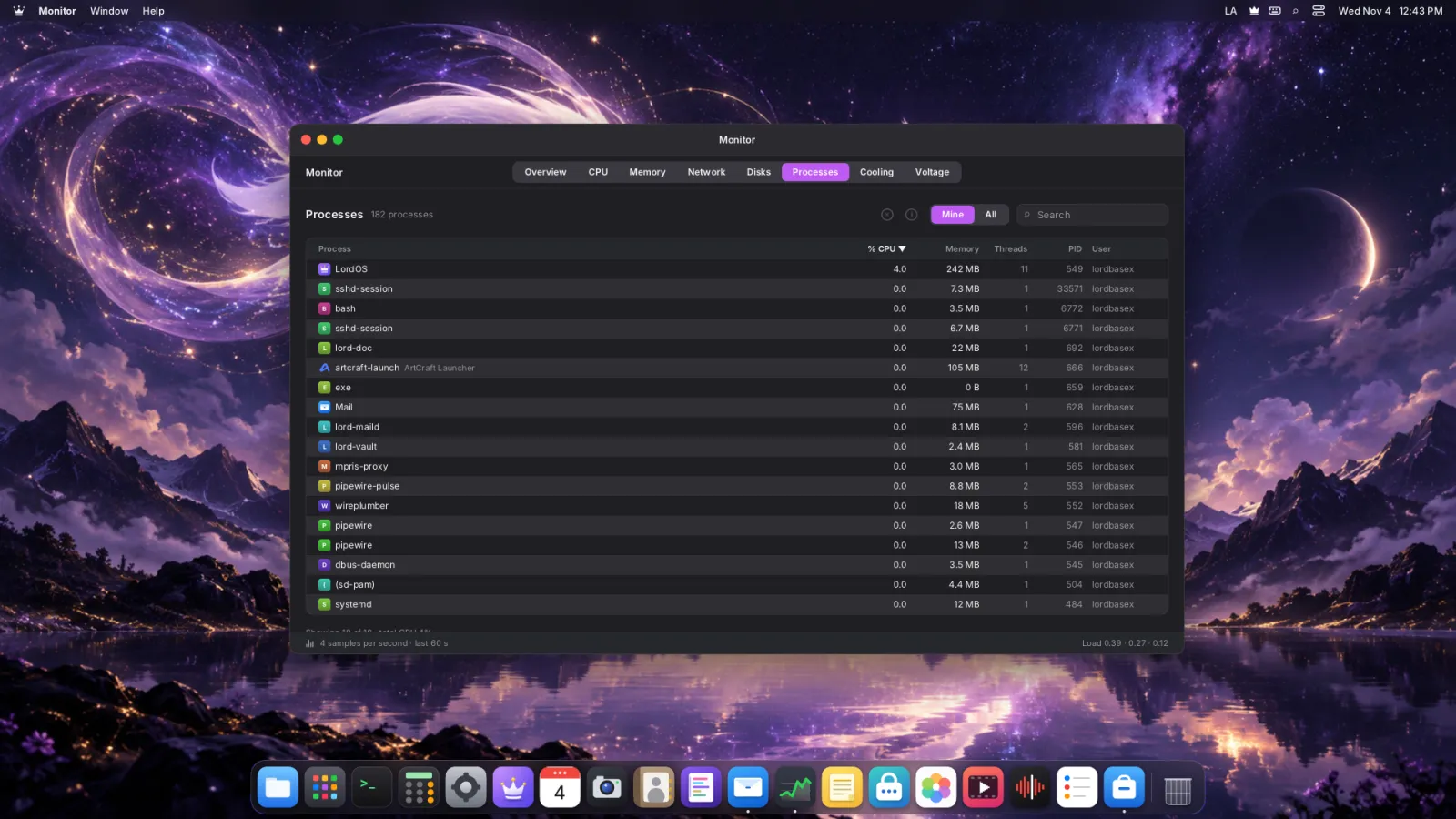
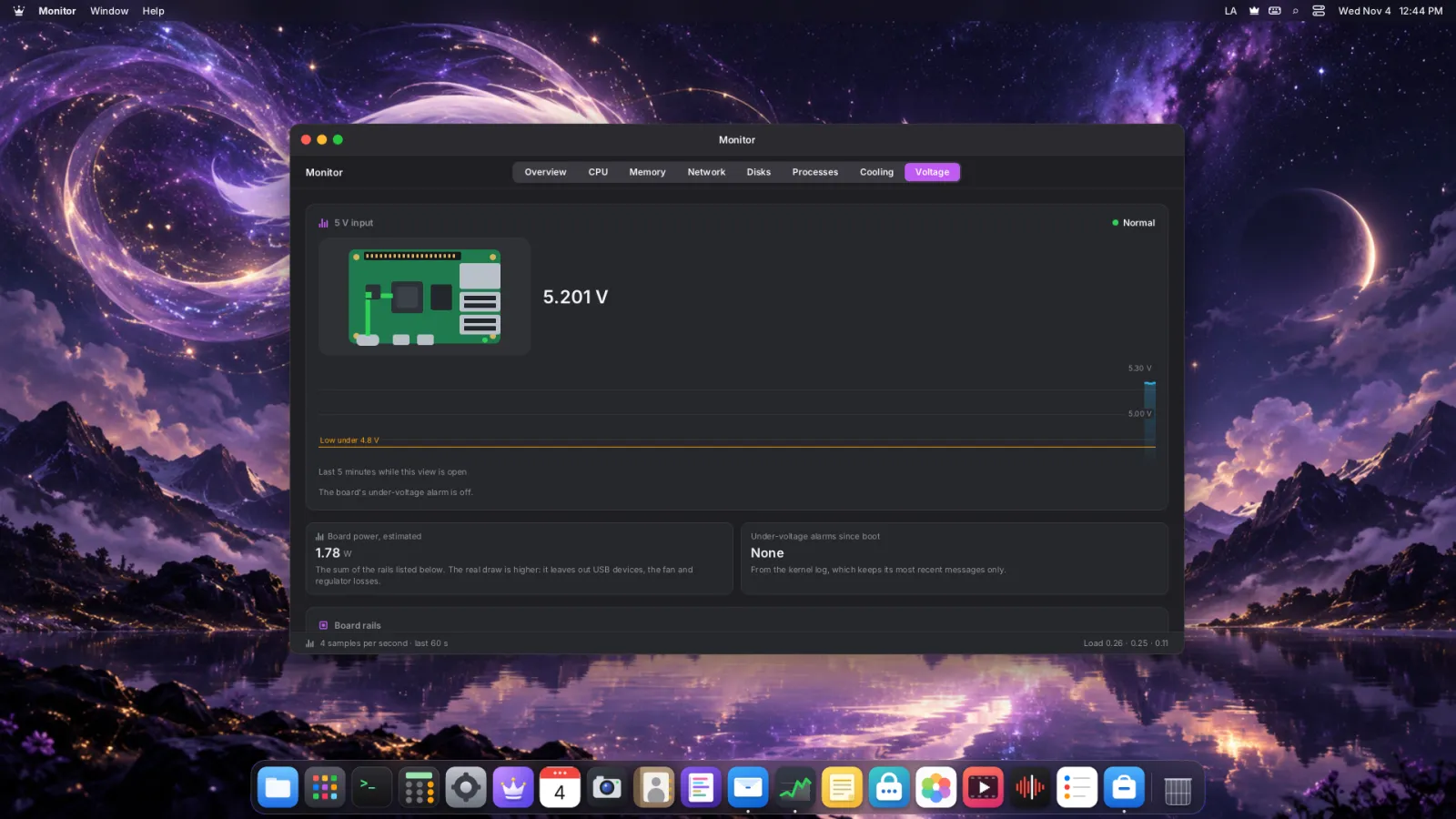
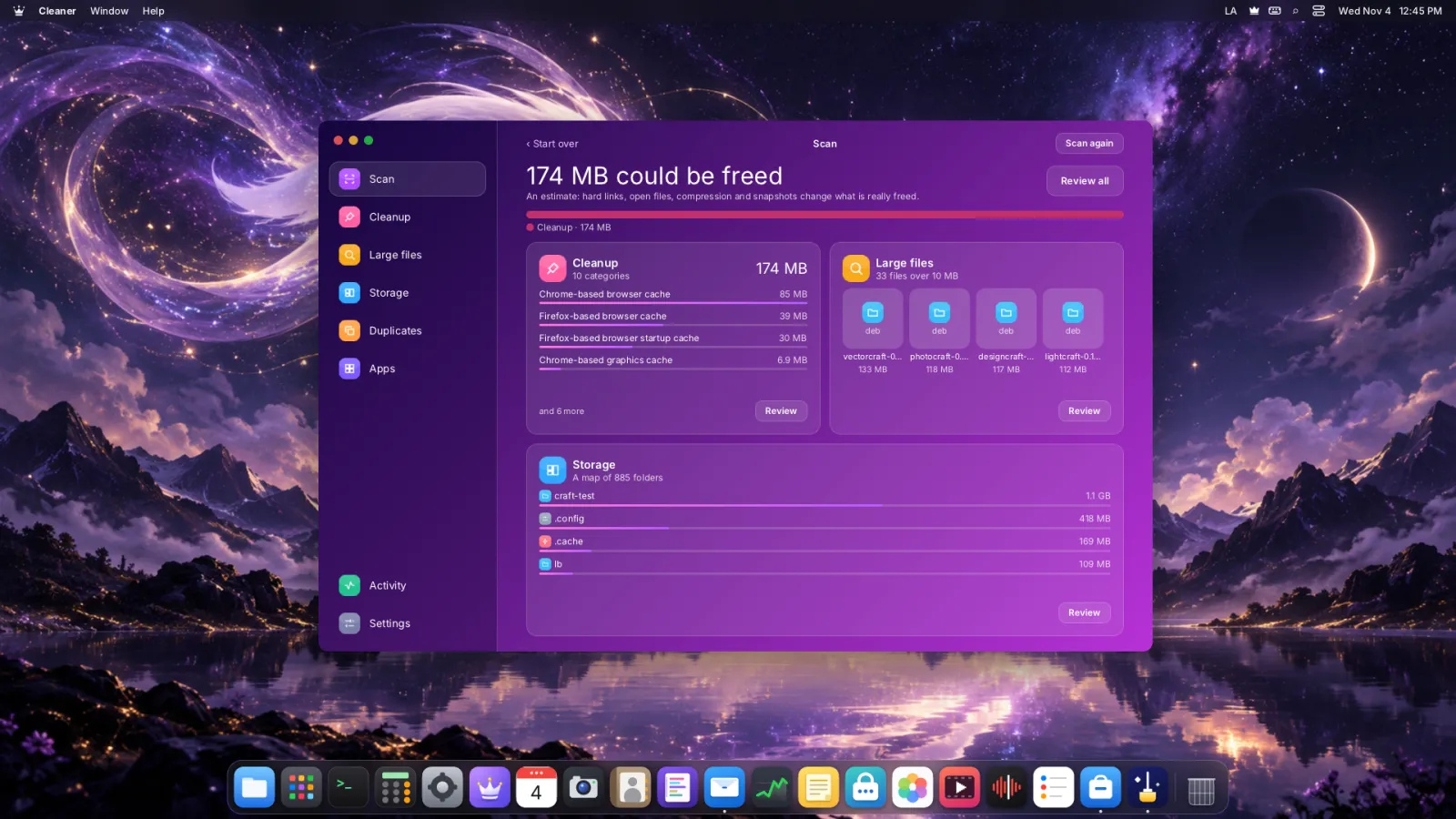
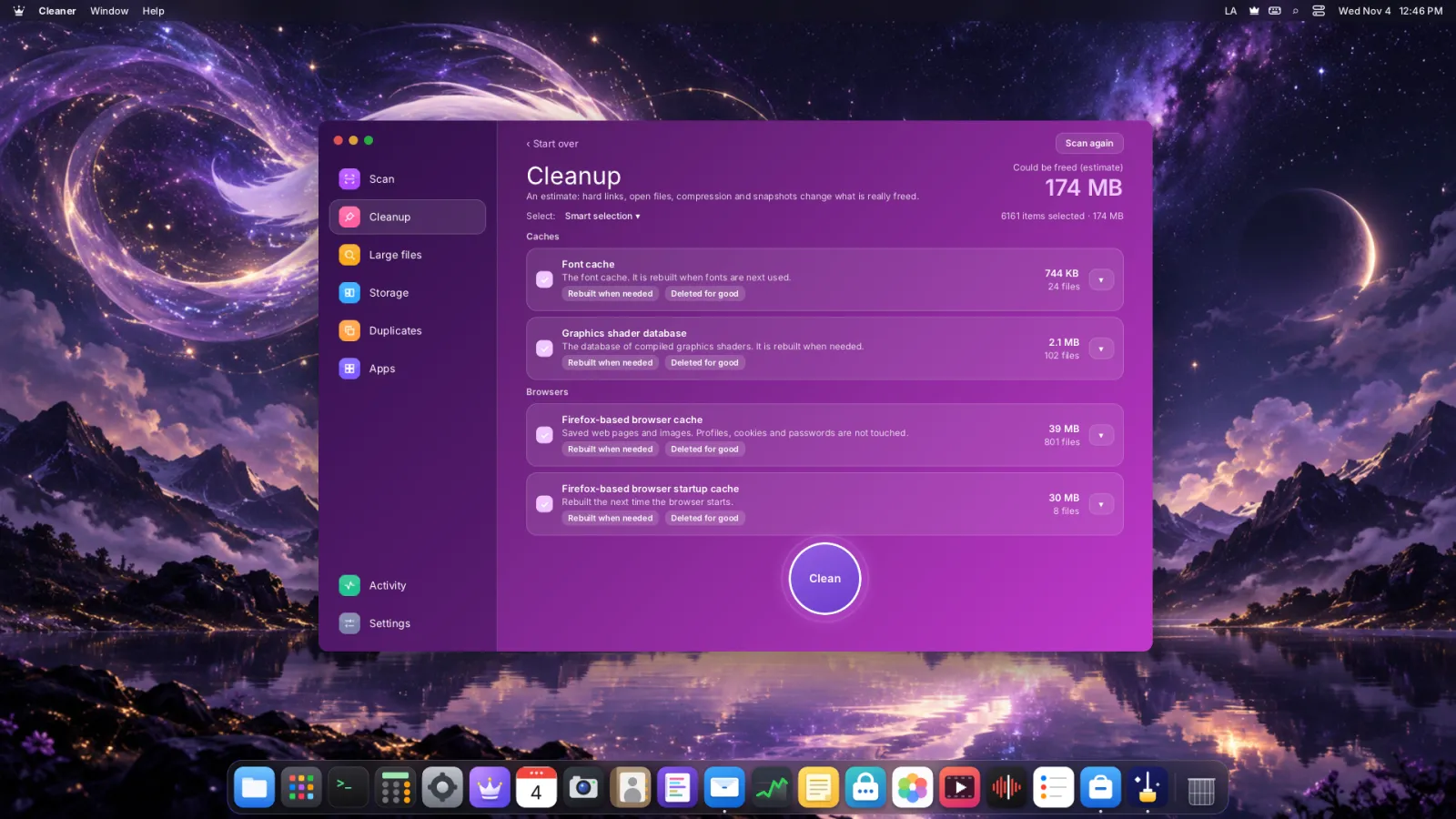
The desktop, 1920 × 1080About LordOS: board, case and signed codeMonitor: the whole system at a glanceMonitor: each core of the Cortex-A76Monitor: memory in useMonitor: network activity and every connectionMonitor: the SD card's activityMonitor: processesMonitor: temperature and the Argon's fanMonitor: the board's voltages and power drawCleaner: what fills the SD cardCleaner: review before anything is removed
Measure your Pi with LordBench
LordOS comes with its own benchmark. It waits for a quiet system, measures the CPU, memory, GPU, the compositor and video, and compares your board with our reference Raspberry Pi 5.
In the app
Open System Information → Performance and press Quick test (under a minute). The Full test adds the disk, every video codec and a few minutes of load on all cores: 4 to 6 minutes, with some wear on an SD card.
Post a screenshot of the Performance tab on r/LordOS, or paste the JSON in a hardware report, with your board, case and power supply. That is how we see where LordOS is fast and where it isn't yet.
Four tools in the terminal
They come with LordOS, work over SSH too, and never send anything on their own.
lordos-fetch
The crown and a one-screen summary: version, board, kernel, display, CPU, GPU, memory, disk and isolation. --share hides your user and computer names for a screenshot.
lordos-issue
A complete report for a bug or a hardware test: devices, drivers, displays, signed code, failed services and this boot's errors. Names and addresses are replaced; it only reads, and saves a file you check before posting.
lordos-sysreport
System Information from a terminal: report for the hardware, and bench --quick or --full for LordBench, the same measurements as the app, also as JSON.
lordos-testbench
A test card in a window: frames a second and frame times, every key lit as you press it, the mouse and its wheel, and what the display server reports. Handy to check a new keyboard, mouse or screen.
Tried LordOS on your Pi? Tell us
Every report helps the next person: which board, which case, which screen, what worked. LordOS writes the report for you, with names and addresses removed, and changes nothing.
shell
lordos-issue --print
Or open System Information → Compatibility and share it from there.