

The short version#
Lord Workspaces is new in 0.8.9, released on 18 November 2026.
LordOS doesn't have one desktop: it has three, and you choose. Lord Flow has a menu bar on top and a Dock at the bottom. Lord Classic puts everything in one taskbar with a start menu. Lord Workspaces organizes your work by activities, with a layout for each screen and widgets on the desktop.
The three run on the same display server, the same interface engine and the same apps. Files, Settings, Mail, the Terminal and your Linux apps are the same in all of them. What changes is the way you get to them, and you can change it at any time, live, without logging out.
Lord Flow#
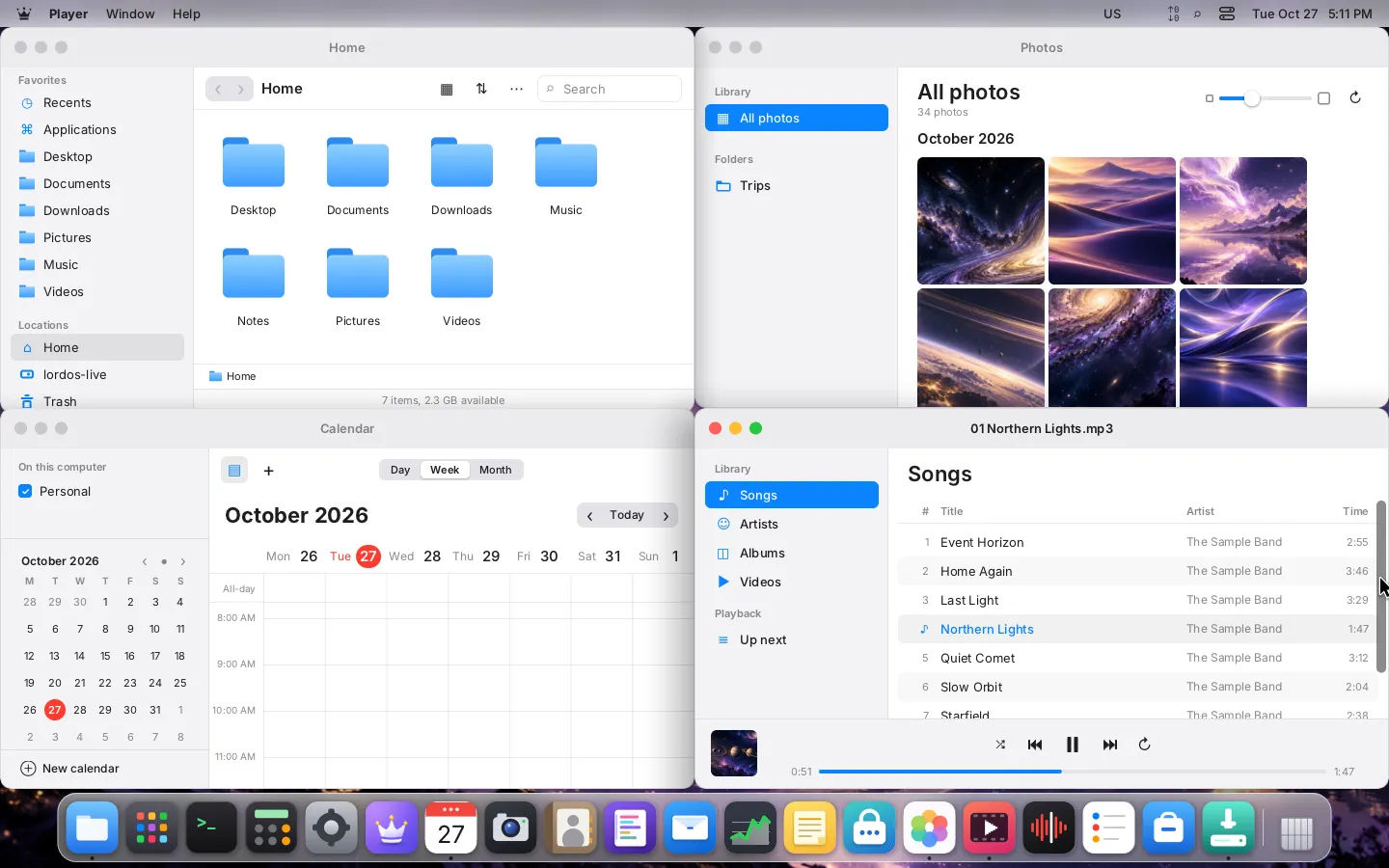
Since 0.8.0, the first release. A menu bar on top and a Dock at the bottom, with soft glass and rounded corners. It's the desktop many people already know how to use, so nobody has to learn a new way of working just to try a new system.
- The Dock magnifies under the pointer, shows which apps are open and gives each app its own actions. It can also sit on the left or the right.
- The menu bar holds the app's menus, the status items and the clock; the Control Center gathers network, sound, brightness, Do Not Disturb and the rest.
- The app launcher shows every app, and Search finds apps, settings and files.
- Snap windows by dragging them to the edges: a half, a quarter or the whole screen (in Lord Flow since 0.8.9).
- Desktops with an Overview, since 0.8.7, and an app switcher on ❖Tab.
Who it's for: anyone who wants to start working without learning anything new.
Lord Classic#
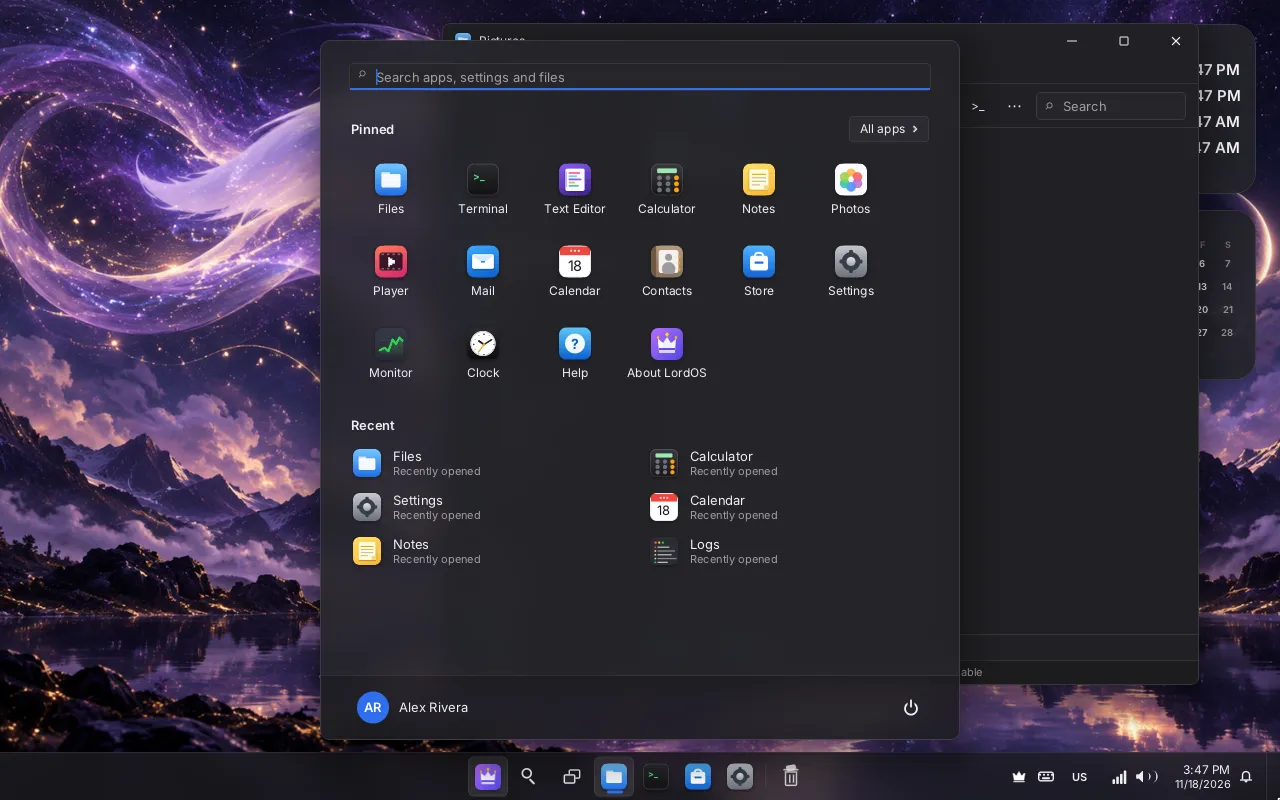
Since 0.8.3. Everything in one bar at the bottom: the start button, search, the pinned and open apps, a tray with quick settings and the clock.
- The start menu has a search field that searches like the system search (apps, settings, files, notes, the calculator, Help), a grid of pinned apps you arrange yourself, recently used apps, every app from A to Z, and the power button.
- Quick settings by the clock: network, Bluetooth, Do Not Disturb, Night Light, dark mode, volume.
- A taskbar on every display, on by default; the start menu and the panels open on the display you clicked.
- The taskbar can be centered or aligned to the start, on any side of the screen.
- Menus inside the window: with no menu bar on top, an app's menus sit in a strip under its title.
Who it's for: anyone coming from a desktop with a taskbar who wants to feel at home.
Lord Workspaces#
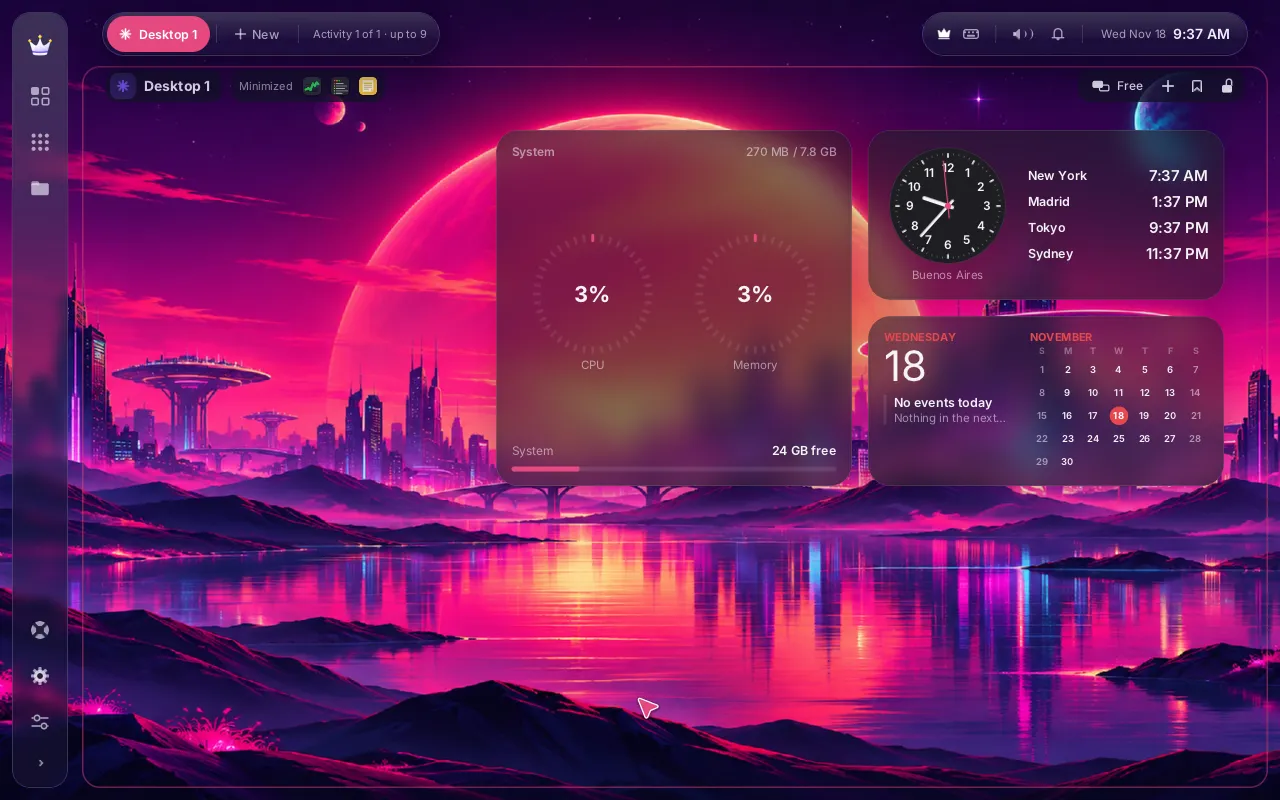
New in 0.8.9. Your work is not a pile of windows: it's a set of things you're doing. Lord Workspaces gives each one its own place.
- Activities. Up to nine, each with its own name, icon, colour, pinned apps and window layout per display. Pills at the top switch between them, and resting the pointer on one shows what it holds before you go there. Groups inside an activity take it up to 36 places to work.
- The Context Spine, a slim rail on the left with the crown, your activities, apps, files and the Control Atlas. It folds to icons on smaller screens.
- Six layouts per display: Free, One at a time, Two halves, Main and side, Three columns and Grid. Every monitor keeps its own, and minimized windows wait in the header of the monitor they came from.
- The Control Atlas: light or dark, high contrast, the effects style (Opaque, Translucent or Crystal), the accent colour, the wallpaper, the layout and your activities, in one place.
- Widgets: 21 of them, in six groups, on a grid of each display. They all read from one shared feed, and only while you can see them: a widget behind a window, on a display that is off, or while the session is locked reads nothing.
- Its own look: a pink accent and the Cyberpunk City HD wallpapers by default, an optional slideshow, and a pointer filled with your accent colour.
Who it's for: anyone who works with many windows, or with two or three monitors.
Switching#
Go to Settings → Appearance → Desktop style and pick another one. The change happens right away, without logging out: your open windows come back, each on its own desktop, and your settings stay.
A few things belong to each desktop. Lord Workspaces starts with a pink accent and its own wallpaper, while Lord Flow and Lord Classic keep blue and Lumo Celestial; once you pick an accent or a wallpaper yourself, it stays yours in every desktop. Desktop widgets work in all three since 0.8.9.
First start#
On a new installation, the first time a new account logs in, LordOS asks which desktop you want:
- Choose your desktop. Three equal cards, each with a real picture. They come in a random order every time, none is chosen and none is marked as recommended.
- See it live. The desktop you picked is applied for real. A small box lets you switch between the three, live, until one feels right.
- Change it whenever you like. A picture of Settings → Appearance shows where to change it later.
It never shows on the live system, on the login screen or to anyone who already used LordOS.
Why we can have many#
On LordOS, a desktop is one theme on one engine. The display server, the compositor and the interface engine are LordOS's own, written for it, and a theme is the whole desktop on top: the bars, the panels, the menus and every window frame, written in React and drawn by that engine. That's why Lord Workspaces didn't need a fork of the system, a new toolkit or a chain of plugins, and why it switches live.
On other desktops, such as GNOME or KDE, a desktop that works like Lord Workspaces would mean stacking extensions: one for tiling, another for per-monitor workspaces, a third for a taskbar on each screen, each with its own release schedule. Here it is the desktop itself.
That is also why there will be more. If you have an idea for the next one, tell us on GitHub.
Honest limits#
- Lord Workspaces was checked with scene tests on three displays and headless screenshots. On real monitors and the GPU path it has only run on the maintainer's own computer, with test builds, and it has not been checked in a right-to-left language yet.
- Not in Lord Workspaces yet: live miniatures of hidden activities (the Overview shows frames with each app's icon), real frosted glass over Linux apps on the GPU path, and a different activity on each monitor.
- The wallpaper slideshow was checked on test displays only, not on real monitors or the GPU path.
- The first-start chooser is covered by automated tests in all three desktops, but hasn't been seen yet on a real first start.
- A theme you build yourself runs only on a development build of LordOS for now: a release build loads only code listed in LordOS's signed manifest.